How to Download Apple Music as MP3 (2026 Guide)
 By Delilah Rene
Apple Music Tips
Updated on 3/25/2026
By Delilah Rene
Apple Music Tips
Updated on 3/25/2026
Apple Music has revolutionized the way we consume audio, offering a staggering library of over 100 million songs in high-fidelity quality. However, for many users, there is a significant frustration: you can not download mp3 songs from Apple Music. If you want to listen to your favorite tracks on a Sony Walkman, a SanDisk MP3 player, or even a car stereo via USB, you’ll find that the files you "download" for offline use are locked. In this exhaustive guide, we will explore the technical reasons behind these restrictions and provide the most effective, high-quality solutions to download Apple Music to MP3 for permanent, unrestricted listening.
- Why Can't You Directly Save Apple Music as MP3?
- Method 1: The Best Way to Download Apple Music to MP3 (Recommended)
- Method 2: Convert Purchased Apple Music to MP3 via iTunes
- Method 3: Using Online Apple Music Downloaders
- Comparison: Which Apple Music to MP3 Method is Best?
- FAQs: Common Questions About Apple Music MP3 Downloads
Why Can't You Directly Save Apple Music as MP3?
When you subscribe to Apple Music, you’re granted a license to stream songs, not to own them as permanent files. Even when you “download” a song for offline listening inside the Apple Music app, the file is encrypted and tied to your Apple ID. It can only be played through authorized apps (Apple Music, iTunes) on devices signed into your account. To overcome this, you need a specialized Apple Music MP3 converter that can record or decrypt the stream into a universal format.
Method 1: The Best Way to Download Apple Music to MP3👍👍
If you’re looking for the most reliable way to download Apple Music to MP3, you’ve likely encountered the frustrations of DRM encryption. TunePat Apple Music Converter is specifically engineered to bypass these restrictions, offering a seamless solution to convert Apple Music to MP3, FLAC, or WAV. Whether you need your playlists for an offline MP3 player, a car stereo, or a permanent local backup, TunePat preserves 100% of the original audio quality while saving mp3 songs to your computer permanently.
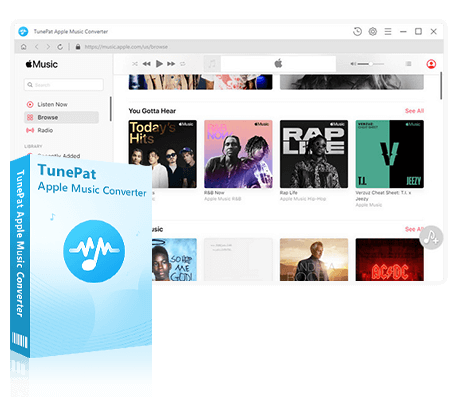
TunePat Apple Music Converter
TunePat Apple Music Converter helps you download and convert all Apple Music songs and playlists to your local computer for offline listening.
Step 1 Launch TunePat and decide how you want to access your library. TunePat allows you to download music from both iTunes/Music app or Apple Music website. Log into your Apple ID to load your library.
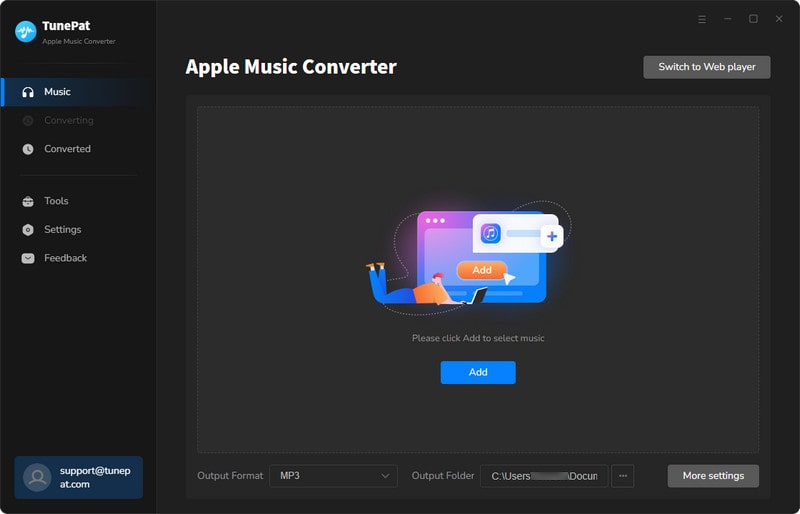
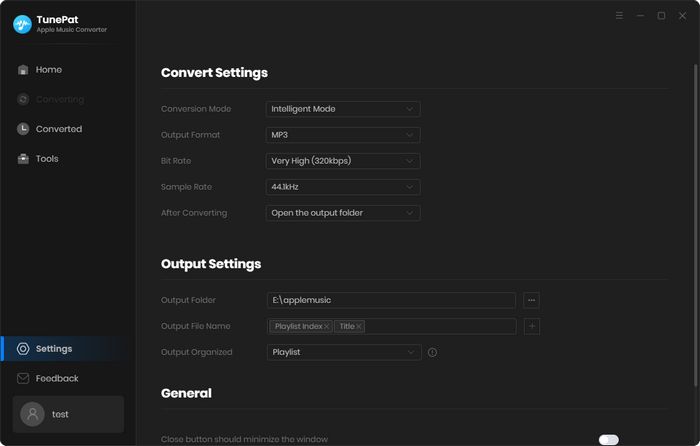
Step 2 Before selecting your songs, click the Settings (gear icon) in the bottom-left corner to define your local file requirements:
- Output Format: Choose MP3 for the best compatibility across all devices.
- Bit Rate: Select 320kbps for high-resolution sound.
- Output Folder: Choose exactly where on your PC or Mac you want the "Local Files" saved.
- Organization: You can automatically sort your downloads into folders by Artist or Album to keep your library organized.
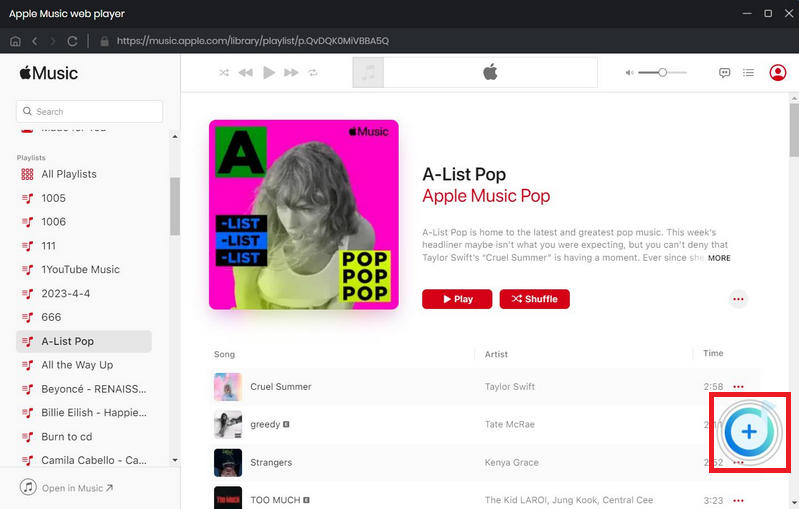
Step 3 Browse your library within the TunePat interface. When you find a playlist or album you want to download, click the Add (+) button. A list of all tracks will appear, check the boxes for the specific songs you want to download. Click Add to confirm your selection.
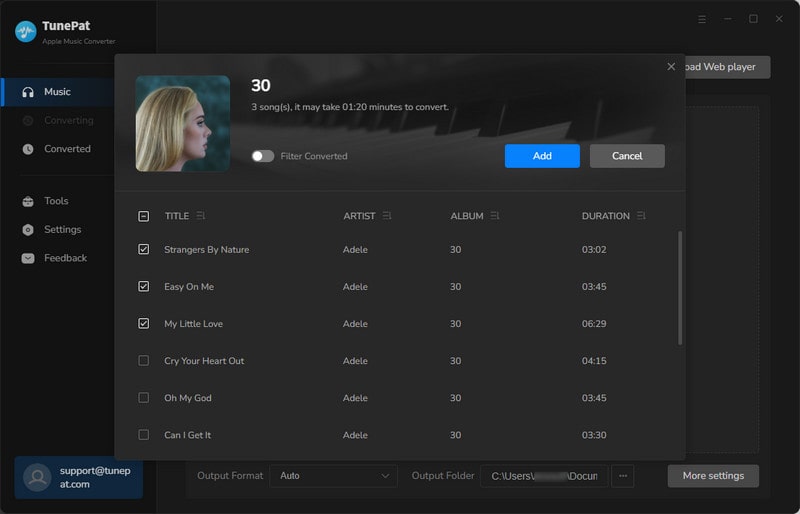
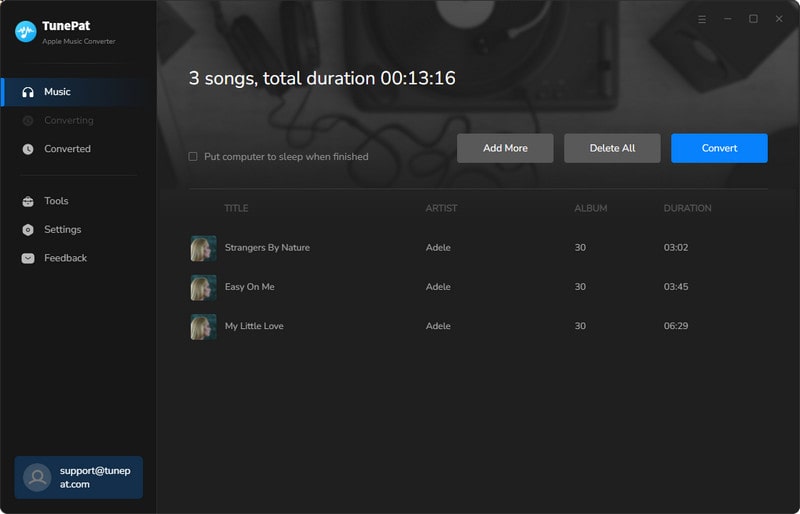
Step 4 If you still want to add some songs from other albums or playlists, you can click the "Add More" button to repeat the previous steps. If not, please click "Convert" to start downloading the songs. TunePat will efficiently process the tracks, turning them from app-locked streams into standard MP3 files while preserving all essential metadata, including album art and track titles.
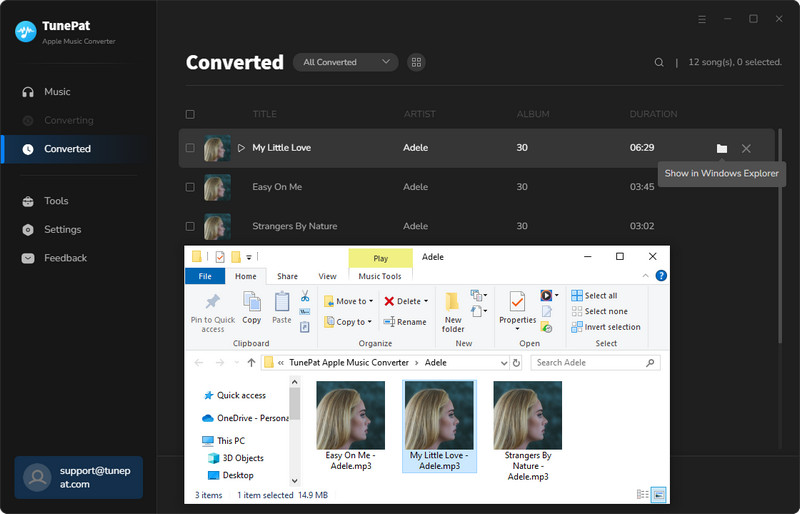
Step 5 Once the process is complete, head to the History tab (the clock icon). Click the folder icon next to any song to instantly open the location on your hard drive. Your music is now ready to be moved to a USB drive, an MP3 player, or a car stereo for unrestricted listening.
 Video Tutorial: How to Use TunePat Apple Music Converter?
Method 3: Using Online Apple Music Downloaders
For users who only need to grab a few songs and don’t want to install software on their computer, online Apple Music to MP3 downloaders are a popular "no-install" alternative. These browser-based tools work on almost any device, including smartphones, tablets, and Chromebooks. While convenient, it is important to remember that free online tools often come with lossy audio quality, and a heavy presence of advertisements.
1. APLMate
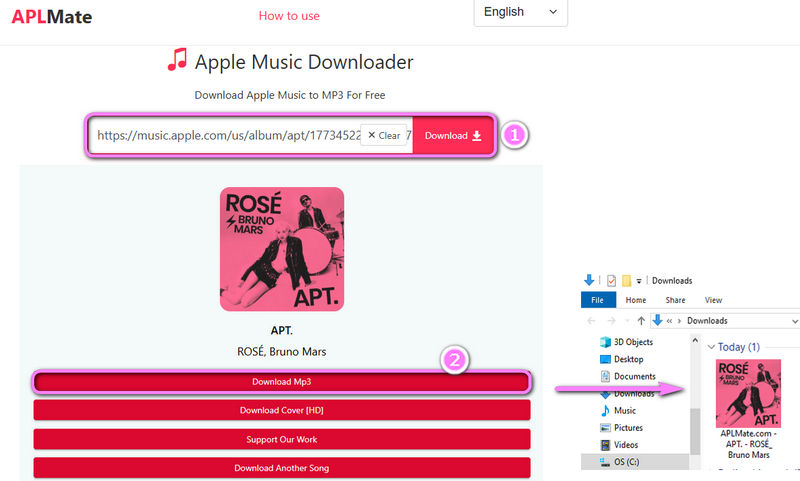
APLMate is widely considered the best "one-click" online tool for 2026. It is specifically optimized for Apple Music and allows you to download both the audio and high-definition cover art.
Step 1 Open the Apple Music app or web player and copy the Link to the song.
Step 2 Go to aplmate.com. Paste the URL into the search box and click Download.
Step 3 Choose the Download MP3 button to save it to your device.
Pros
-
 Completely free with no registration required.
-
Downloads the original HD album cover alongside the track.
Cons
-
 Downloads are strictly capped at 128kbps in MP3 format.
-
The site automatically prepends its own name to the file (e.g., "[APLMate.com] Song Title").
-
You cannot download playlists or albums; every song must be processed one by one.
-
The interface is frequently interrupted by intrusive pop-up advertisements.
2. AAPLmusicDownloader
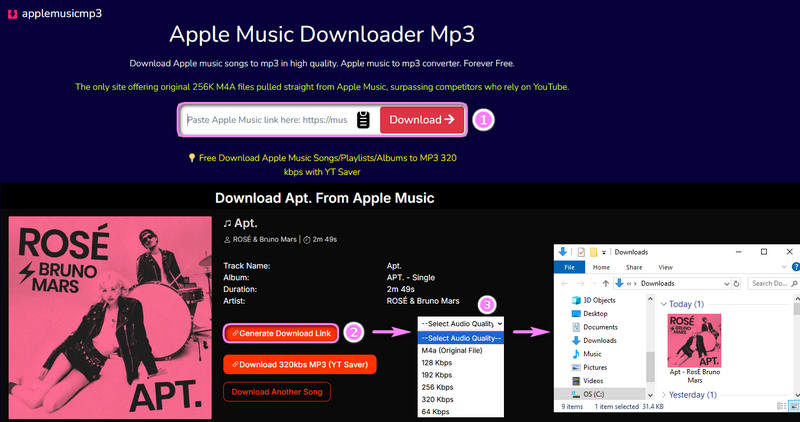
AAPLmusicDownloader (or AppleMusicMP3) is slightly more advanced, offering some support for album-level downloads, though it is often slower to process.
Step 1 Open your preferred web browser and navigate to the AAPLmusicDownloader website.
Step 2 Copy the URL of the Apple Music track, album, or playlist you wish to download from your audio source. Paste the link into the search box on the homepage. The website will automatically begin parsing the link and redirect you to a dedicated download interface.
Step 3 Click the "Generate Download Link" button. A drop-down menu will appear, allowing you to choose your preferred format and bitrate.
Note on Advertisements: Once you select your quality settings, a new browser window or advertisement page will likely pop up. Ignore this window and stay on the original page. Your download should begin automatically in the background without any further interaction.
Pros
-
Can package multiple tracks into a ZIP file.
-
You can choose to download in M4A or MP3 formats, with a bit rate of up to 320kbps.
-
Some ID3 tags can be kept, such as artist, cover art, album, and year.
Cons
-
Free users are often limited to 2-3 songs at a time
-
Generating the download links for an entire playlist can take several minutes.
-
The tool frequently fails to parse links during high-traffic periods.
Comparison: Which Apple Music to MP3 Method is Best?
| Software Name | Ad-Free | Format | Bit rate | Batch Download | Support Range | Systems |
|---|---|---|---|---|---|---|
| TunePat Apple Music Converter | ✅ | MP3, AAC, FLAC, WAV, AIFF, ALAC | Up to 320 kbps | ✅ | Tracks, Albums, Playlists | Windows & Mac |
| AAPLmusicDownloader | ❌ | M4A, MP3 | Up to 320 kbps | ❌ | Free for tracks; Subscription for others | Online Website |
| APLMate | ❌ | MP3 | 128 kbps | ❌ | Tracks, Albums, Playlists | Online Website |
FAQs: Common Questions About Apple Music MP3 Downloads
Q1: Why Choose MP3 Over AAC/M4P?
A: While Apple’s native AAC format offers excellent sound quality at lower bitrates, MP3 remains the undisputed king of audio formats for several reasons:
- Universal Compatibility: Every digital device made in the last 30 years can play MP3 files.
- Storage Efficiency: MP3 allows you to choose your bitrate (e.g., 320kbps), providing a perfect balance between high-fidelity sound and small file sizes.
- Metadata Flexibility: MP3 files handle ID3 tags (Artist, Album, Cover Art) robustly, ensuring your music library looks organized on any device.
- Permanence: An MP3 file on your hard drive is yours to keep. It doesn't check a server to see if your subscription is still active.
Q2: Can I convert Apple Music to MP3 for free?
A: Tools like APLMate or AAPLmusicDownloader are the most common free options. They don't require an account, but they have strict limits. You are often limited to 128kbps quality, and you have to deal with intrusive ads and messy file names.
Q3. Will I lose song quality during the TunePat conversion?
A: No, you won’t lose noticeable quality, provided you select the correct settings. TunePat is designed to "losslessly" capture the audio stream, but since you are converting from Apple’s protected format to a standard one (like MP3 or FLAC), your choice of Output Format is the biggest factor.
To get max audio quality: Under Settings option, choose Record Mode and lossless audio format such ALAC (Apple version of FLAC). Then download songs from Apple Music app. You can get up to Hi-Res Lossless quality songs.
Conclusion
As we’ve explored, the "best" way to download Apple Music to MP3 depends entirely on your specific needs. If you are looking for a quick, one-off track for a ringtone and don't mind a lower 128kbps bitrate or manual file renaming, an online tool is a functional, no-cost solution.
However, for those who take their music library seriously, the limitations of online downloaders can be a significant hurdle. If you want to build a high-fidelity collection that is organized, high-resolution, and compatible with everything from your car stereo to your professional DJ software, TunePat Apple Music Converter is the superior choice.

Delilah Rene
Senior Writer