TuneCable Spotify Downloader Review 2026: Features & Alternatives
 By Olivia Anderson
Reviews
Updated on 03/26/2026
By Olivia Anderson
Reviews
Updated on 03/26/2026
If you are searching for a TuneCable Spotify Downloader review, you are likely looking for a reliable way to download Spotify music as local files for offline listening. Spotify offers an official offline mode, but downloaded tracks are locked within the app and cannot be transferred or stored permanently. Because of this limitation, many users turn to third-party tools like TuneCable Spotify Downloader to gain more control over their music.
In this review, we take a detailed look at TuneCable, including its core features, audio quality, usability, and real user feedback. We also explore whether it is still a good choice in 2026 and what alternative may offer more flexibility.
Part 1: What Is TuneCable Spotify Downloader?
TuneCable Spotify Downloader is a desktop app that makes it easy to download and convert Spotify music into local files. It works with songs, albums, playlists, podcasts, audiobooks, and more. Unlike Spotify's built-in downloads, which are locked to the app, TuneCable saves your music in standard formats you can play on almost any device.
Once your music is downloaded, you can move it to phones, tablets, USB drives, car audio systems, or other media players. It works with both Spotify Free and Premium accounts, so most users can start using it right away.
As a handy bonus for desktop users, TuneCable also offers a free Android add-on. This means you can skip the computer entirely and download your favorite Spotify playlists, albums, or tracks directly to your phone. It keeps the audio quality top-notch for offline listening, which is a lifesaver if you prefer managing your entire music library on the go.
In short, TuneCable isn't just a downloader. It also helps you build and organize your personal offline music library on both desktop and Android devices.
Part 2: Key Features Overview
TuneCable stands out from basic Spotify downloaders because it offers a full set of features that go beyond just saving audio files.
2.1 Broad Content Support
I was surprised by how much this tool can actually do. It isn't just for single tracks; it pretty much picks up everything on Spotify:
- Songs, Albums, and Playlists: This is the main feature. It lets you keep your music offline so you don't have to worry about using data or losing access to your songs.
- Podcasts and Audiobooks: This is perfect for long videos or books. You can save them to your phone and listen during a flight or when you have no signal.
- Spotify Radio: I like this because it lets you save those smart radio mixes. If you find a new song you love while browsing, you can grab it for your collection.
- Music and Podcast Videos: You can also download Spotify music videos. This is great if you want to watch MVs or video podcasts offline instead of just listening.
Quick Review: I've been testing this and it handles a lot. Since I like K-pop MVs and live stages, I mainly tested the video feature and it's very smooth. When it finds a video, it lets you download the MP4 and the audio (like MP3 or FLAC) at the same time. I usually just keep the MP3, but having the video option is a nice touch lol.
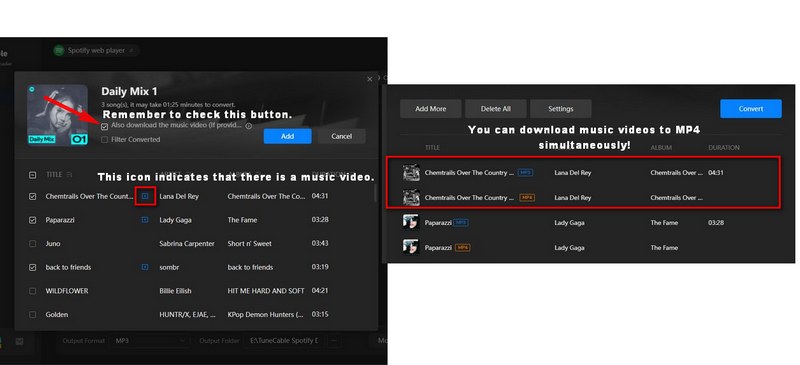
Pro Tip: Just a heads-up if you're downloading videos. Make sure you have enough space on your phone because MP4 files are much bigger than MP3s. It's a great way to save interviews or study videos for later!
2.2 Flexible Output Formats and Audio Settings
TuneCable covers all the main bases for formats like MP3, AAC, WAV, FLAC, AIFF, and ALAC. What's actually useful is how you can tweak the quality settings to fit how you listen:
- Bit rate up to 320 kbps: This is the go-to if you're listening on your phone or using standard Bluetooth earbuds. It keeps the file size small and saves storage space while still sounding clear enough for daily commuting or gym sessions.
- Sample rate up to 192 kHz: You'd want to bump it up to 192 kHz for high-res tracks where you want to capture every tiny detail. It's perfect for music with a lot of layers, like classical pieces or live jazz, where subtle textures usually get lost in standard streaming.
- Bit depth up to 24-bit: This makes a noticeable difference if you have a proper home setup with a DAC or high-end wired headphones. It gives the music more room to breathe and sounds much closer to the original studio recording.
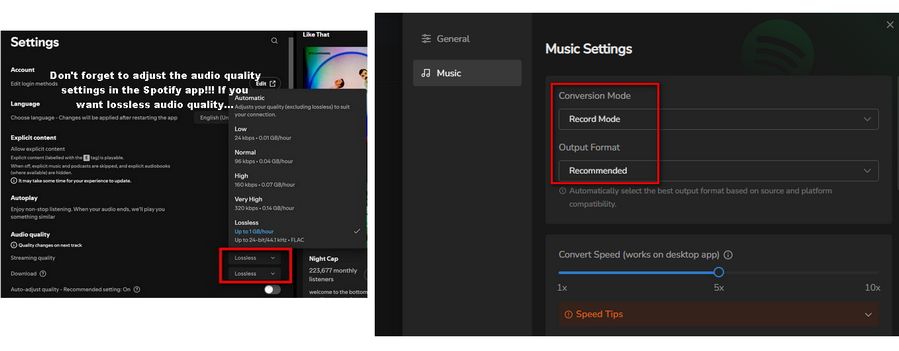
Quick Review: I usually stick with 320 kbps Spotify tracks just to save some space. But honestly, the coolest thing I found is that if you record directly from the Spotify app using the settings in the image below, TuneCable actually grabs the lossless audio that matches the original source perfectly. I love that it's all automatic since you don't have to mess with manual settings every time. Just a heads-up though, make sure to set your "Audio Quality" to Lossless inside the Spotify app settings first, otherwise it won't work. Trust me, I learned that the hard way on my first try lol. Hope this saves you some trouble!
2.3 Fast Batch Download
One of the biggest time-savers is that you don't have to download tracks one by one. TuneCable lets you grab entire playlists or albums in one go, and it's actually about 10x faster than the usual recording speed:
- Batch Downloads: This is a massive timesaver because you can grab hundreds of songs at once. Whether it's an entire album or every track from your favorite artist, you don't have to waste time clicking each song one by one.
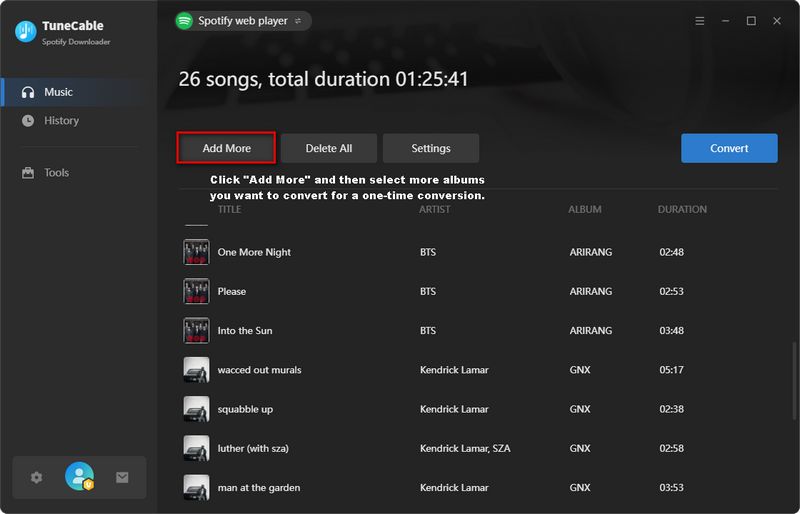
- Flexible Conversion Queue: What I like about this is how you can mix and match. You can add songs from different playlists or even different albums into one single list, and then just hit "Convert" to handle everything in one go.
- Background Processing: The app does all the heavy lifting in the background. You can keep working, browsing, or watching videos while TuneCable finishes up your music library.
Quick Review: This is honestly one of my favorite features. I've tested nearly 20 different online Spotify links to MP3 downloaders before, and while those free websites are easy to access, they usually come with annoying ads and sketchy pop-ups. Most of them also have limits where you can only paste one link at a time, or they won't let you download a whole playlist. With TuneCable, I can just throw in everything I want and convert it all at once. It's just way more convenient and saves so much clicking lol.
Personal Tip: If you have a huge library to move, this is a total lifesaver. I usually just start a big batch download and go grab a snack, and by the time I'm back, everything is ready to go on my phone!
2.4 Smart Metadata and File Organization
If you're like me and hate having a messy music library, you'll find the organization settings in TuneCable really helpful. It keeps all the important info like the artist, album title, and even the cover art automatically. Here is how you can set it up:
- Customize File Names: You can choose exactly how you want your files to be named, like starting with the track number or the artist's name. It's great for making sure your songs show up in the right order on any player.
- Auto-Organize Folders: The software can automatically sort your music into folders by artist or album. This saves a ton of time because you don't have to drag and drop hundreds of files into folders yourself.
Quick Review: This is a huge deal for anyone managing a big local library. One big plus is that unlike those random online downloaders, TuneCable doesn't add annoying URL watermarks to the file info. I've tested some sites where every song title had a website link attached to it, which is a total nightmare to clean up manually.
Heads-up / My Experience: I did run into one small issue you should know about. When I sorted my music by "Artist / Album," the software sometimes got confused by songs with more than one artist (like a Drake song featuring 21 Savage). Instead of keeping the whole album together, it created separate folders for the featured artists, which left my main album folder looking incomplete. It's a bit frustrating if you're a perfectionist, so I'd recommend sticking to the "Album" or "Playlist" sorting for now. Hopefully, the team can smooth this out in a future update!
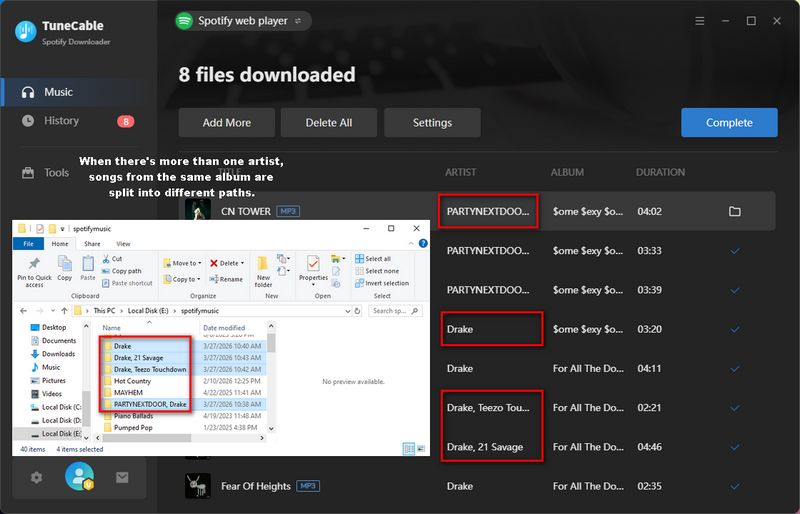
Overall, even with that small sorting quirk, it still makes managing a massive music collection much simpler than doing it all by hand.
2.5 Lyrics Support and Additional Tools
Besides just downloading, TuneCable has a few extra tools that might come in handy. It's more than just a downloader because it includes some nice bonuses for managing your music files:
- Lyrics Download: You can save Spotify lyrics in LRC or TXT format. This is great if you like to sing along or if you're trying to learn the words to a new song.
- Format Converter: If you have some old music files that won't play on your phone, you can use this to change them into a format that works on any device.
- CD Burning: For anyone who still has a car with a CD player or just likes having a physical copy, you can burn your tracks to a CD directly.
- Tag Editor: This lets you fix or change song info so your music library stays looking clean and organized.
Quick Review: Most of these extra tools are pretty standard but useful to have in one place. The lyrics downloader is probably the best part because getting the LRC files makes it so easy to use them with other players. It's a nice little extra that saves you from searching for lyrics manually online.
My Honest Take: I did notice one thing that could be better. While you can play your downloaded songs directly in the "History" section, there's no way to see the lyrics scrolling while the music plays. They don't show up automatically either. I think it would be a huge upgrade if TuneCable could actually work as a music player with a lyrics display, instead of just being a downloader. It isn't a huge problem, but it's definitely something to keep in mind!
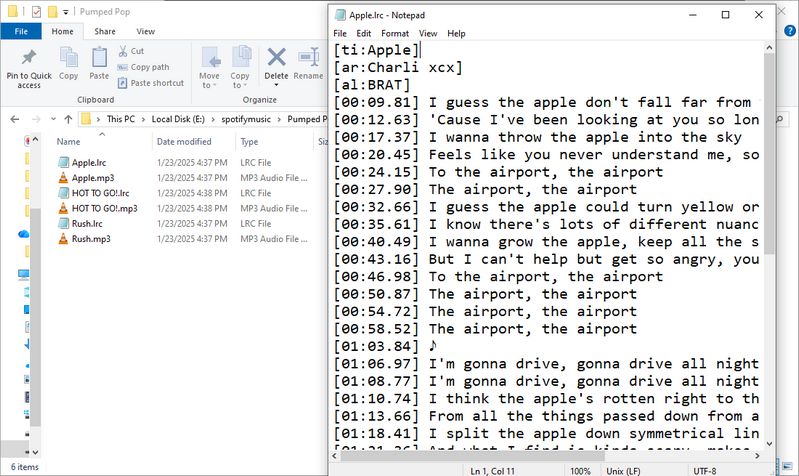
Overall, these extra tools are a nice bonus for anyone who wants more ways to use and share their music collection.
2.6 Play Your Music Anywhere
Since TuneCable uses standard formats, you don't have to worry about compatibility. Your music will work on almost any device you own:
- Smartphones and Tablets: Move songs to your phone easily. It's perfect for saving data while you're traveling.
- MP3 Players: These files work on any player. It's a great way to listen without carrying a bulky phone.
- Car Audio Systems: Put your music on a USB drive for your car. It's much more reliable than using Bluetooth.
- DJ and Audio Software: You can import tracks into DJ software. Since files are local, you can mix without any lag.
- Video Editing Tools: Use your music in any video project. There are no restrictions on which editing app you use.
Quick Review: This is the main reason I use a downloader. Spotify's own offline mode only works inside their app, which is limiting. With TuneCable, the music actually belongs to you. I've tried moving files to my old iPod and even using them for home videos, and everything just works.
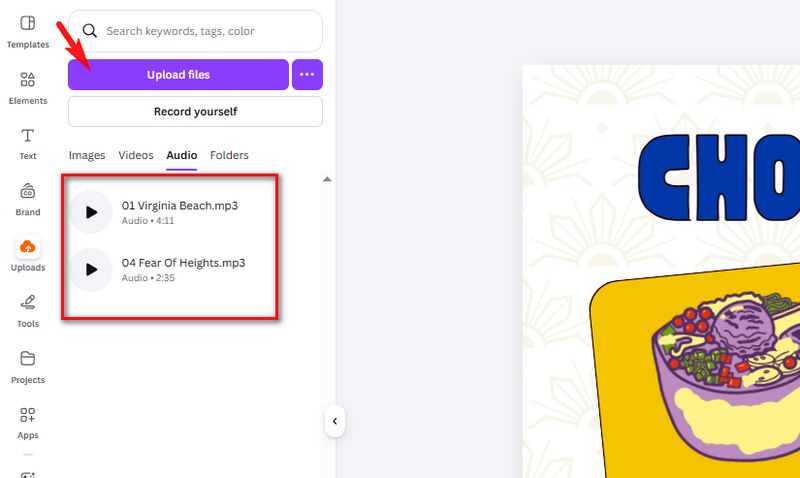
Personal Tip: If you're a video creator, this is a huge help. Just remember to respect copyright if you're planning to post your videos online!
Part 3: How to Use TuneCable Spotify Downloader?
Using TuneCable is relatively straightforward, even for beginners. Here's a simple step-by-step guide:
3.1 How to Use TuneCable Spotify Downloader on Windows/macOS Computer:
Step 1 Install the Program and Sign In to Spotify
Download and install TuneCable Spotify Downloader, then launch the program. On the main interface, choose your preferred audio source by selecting either "Spotify App" or "Spotify web player". After that, log in to your Spotify account to continue.
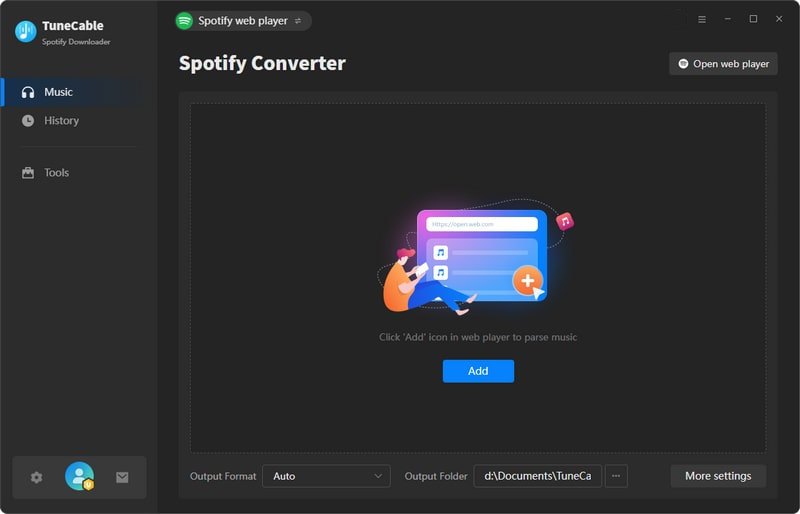
Step 2 Adjust Output Settings
Before starting the conversion, open the "Settings" panel to configure your preferences. You can customize options such as conversion mode, output format, bit rate, sample rate, save location, and more. Choose the settings that best match your playback needs and device compatibility.
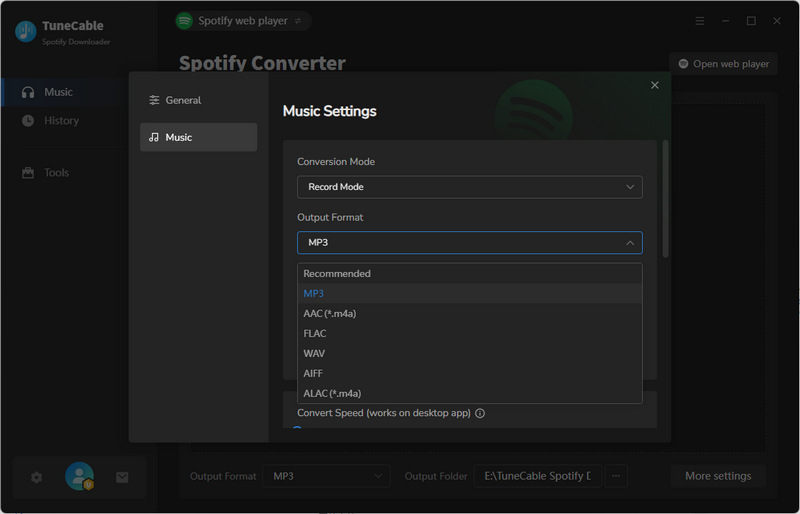
Step 3 Add Spotify Tracks for Conversion
Browse and open the Spotify songs, albums, or playlists you want to download. Click the "+" button in the lower right corner to let TuneCable analyze the selected content.
Once the analysis is complete, a list of tracks will appear with all items selected by default. Simply uncheck any songs you don't need, then click "Add" to confirm your selection.
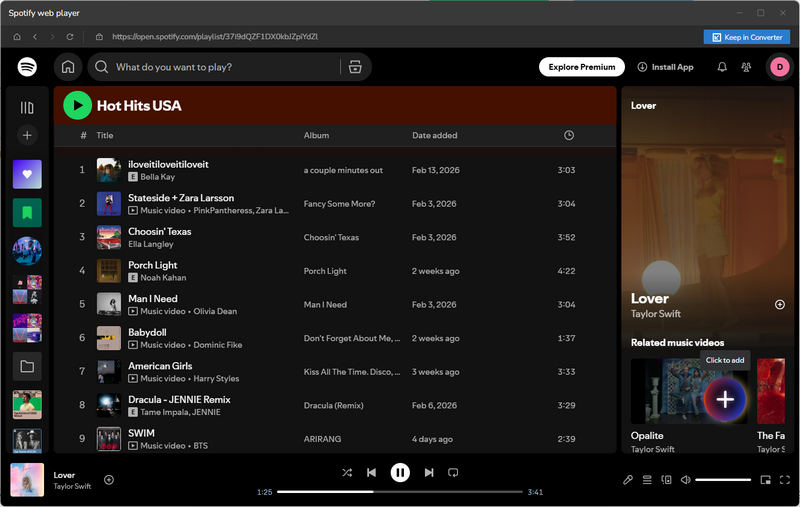
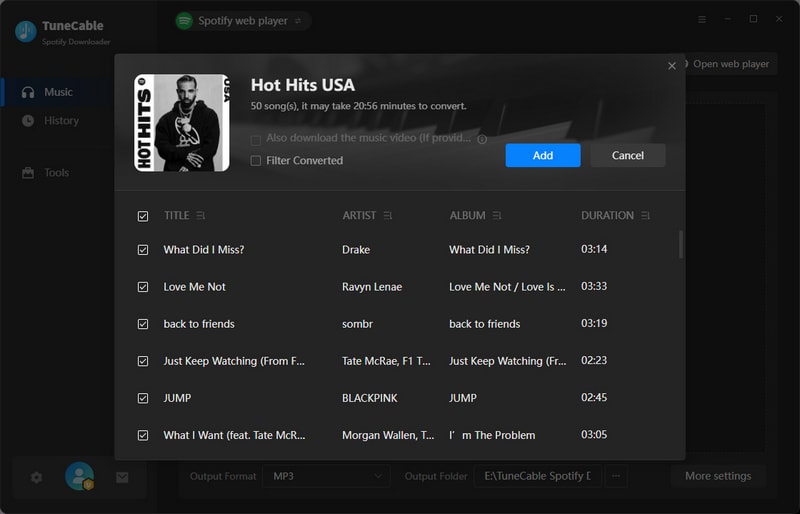
Step 4 Start Converting Spotify Music
Click the "Convert" button to begin downloading your selected Spotify tracks as local audio files. If you want to include more songs in the same task, choose "Add More" and repeat the previous step.
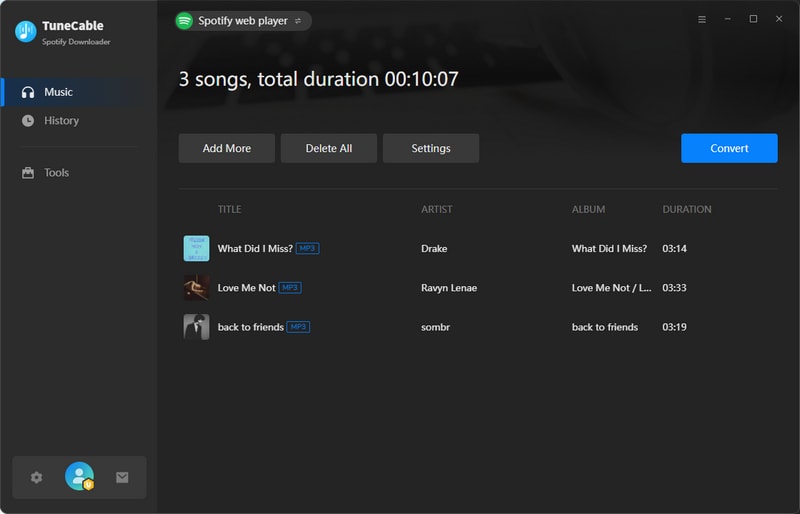
Step 5 Access Your Downloaded Files
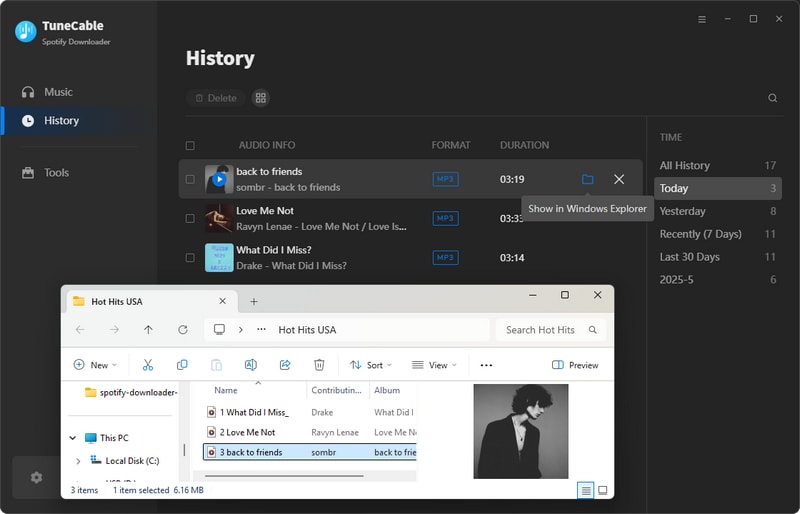
TuneCable will process your music at speeds of up to 10×. Once the conversion is complete, you'll receive a notification. The output folder will open automatically, or you can view and play your downloaded tracks anytime from the "History" section.
3.2 How to Use TuneCable Spotify Downloader on Android:
If you don't have access to a computer or simply prefer using your phone, TuneCable also offers an Android APK version. Follow the steps below to download your favorite Spotify songs directly to your mobile device:
Step 1 Download the TuneCable APK File
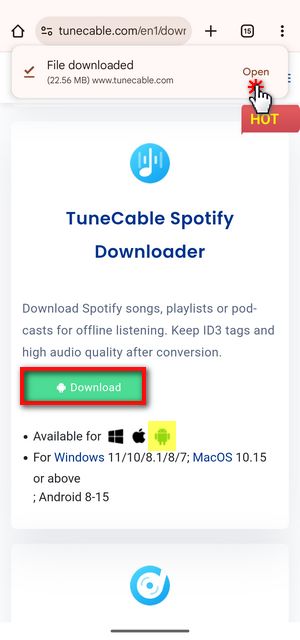
Tap the download button below to get the TuneCable Spotify Downloader APK on your Android device.
Step 2 Install and Launch the TuneCable Spotify Downloader APK
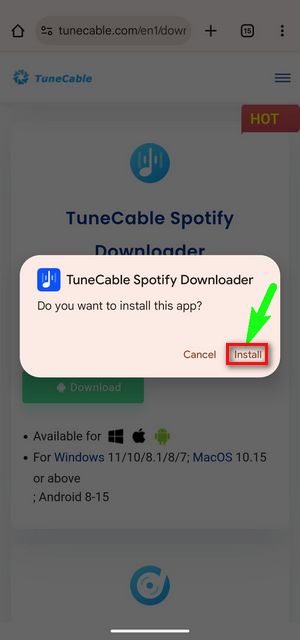
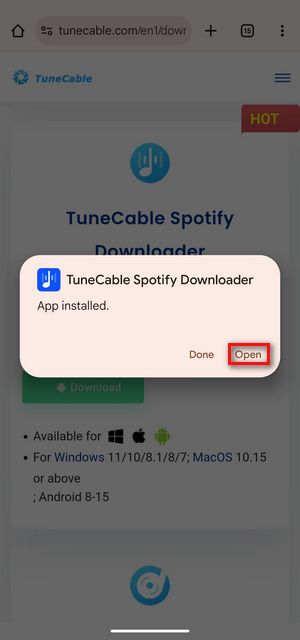
Once the APK file is downloaded, tap "Open" from the top-right corner. When prompted with "Do you want to install this app?", select "Install". If a security scan pop-up appears, simply skip it by choosing "Install without scanning". After installation is complete, tap "Open" to launch the app. The first time you open it, you may be asked to allow notifications. Tap "Allow" to continue.
Step 3 Sign In to Your Spotify Account
Open TuneCable on your phone, and you'll see a built-in Spotify interface. While both free and premium accounts are supported, logging in allows you to access and download your playlists more easily. Tap "Login Spotify" and sign in to your account to continue.
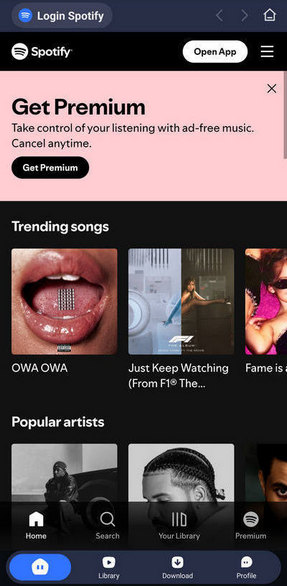
Step 4 Select and Add Spotify Content
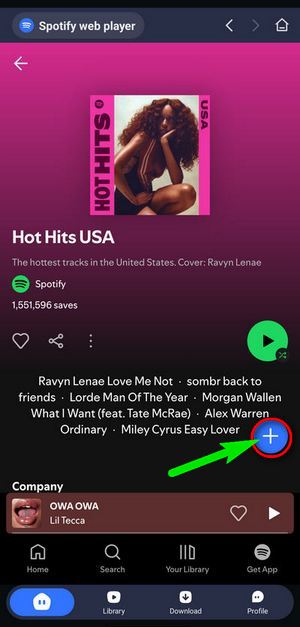
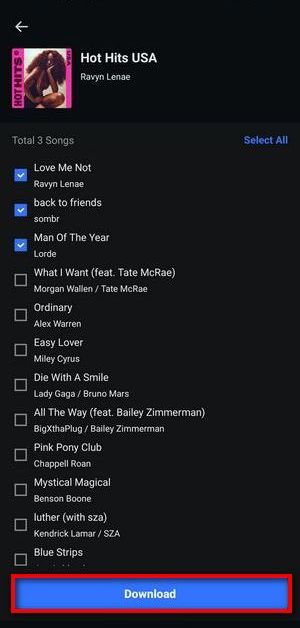
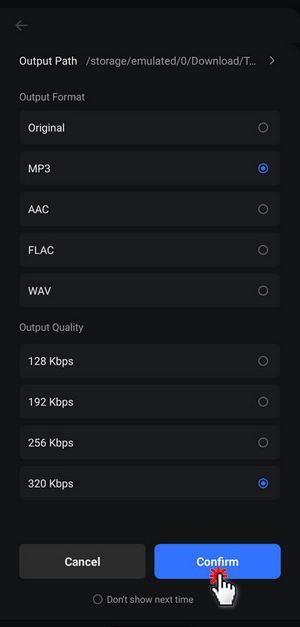
Browse and open the playlist you want to download. Tap the "+" button to import it into TuneCable. Then choose the songs you want by ticking the checkboxes, and tap "Download". You can adjust output settings here if needed. Tap the "←" icon to return, and the download will begin.
Tip: You can enable "Don't show next time" to skip the confirmation step and start downloads instantly in the future.
Step 5 Download and Access Your Music
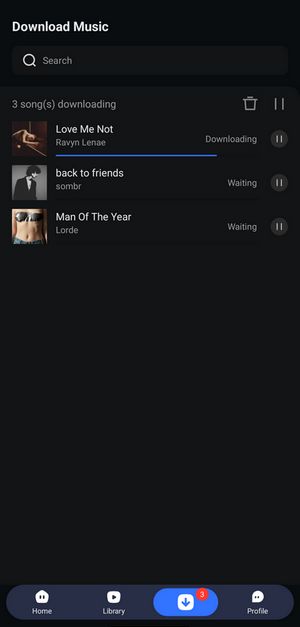
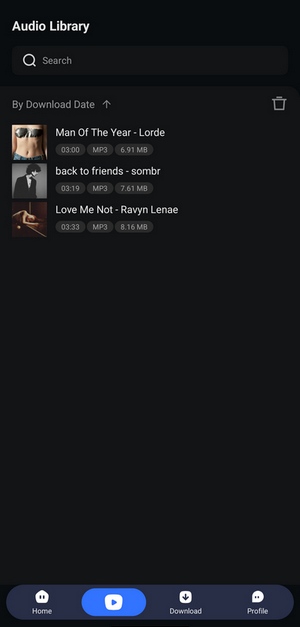
TuneCable will begin downloading your selected songs to your device. Once the process is complete, tap the "Library" tab at the bottom to view your downloaded tracks. You can also check details such as duration, file size, and output format there.
Part 4: User Reviews and Feedback
So how does TuneCable actually perform in real life? One of the easiest ways to find out is by looking at what real users are saying. Reviews on platforms like Trustpilot and Sitejabber give a good sense of how it works day to day, from usability to reliability and overall value.
Positive User Feedback
-
 One user shared that TuneCable "works great" and made downloading playlists in MP3 and WAV quick and easy.
-
A DJ reviewer called it an "amazing app" for converting playlists, highlighting both the audio quality and the straightforward interface.
-
Several users love that they can save Spotify songs permanently without needing a Premium account.
-
Another user praised the responsive customer service and described TuneCable as "legit and works as advertised".
(All of the above reviews are from Trustpilot.)
Constructive Feedback
-
 Some users mentioned that after certain updates, playlist parsing didn't work correctly, but these issues were resolved by subsequent fixes (Trustpilot).
-
A few reviewers noted occasional performance glitches or slower customer support, though these reports are relatively rare. (Sitejabber)
Part 5: Who Should Use TuneCable?
TuneCable is a solid pick if Spotify is your go-to app but you want more freedom with your files. It's great for anyone who needs reliable offline access and wants to keep their audio quality consistent across different devices.
👍 This is perfect for:
- 1. Daily Spotify Users: If this is your main platform, you can easily save songs and albums for offline use.
- 2. Playlist Lovers: It's ideal if you manage huge playlists and need to download them all in one go.
- 3. Quality Seekers: It's for those who want high-res formats like FLAC or WAV instead of standard compressed audio.
- 4. Multi-Device Listeners: You can play your music on MP3 players, car systems, or DJ software without any app limits.
- 5. Podcast Fans: It's not just for music. You can save long podcasts or audiobooks to listen to anywhere.
In short, TuneCable makes sense if you want to own your music library rather than just renting it from an app. Just keep in mind that if you use many different streaming services, you might find switching between specific tools a bit of a chore.
Part 6: Best Alternative – TunePat Music One
While TuneCable works well for Spotify, many people today use more than one streaming service. Managing different tools for each platform can quickly become a headache. This is where a multi-platform solution like TunePat Music One really shines.
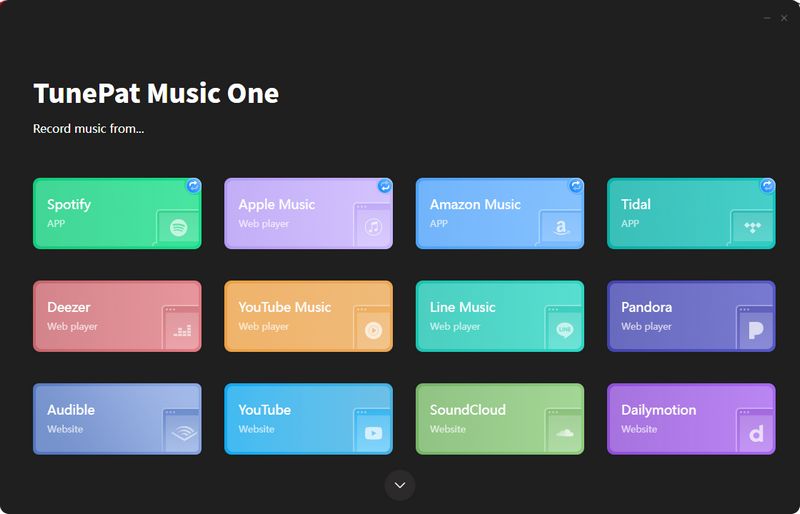
With TunePat Music One, you can handle everything in one place without switching apps:
- Multi-platform downloads: Get music from Spotify, Apple Music, Amazon, YouTube Music, and more in one app.
- Master Quality Support: Export original Hi-Res FLAC and ALAC from premium services with 100% fidelity.
- Simple library management: Organize all your playlists and downloads together without switching between tools.
- Free podcast access: Listen online or batch download podcasts from over 10,000 sites for offline playback.
- Radio recording: Record over 500 radio stations easily even without logging into an account.
- AI vocal remover: Separate vocals and instrumentals. This is perfect for karaoke, remixing, or creating content.
If your music, podcasts, and radio are spread across different platforms, TunePat Music One makes it much easier to keep everything in one place. It saves you from the hassle of switching between multiple tools every time you want to download something.
Part 7: FAQs About TuneCable Spotify Downloader
Q1: Can I download Spotify tracks without a Premium account?
A: Yes! TuneCable Spotify Downloader works with both free and Premium Spotify accounts. You don't need a paid subscription to download your favorite songs, albums, or playlists. While Premium users might already enjoy offline playback within Spotify, TuneCable lets everyone save tracks as local files that can be played on any device.
Q2: Can I batch download playlists or albums at once?
A: Absolutely. TuneCable supports batch downloads, so you can grab entire playlists or albums in one go. You can even add songs from different albums or playlists to the queue and convert them all at once. This makes it easy to manage large libraries without manually downloading each track.
Q3: What audio quality can I expect? Will it sound as good as Spotify?
A: TuneCable lets you choose the audio quality when converting tracks. You can save songs in MP3, AAC, WAV, FLAC, AIFF, or ALAC, with adjustable bit rates and sample rates. Most users find that converted files sound virtually identical to the original Spotify streams, so you can enjoy high-quality music offline.
Q4: Is TuneCable safe to use, including the Android APK?
A: Yes. TuneCable is safe to use, and the official Android APK comes directly from the TuneCable website. It does not require root access, and it won't compromise your Spotify account. Just make sure to download the APK from the official source to avoid modified or unsafe versions.
Q5: Are there limits on how many tracks I can download at once?
A: There are no strict limits on the number of tracks you can download at a time. You can add multiple playlists, albums, or individual songs to the queue and convert them in batches. The only factor is your device's storage. Please make sure you have enough space for all the files you plan to save.
Conclusion:
TuneCable Spotify Downloader does a good job if you mainly use Spotify. It makes it easy to download music, keep playlists offline, and manage your files without much hassle. In everyday use, it runs smoothly and handles most tasks without issues.
That said, it can feel a bit limiting if you also use other streaming platforms. Switching between different tools isn't always convenient, especially when your music and podcasts are spread across apps. In that case, TunePat Music One can be a more flexible option since it brings everything into one place. In the end, it comes down to how you listen. If Spotify is your main platform, TuneCable is a solid choice. If you want something that covers more platforms, TunePat Music One is worth a look.
Olivia Anderson
Senior Writer