
Looking for websites to watch YouTube unblocked when your school or workplace network restricts access? This guide compares five free unblocked YouTube sites, explains their features and limitations, and shows you how to use each one. Availability varies by network, and some sites may load without playing videos, so we also cover what to try when they stop working. If you mainly listen to music, you'll also learn how to save songs from YouTube Music while you have access and listen offline later.
Quick Comparison of Unblocked YouTube Sites
| Site | Type | Ad-Free Website | Key Feature | Main Limitations |
|---|---|---|---|---|
| CroxyProxy | Web proxy | No | Browser-based video and audio support | Speed and playback reliability may vary |
| ProxySite | Web proxy | No | Multiple proxy servers | Server availability and playback can differ |
| 4everproxy | Web proxy | No | Web server and IP location selection | Free proxy is separate from its paid VPN service |
| GenMirror | Web proxy | No | Simple URL-based access | YouTube playback may not always be available |
| Invidious | Alternative YouTube frontend | Yes | Independent viewing instances | Availability and stream access vary |
Part 1: 5 Free Unblocked YouTube Sites
1. CroxyProxy
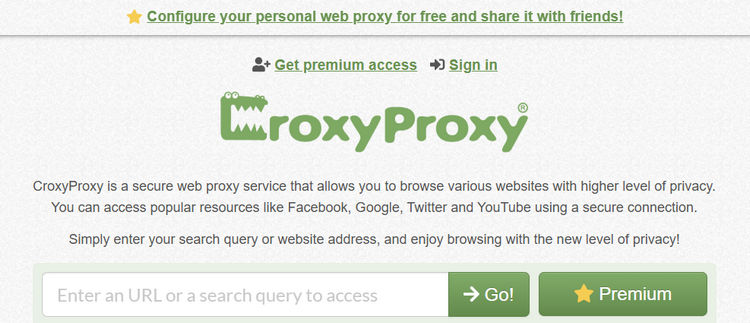
CroxyProxy is a free web proxy that lets you access YouTube through your browser without installing a VPN or additional software. It supports video and audio playback and works on devices including Chromebooks, making it a convenient option if you prefer a browser-based tool. However, loading a YouTube page does not guarantee that the video will play. You may still experience buffering or playback errors, so its usefulness depends on whether it can play the content you want to watch.
Step 1 Open the CroxyProxy website and paste the YouTube video URL into the input field.
Step 2 Click "Go!" and wait for the proxied page to load, then click the video's play button.
2. ProxySite
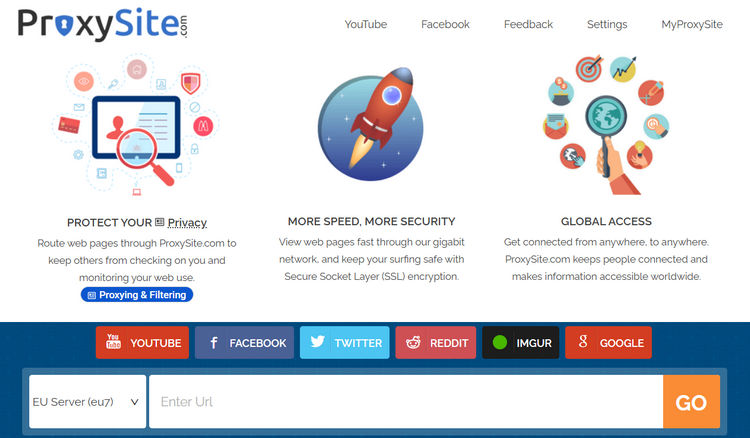
ProxySite is a browser-based web proxy with a dedicated page for accessing YouTube. It lets you choose from multiple proxy servers, giving you another option to try if a video fails to load or play. Playback performance may vary depending on the selected server and your network. Switching servers may help, but it does not guarantee that every video will play.
Step 1 Open ProxySite's YouTube proxy page and choose a server from the available options.
Step 2 Paste the YouTube video URL into the address field and submit it to load the page through the proxy.
Step 3 Start the video. If it does not load or play, select another server and try again.
3. 4everproxy
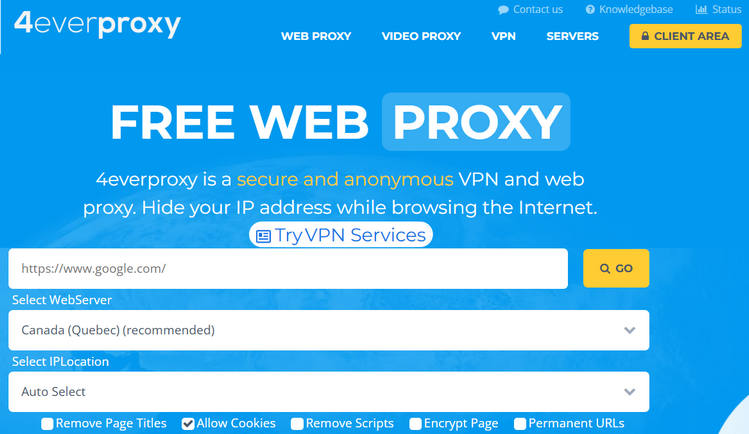
4everproxy offers a free web proxy with a dedicated YouTube proxy page. You can enter a YouTube video URL and choose both a web server and an IP location before opening the page, giving you more control over the proxy connection. The free web proxy is separate from 4everproxy's paid VPN service, so the VPN's advertised features do not necessarily apply. As with other web proxies, loading the YouTube page does not guarantee successful video playback.
Step 1 Open the 4everproxy YouTube Proxy page and paste the YouTube video URL into the input field.
Step 2 Choose a web server and an IP location, then submit the URL. Wait for the YouTube page to load, then start the video.
4. GenMirror
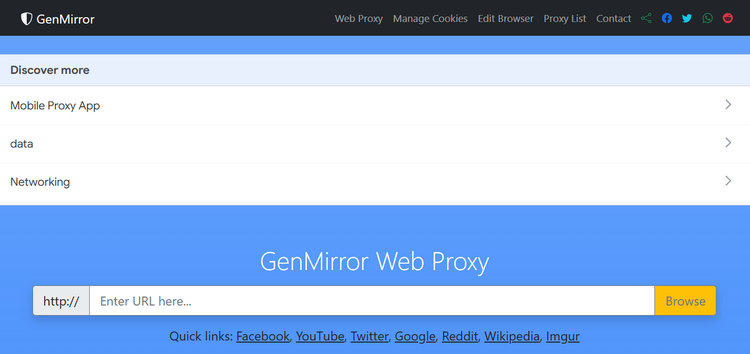
GenMirror is a free SSL web proxy that supports access to YouTube through your browser. Simply enter a YouTube URL on its website to get started, with no software installation required. GenMirror advertises support for video and music streaming, though YouTube playback may not always work. If the page opens but the video fails to play, you may need to try another proxy.
Step 1 Open the GenMirror website and paste the YouTube video URL into the input field.
Step 2 Submit the URL and wait for the proxied video page to load, then start the video.
5. Invidious
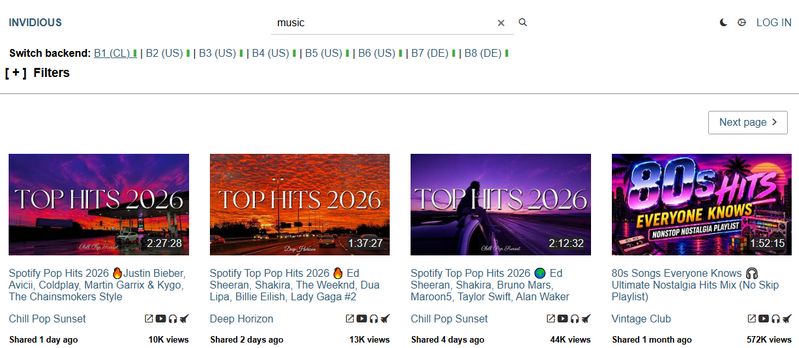
Invidious is an open-source alternative interface for YouTube. Unlike the web proxies above, it lets you browse and watch videos through websites run by independent operators. Each website is called an "instance", so Invidious does not have a single public viewing site. To get started, choose an instance from the official Invidious list. Availability and playback reliability can vary between instances, and a listed instance may still experience playback issues.
Step 1 Open the official Invidious public instance list and choose one of the listed sites.
Step 2 Open the selected site and search for the video you want to watch. Select the video and start playback. If it fails to play, try another instance from the official list.
Part 2: What to Do When Unblocked YouTube Sites Aren't Working
1. If the Site Won't Open
If an unblocked YouTube site fails to load, start with these checks:
- Check the URL. Make sure you have entered the correct website address. For Invidious, choose an instance from the official list.
- Check your connection. Open another website to see whether your internet connection is working.
- Check the service status. Look for an outage notice or status update from the provider.
- Identify network or device restrictions. If the site works on another permitted network but not your current one, a network restriction may be involved. School or work devices may also have their own access controls.
2. If the Site Opens but Videos Won't Play
A proxy or frontend may load the page but still fail to play the video. Try the following steps to narrow down the problem:
- Refresh the page and try again. A temporary loading error may resolve on a second attempt.
- Try a different video. If other videos play, the issue may be specific to the original video.
- Switch servers or instances. If the service offers server selection, choose another server. For Invidious, try another instance from the official list.
- Try another browser, if available. This can help you check whether the issue is specific to your browser.
- Wait and retry later. A busy server or a service disruption may require time to resolve.
If several videos fail across different servers or instances, the problem may be beyond your browser. Repeatedly refreshing the same page is unlikely to help. If you mainly use YouTube for music, another option is to download songs while you can access YouTube Music and listen offline later, which we will explain in Part 3.
Part 3: How to Download YouTube Music for Offline Listening
For music listeners, saving your favorite songs in advance means you won't have to find a working proxy every time you want to listen. Once the tracks are stored on your device, you can play them offline without relying on an unblocked YouTube site.
TunePat YouTube Music Converter helps you prepare that offline collection by downloading songs, albums, and playlists from YouTube Music to your computer. It supports formats such as MP3, AAC, WAV, FLAC, AIFF, and ALAC, with batch conversion and ID3 tag retention to help keep your music organized. You'll need a working connection to YouTube Music during the download process. Once your files are saved, they're ready for offline playback. Follow the steps below to get started.
TunePat YouTube Music Converter
TunePat YouTube Music Converter helps you download and convert all YouTube Music songs and playlists to MP3 and other common formats.
Step 1 Launch TunePat YouTube Music Converter and sign in to your YouTube Music account through the built-in browser. Both Free and Premium accounts are supported. Next, click the "Settings" button to access the settings interface, where you can configure the output format, bit rate, sample rate, output folder, and output file name.
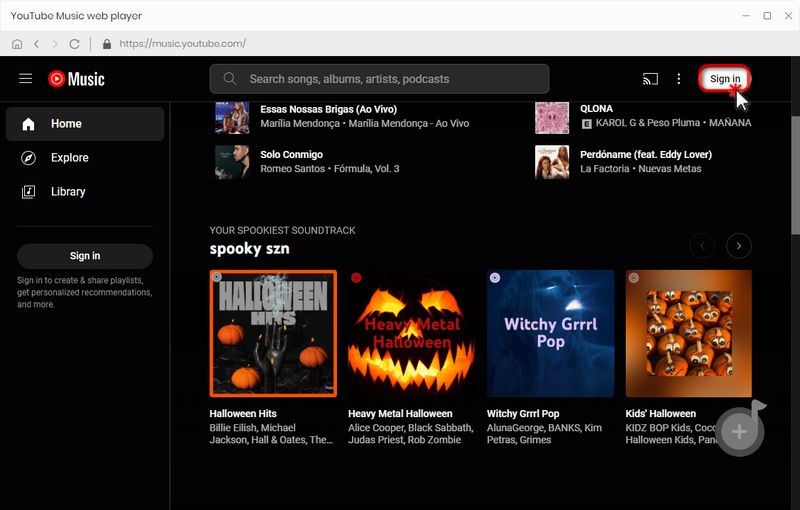
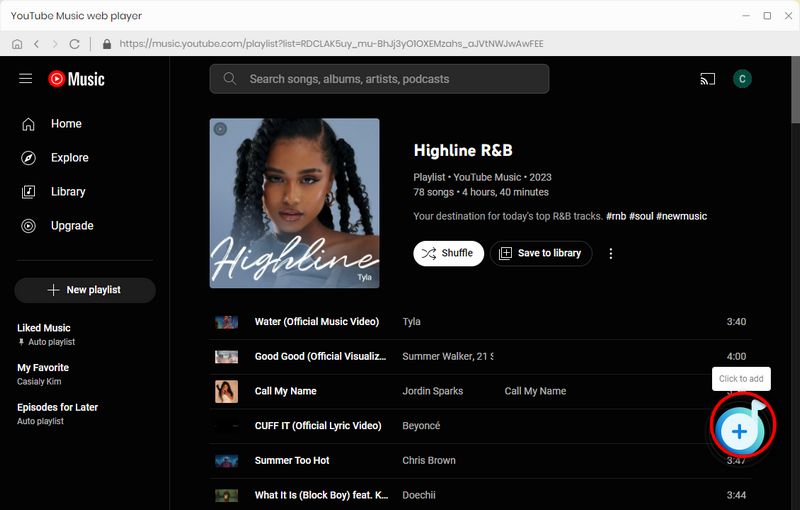
Step 2 Return to the YouTube Music interface and open the song, playlist, or album you want to download. Click the "+" button in the bottom-right corner and wait for TunePat to load the track list. Select the songs you want, then click "Add".
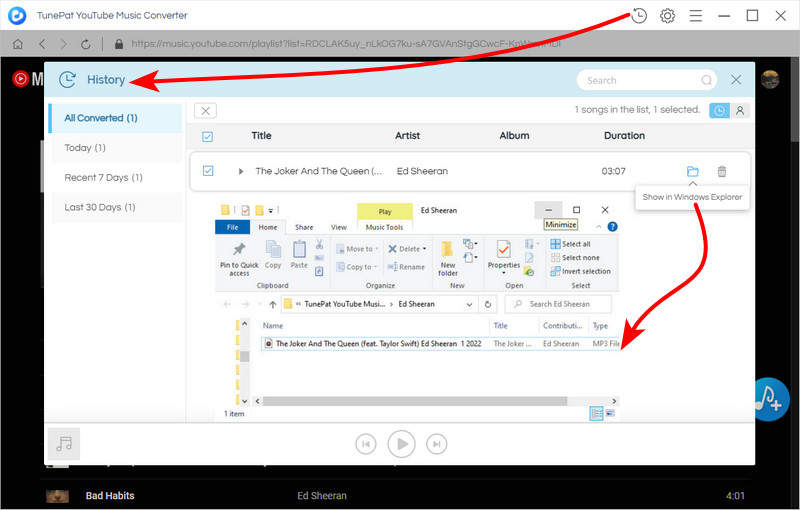
Step 3 Click "Convert" to start downloading your selected songs. TunePat supports conversion speeds of up to 10x. Once the process is complete, go to "History" to find your downloaded tracks and open their output folder for offline playback.
FAQs About Unblocked YouTube Sites
Q1: Are unblocked YouTube sites free to use?
A: Many unblocked YouTube sites offer a free browser-based service, but "free" doesn't mean every feature is unlimited. Some services may have performance restrictions, advertisements, server limitations, or separate paid products.
Q2: Can I use unblocked YouTube sites without installing anything?
A: Many web proxies and alternative frontends can be accessed directly through a modern browser. However, not needing an installation does not mean the service will work on every network. Browser compatibility, network policies, server availability, and YouTube playback can still affect the result.
Q3: Do unblocked YouTube sites work on school Chromebooks?
A: Some browser-based services may technically work in Chrome OS, but that does not mean they will work on every school Chromebook. There are two separate questions: Does the browser support the website? and does the school's device or network allow access? A managed Chromebook may restrict websites or proxy services regardless of browser compatibility.
Q4: Is it safe to sign in to YouTube through an unblocked proxy site?
A: Avoid entering your Google account credentials into an unfamiliar unblocked proxy site or third-party YouTube frontend. A proxy service works differently from the official YouTube website, and HTTPS alone does not prove that the operator is trustworthy. If you only need to watch publicly available videos, you usually do not need to sign in. For services that require account access, make sure you understand how your account information is handled before signing in.
Q5: Can unblocked YouTube sites play videos in HD?
A: Some services like ProxySite and 4everproxy advertise support for high-definition playback. However, actual performance can depend on proxy-server capacity, network conditions, and the selected instance or server.
Conclusion
When direct access is restricted, unblocked YouTube sites can offer a convenient way to watch videos; however, no proxy service or alternative frontend can guarantee that every video will play successfully. Factors such as server availability, network restrictions, and playback compatibility can all affect your viewing experience. If you only need to watch specific videos occasionally, trying another available site may help when one service fails.
However, if your primary goal is regular music listening, downloading your favorite content in advance provides a more stable offline experience without relying on website availability. TunePat YouTube Music Converter helps you create a local music library by downloading YouTube Music songs, albums, and playlists for offline playback. Download and try it out now!
Delilah Rene
Senior Writer