Why YouTube Music Keeps Pausing and How to Fix It (14 Quick Solutions)
 By Olivia Anderson
YouTube Music Tips
Updated on 7/23/2026
By Olivia Anderson
YouTube Music Tips
Updated on 7/23/2026
People often enjoy listening to YouTube Music while commuting, running, or working. However, when YouTube Music suddenly keeps pausing for no apparent reason, it can be extremely frustrating. Fortunately, you don’t need to troubleshoot aimlessly. In this comprehensive guide, we analyze the core reasons why YouTube Music stops playing and provide 14 actionable fixes to get your music running smoothly again!
Quick Diagnosis: Most Common Reasons
- Free Tier Screen-Off: Free accounts automatically pause playback when the screen turns off or when switching apps. (See Solution #1)
- Multi-Device Conflict: Streaming on multiple devices simultaneously causes automatic pausing. (See Solution #2)
- Battery Saver / Throttling: Aggressive power-saving modes kill background streaming. (See Solution #4)
- Corrupted Downloads: Playback stops only on specific offline tracks due to broken cache files. (See Solution #9)
- Bluetooth Disconnection: Loose wireless connection or earbud wear-detection glitches. (See Solution #10)
- Want 100% stop-free playback? Bypass all app limits by downloading MP3s for offline listen. (See Part 2 Fix)
Part 1: 13 Fixes for YouTube Music Keeps Pausing on Android/iPhone
To help you find the right solution quickly, we have categorized the 13 fixes into four primary types: Account & Plan Limits, Battery & Device Settings, Network & App Data, and Hardware & Server Issues.
Category A: Account & App Limit Issues
1. Free Account Background Playback Restriction (Screen Timeout)
If you are using the free tier of YouTube Music, background playback is not supported. The moment you lock your phone or switch to another app, music playback will immediately pause.
Want to bypass screen-off limits and listen to YouTube Music offline permanently without a Premium subscription? Simply download your favorite tracks to MP3 using TunePat YouTube Music Converter and play them seamlessly on any player!
2. Account Streamed on Multiple Devices
Both YouTube Music Free and Premium accounts allow active streaming on only one device at a time. If someone else logs into your account and starts playing music, your current stream will pause automatically.
Fix: Ensure no other smartphones, tablets, or smart speakers are using your YouTube account. To force sign out of other devices remotely:
• Android / iPhone: YouTube Music App > Profile Icon > Manage your Google Account > Security > Your devices > Manage all devices > Select the other device > Sign Out.
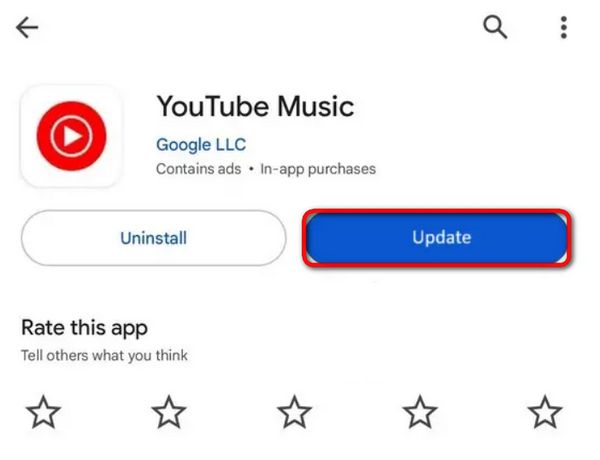
3. Outdated YouTube Music App Version
Bugs in outdated app builds can cause sudden crashes or playback interruptions. Keeping the app updated ensures you have the latest stability patches.
• Android: Google Play Store > Profile Icon > Manage apps & device > Update YouTube Music.
• iPhone: App Store > Profile Icon > Scroll to pending updates > Tap Update next to YouTube Music.
Category B: Device & Battery Settings
4. Background App Restrictions
Mobile operating systems often restrict background app activity to save power and memory, causing music streaming to freeze when running in the background.
• Android: Settings > Apps > YouTube Music > Battery > Select Unrestricted.
• iPhone: Settings > General > Background App Refresh > Toggle ON for YouTube Music.

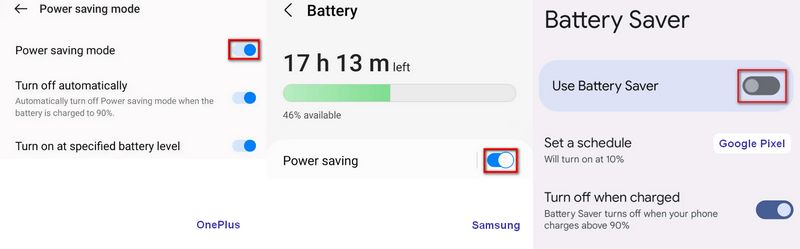
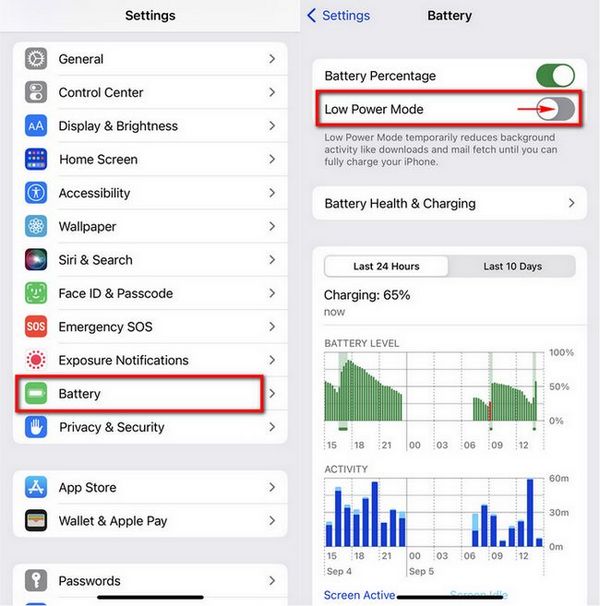
5. Battery Saver / Low Power Mode
Low Power Mode (iOS) or Battery Saver (Android) reduces CPU performance and limits background network access, leading to unexpected song buffering or pauses.
• Android: Settings > Battery > Toggle off Use Battery Saver.
• iPhone: Settings > Battery > Toggle off Low Power Mode.
6. Low Available Storage Space
YouTube Music requires local cache storage to stream tracks smoothly. If your phone memory is almost full, the app will lag or pause playback randomly.
• Android/iPhone: Settings > Storage > Clear unnecessary photos, large videos, or unused apps to free up at least 2–3 GB of free space.
Category C: Network & App Data Issues
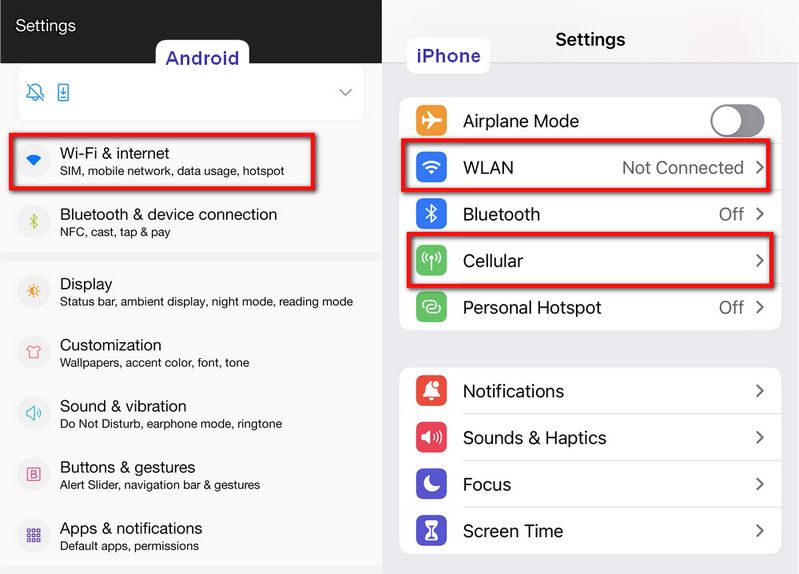
7. Weak or Unstable Internet Connection
Cellular data dropouts or weak Wi-Fi signals will trigger buffering. YouTube Music requires a stable internet connection with speeds of at least 10 Mbps for uninterrupted high-quality playback.
Fix: Toggle Flight Mode ON/OFF to reset network connectivity, or switch between 5GHz Wi-Fi and Mobile Data.
8. Corrupted App Cache and Data
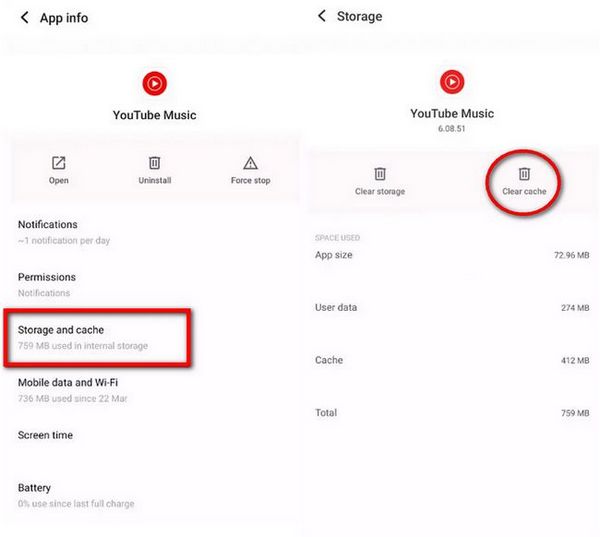
Accumulated temporary cache files can become corrupted, leading to app malfunctions.
• Android: Settings > Apps > YouTube Music > Storage & cache > Tap Clear Cache.
• iPhone: Settings > General > iPhone Storage > YouTube Music > Tap Offload App, then reinstall it.
9. Corrupted Downloaded Files
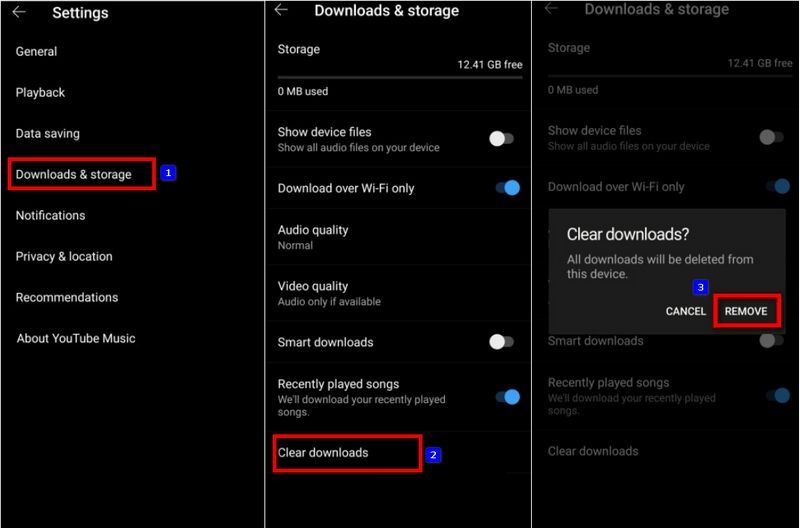
If pausing happens only on specific downloaded offline tracks, the local audio cache may be broken.
Fix: YouTube Music App > Settings > Downloads & storage > Select the buggy track > Tap Remove download > Re-download the song.
Category D: Hardware & Server Issues
10. Bluetooth Accessory Disconnections
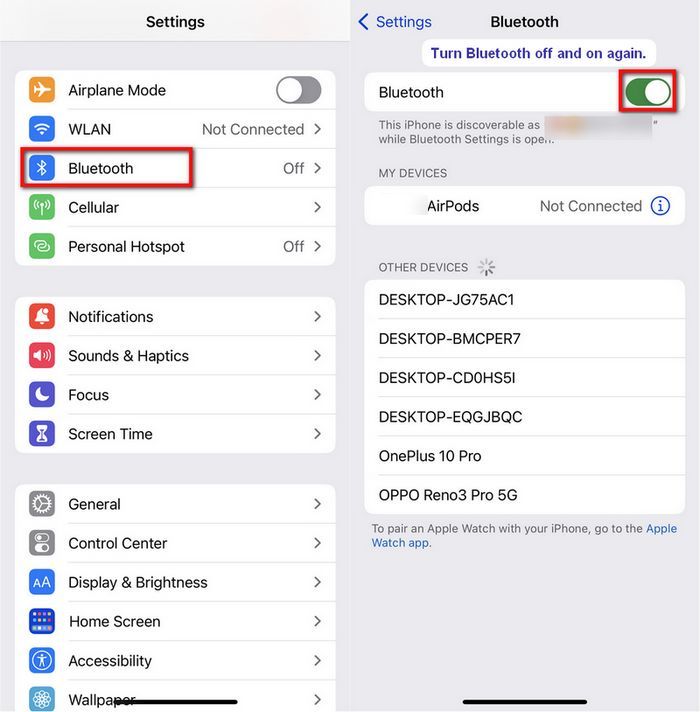
Faulty or loose Bluetooth headphones/speakers will auto-pause music when connectivity is briefly interrupted.
Fix: Settings > Bluetooth > Disconnect and re-pair your Bluetooth earphone device.
11. Device Overheating Protection
When a smartphone overheats (e.g., streaming while charging in direct sunlight), OS thermal throttling reduces performance or shuts down background apps.
Fix: Close heavy background apps, remove phone cases, and allow the phone to cool down in a shaded area.
12. Temporary YouTube Music Server Outages
Occasionally, YouTube Music servers experience regional downtime or maintenance.
Fix: Visit platforms like DownDetector to check server status. If servers are down, you must wait for Google to resolve it.
13. Restart Your Mobile Phone
A simple system reboot clears temporary RAM bottlenecks and resolves app conflicts causing audio glitching.
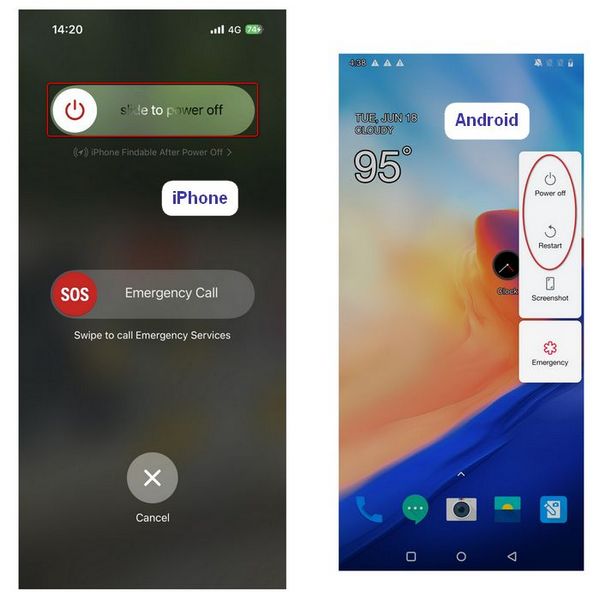
• Android & iPhone: Perform a standard power-off and restart your device.
Part 2: The Permanent Solution: Play YouTube Music Offline Without Pauses
If you are tired of troubleshooting app glitches, battery saver settings, or network dropouts, there is a universal solution: download YouTube Music tracks as local MP3 files to your phone or computer. Once downloaded, you can play your music smoothly on any media player without background limits, ads, or internet requirements.
The recommended tool for this is TunePat YouTube Music Converter. Designed for both Free and Premium users, this lightweight software easily converts songs, playlists, albums, and podcasts into standard MP3, AAC, FLAC, WAV, AIFF, or ALAC formats with 100% original audio quality preserved.
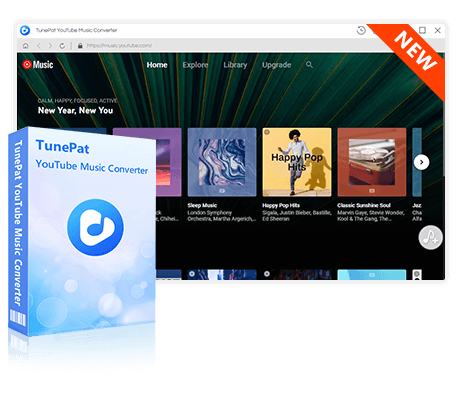
TunePat YouTube Music Converter
The ultimate solution to fix YouTube Music playback issues permanently by downloading music to local devices.
- Download YouTube Music songs, playlists, and podcasts as plain local audio files.
- Convert YouTube Music to MP3, AAC, WAV, FLAC, AIFF, or ALAC.
- Preserve 100% original lossless sound quality and full ID3 tags (Title, Artist, Album, Cover).
- Enable background offline playback for YouTube Free users without ads.
3 Steps to Download YouTube Music Tracks for Uninterrupted Playback:
Step 1 Launch TunePat YouTube Music Converter on Win/Mac and sign in with your YouTube account (Free or Premium).
Step 2 Go to the Settings module in the left sidebar to select your preferred output format (e.g., MP3), audio quality, and output folder.
Step 3 Open any playlist or album on the built-in web player, click the blue "+" button to select tracks, and click Convert to start downloading.
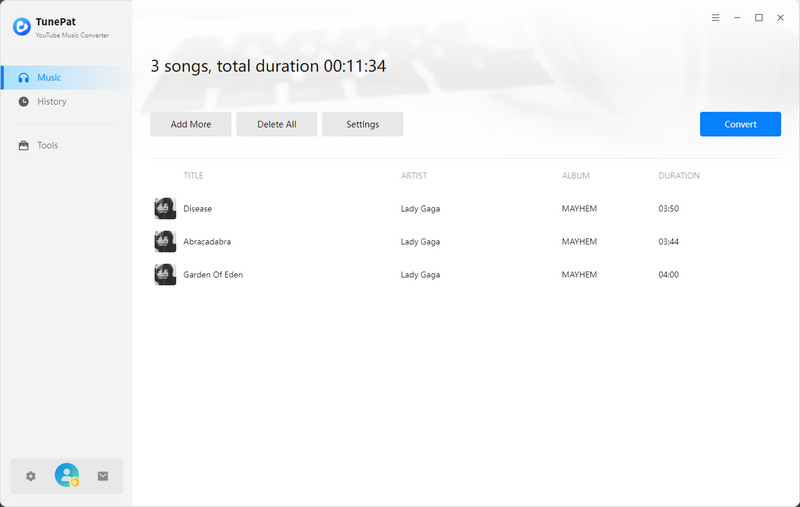
Once conversion finishes, you can transfer these MP3 songs to your phone, smartwatch, MP3 player, or car stereo for 100% offline, smooth listening!
Part 3: FAQs About YouTube Music Keeps Pausing
Q1: Why does YouTube Music stop playing when my phone screen turns off?
A: Background and screen-off playback is a paid feature reserved for Premium subscribers. If you are on the free tier, the system automatically pauses playback to conserve resources whenever the screen locks or you switch apps. You can bypass this limit by upgrading, using desktop-mode web browsers, or downloading tracks to local MP3s.
Q2: Can I play YouTube Music in the background for free without paying for Premium?
A: Yes. You can either listen via mobile browsers like Brave or Firefox (in Desktop Mode), or use a tool like TunePat YouTube Music Converter to download songs as local MP3 files, which allows you to play them in the background on any media player without restrictions.
Q3: Does clearing the YouTube Music app cache delete my downloaded songs?
A: No, clearing cache will not delete your offline music downloads. On Android, tapping "Clear Cache" only removes temporary junk files (selecting "Clear Data", however, will erase downloads). On iPhone, selecting "Offload App" keeps your user data and offline downloads intact while refreshing system files.
Q4: Why does YouTube Music keep pausing when I am connected to Bluetooth?
A: Bluetooth audio pauses are usually caused by unstable Bluetooth connections, low battery on your wireless headphones, or conflicts with auto-pause features built into your headphones (e.g., wear detection). Try toggling Bluetooth off and on, or disabling wear detection in your headphone settings app.
Q5: Is it legal to download YouTube Music tracks to MP3 for offline listening?
A: Downloading music for personal, non-commercial use (such as listening on your own devices during workouts or travel) is generally considered acceptable. However, redistributing, sharing, or selling downloaded audio files is strictly prohibited under copyright law.
Conclusion
When YouTube Music keeps pausing, it is usually because of account limits, phone battery settings, or bad Wi-Fi. Most of the time, changing your battery settings, clearing the app cache, or checking your network will solve the problem quickly.
If you use the free version and hate screen-off limits, or if you just want a simple way to listen without any stops, downloading your songs as MP3s is the best fix. Tools like TunePat YouTube Music Converter let you save your favorite playlists directly to your device so you can listen anytime, anywhere, and even without Premium!


Olivia Anderson
Senior Writer