5 Ways to Download High-Quality Cover Art from Spotify
 By Olivia Anderson
Spotify Tips
Updated on 7/29/2026
By Olivia Anderson
Spotify Tips
Updated on 7/29/2026
What makes a song stand out first? For many music lovers, it is the captivating album cover art. A great cover sets the mood and leaves a lasting impression, often making you want to save it as a wallpaper or keep it in your collection. In this guide, we will share 5 easy ways to download high-quality Spotify cover art (up to 1400x1400px) and customize artwork for your local music files step-by-step.
- Part 1: Quick Way - Take a Screenshot (Basic Quality)
- Part 2: Original Quality - Extract Cover via Source Code
- Part 3: Ultra-HD Quality - Get 1400x1400px Covers via Amazon
- Part 4: All-in-One - Download Spotify Songs with Embedded Cover Art (Video Included)
- Part 5: Advanced Tips - Change Cover Art for Local Music Files
Part 1: Quick Way - Take a Screenshot (Basic Quality)
Since Spotify does not allow direct image downloads, taking a screenshot is the easiest and fastest way to save album artwork. While this method is quick, keep in mind that the image resolution will depend on your computer screen. Here is how to capture full-size cover art on Windows and Mac:
Step 1 Open the Spotify app on your computer and play any song.
Step 2 Click the two-sided arrow icon over the cover thumbnail at the bottom-left corner to expand the cover art.
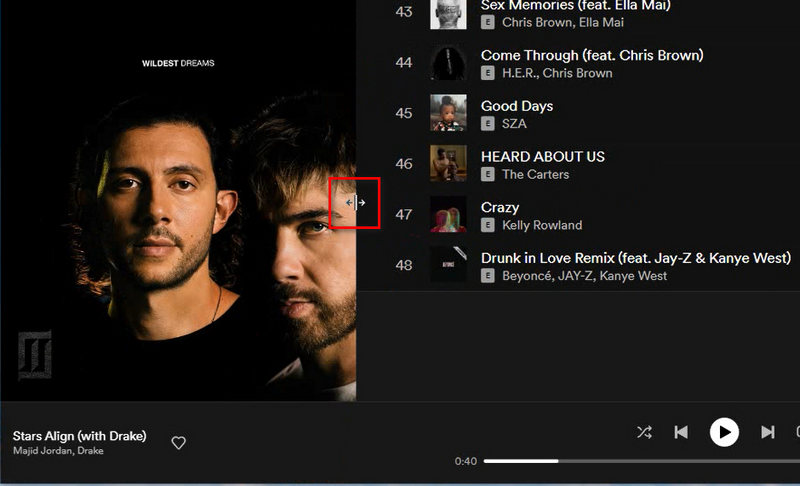
Step 3 Capture the screen using shortcuts:
• Windows PC: Press Win + Shift + S to open the Snipping Tool and drag to select the cover area.
• Mac: Press Cmd + Shift + 4 and select the cover frame.
Step 4 Save the captured image to your local storage.
Part 2: Original Quality - Extract Cover via Source Code
If you want the exact original cover art directly from Spotify's servers without any quality loss, extracting the source code link is your best solution. This method works seamlessly across all platforms, including Windows, Mac, iOS, and Android.
Step 1 Copy the Spotify link of your target track, album, or playlist:
• For a song: Right-click the track and select Share > Copy Song Link.
• For an album/playlist: Right-click the cover and select Share > Copy link to album/playlist.
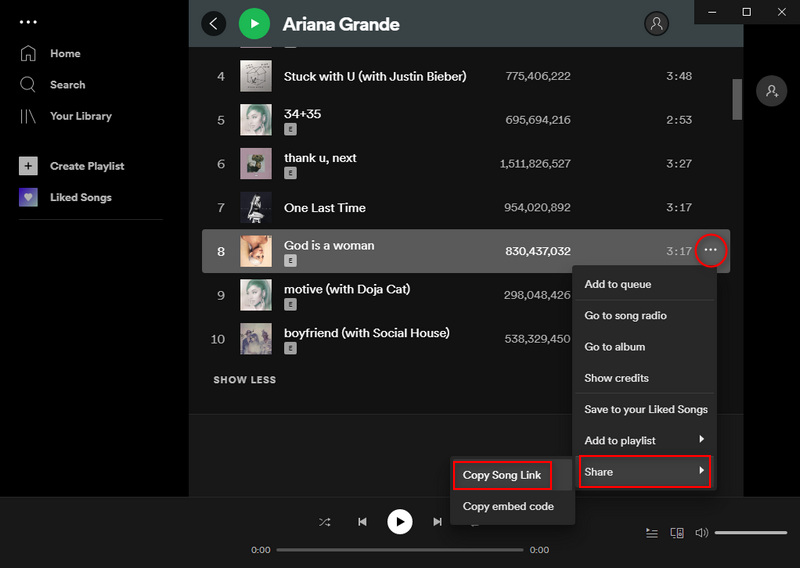
Step 2 Combine the URL by adding https://open.spotify.com/oembed?url= in front of your copied share link, then open it in any browser.
Example:
• Share Link: https://open.spotify.com/track/test
• Combined URL: https://open.spotify.com/oembed?url=https://open.spotify.com/track/test
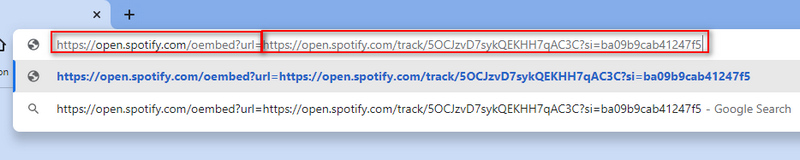
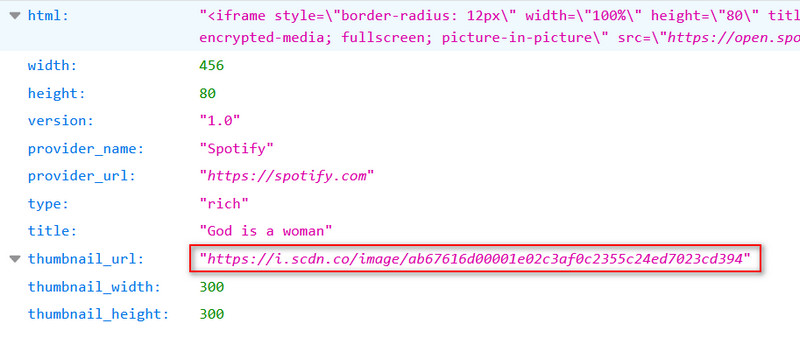
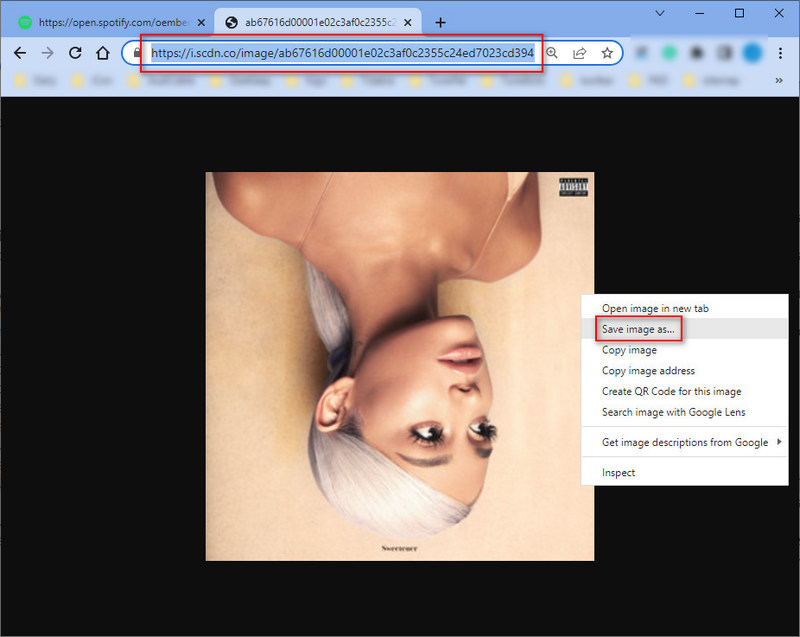
Step 3 Press Ctrl + F (or Cmd + F on Mac) and search for thumbnail_url. Copy the image URL next to it and open it in a new tab.
Step 4 Right-click the loaded original high-quality artwork image and choose Save image as to download it to your device.
Part 3: Ultra-HD Quality - Get 1400x1400px Covers via Amazon
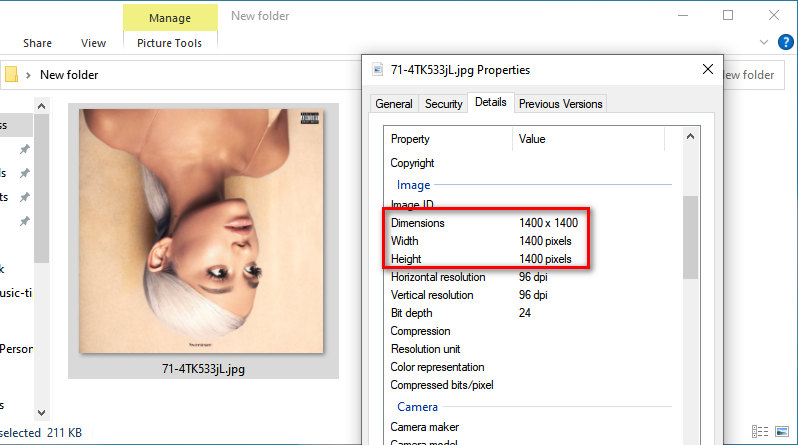
While extracting the source code gives you original images, Amazon often hosts even higher-resolution artwork for digital albums and physical CDs (up to 1400x1400px). By using a simple URL tweak, you can easily unlock and save ultra-HD cover art from Amazon.
Step 1 Go to the Amazon Store in your browser.
Step 2 Search for the target song or album title.
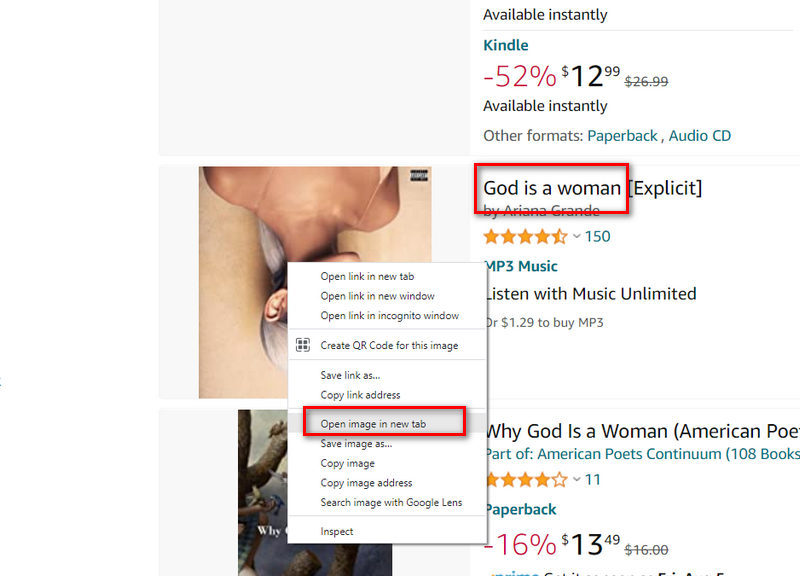
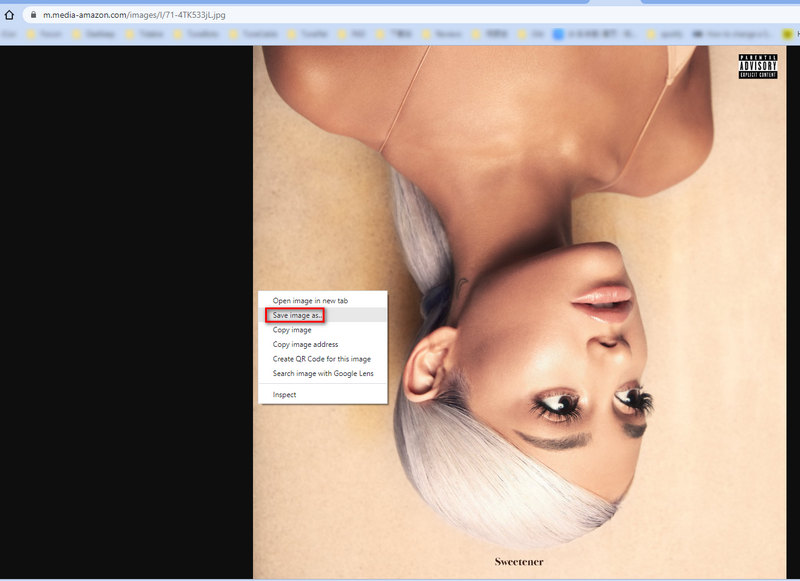
Step 3 Right-click the cover image from the search results and select Open image in new tab.
Step 4 Remove the resolution parameters from the image URL to unlock the full-size image:
• Original URL: https://m.media-amazon.com/images/I/71-4TK533jL._AC_UY218_.jpg
Action: Delete the resolution tag (e.g., ._AC_UY218_) between the file ID and the extension.
• New Ultra-HD URL: https://m.media-amazon.com/images/I/71-4TK533jL.jpg
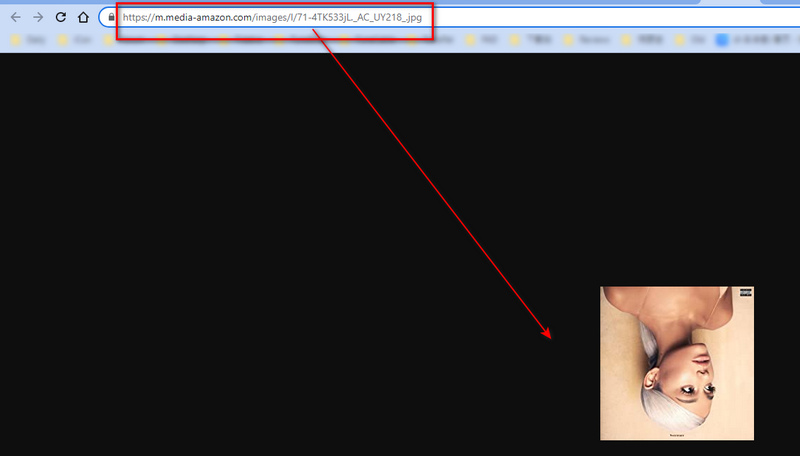
Step 5 Press Enter to load the 1400x1400px ultra-HD cover art, then right-click and choose Save image as. (*Note: If the result is smaller than 1400px, try doing the same with CD or Vinyl product listings in the search results.)
Part 4: All-in-One - Download Spotify Songs with Embedded Cover Art
While streaming Spotify offers millions of tracks, downloads are restricted by DRM and cannot be played outside the official app. If you want to download full-length Spotify audio files with high-quality artwork permanently embedded (or even replace the cover image on local files), using a specialized music tool is the most effective solution.
TunePat Spotify Music Converter allows you to download songs, albums, and playlists from Spotify with original ID3 tags and HD cover art included. Once downloaded, you get full ownership of your offline audio files and can freely replace or customize the album art whenever needed.
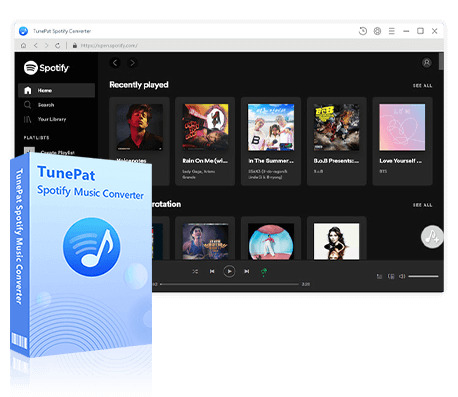
TunePat Spotify Converter
TunePat Spotify Converter enables users to convert and download Spotify songs or podcasts to local audio formats while keeping original tags and cover art.
- Download songs, albums, playlists, podcasts, and lyrics from Spotify.
- Convert Spotify tracks to MP3, AAC, WAV, FLAC, AIFF, or ALAC format.
- Preserve original ID3 tags, lossless audio quality, and embedded album covers.
- Play the converted Spotify songs offline on different places like Nintendo Switch, djay Pro, and more.
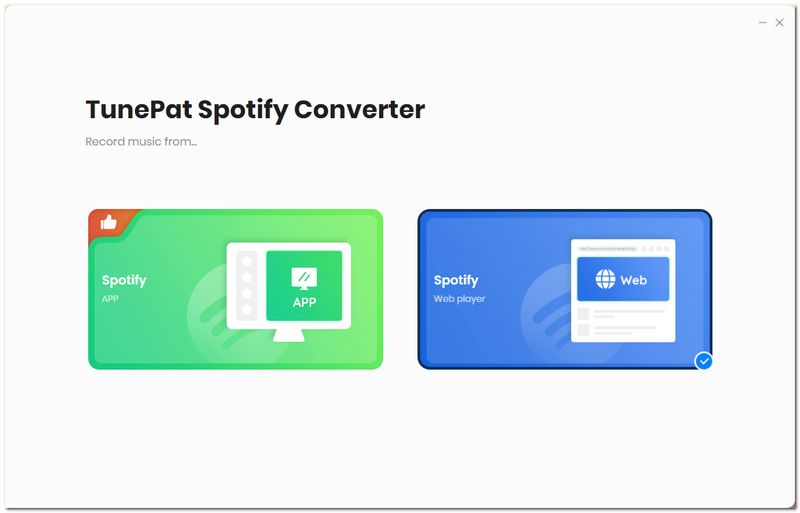
Step 1 Launch TunePat Spotify Converter and choose to convert music from either the Spotify Web Player or the Spotify App. You can log in with a Free or Premium Spotify account to access your full library, or convert directly without logging in based on your preference.
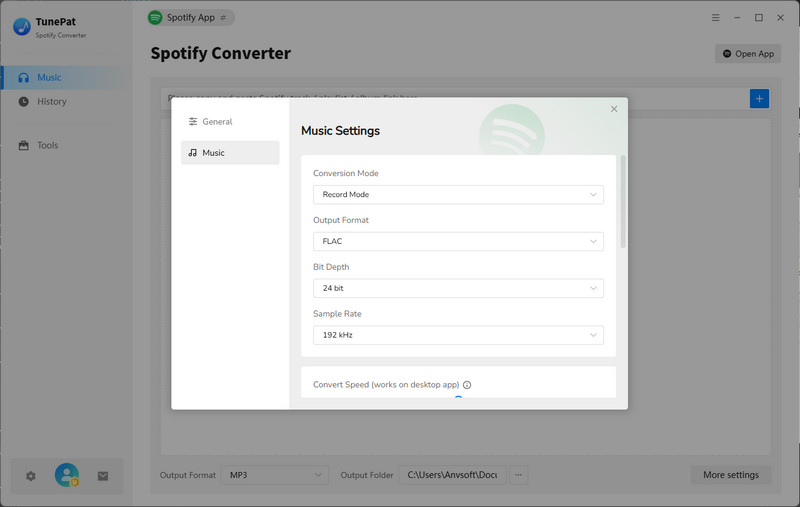
Step 2 Click Settings at the bottom-left to set your preferred output format (MP3, FLAC, WAV, etc.), bit rate, sample rate, and output folder.
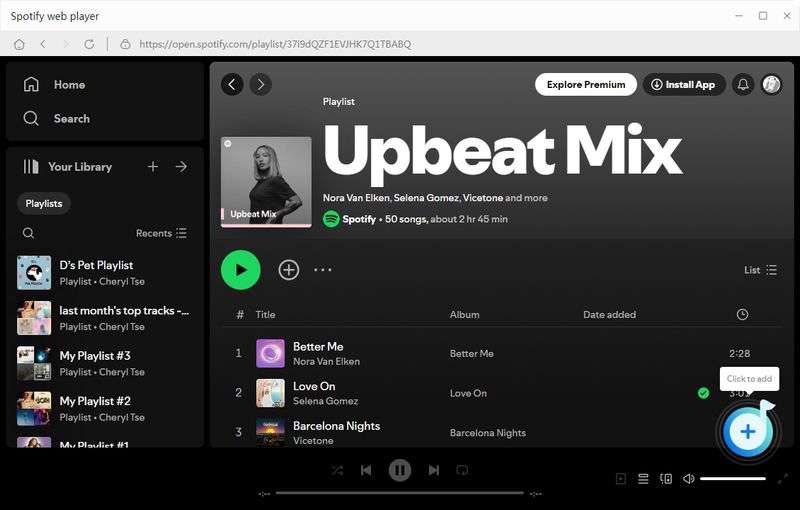
Step 3 Open the song, album, or playlist you want to download, then click the "+" button on the bottom-right to parse the music automatically.
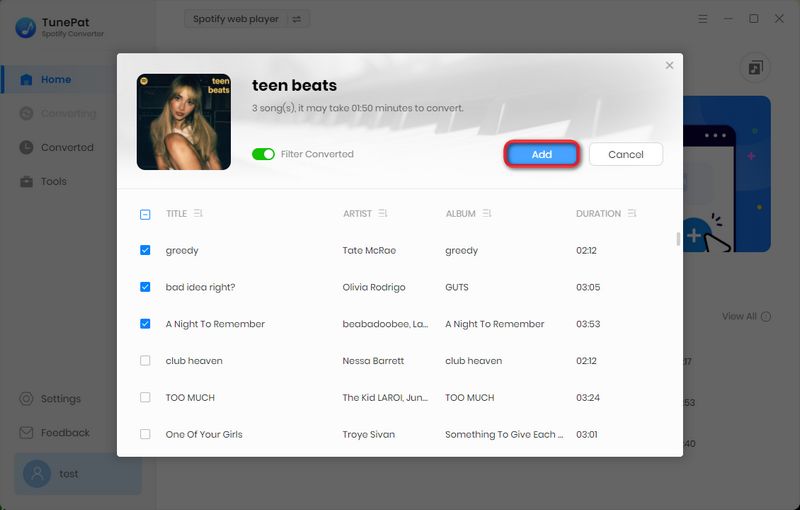
Step 4 Select the Spotify songs you want to download from the popup list and click Add.
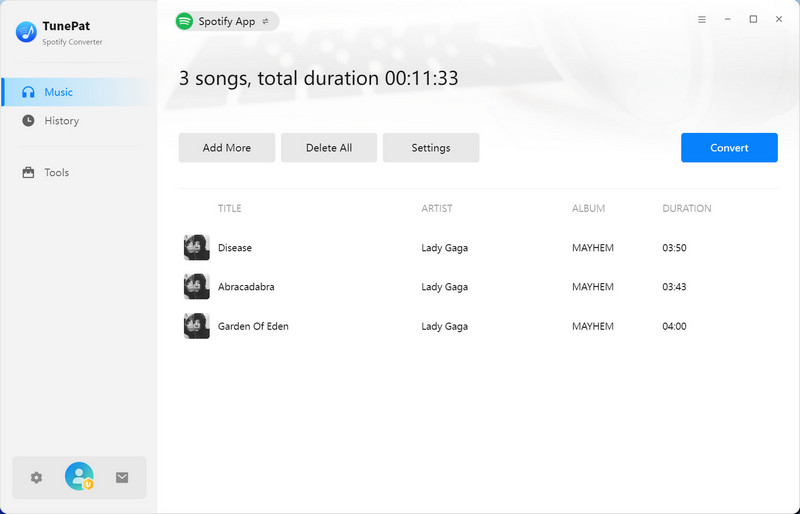
Step 5 Click Convert to start downloading Spotify music with cover art included.
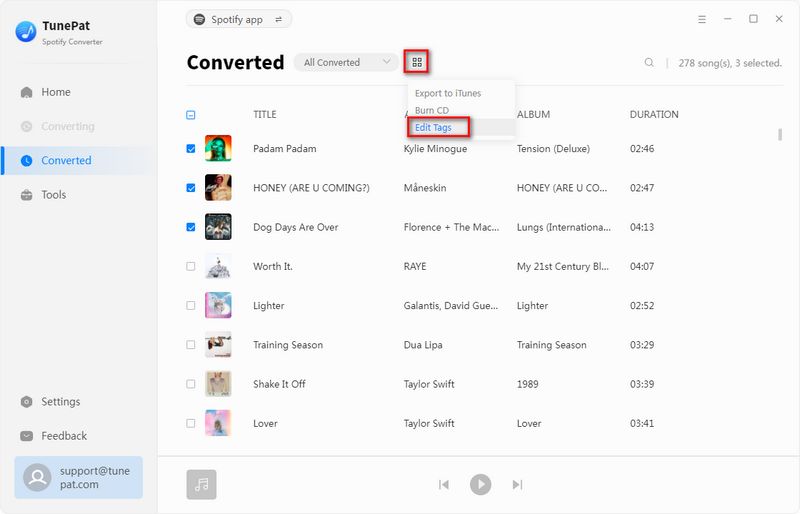
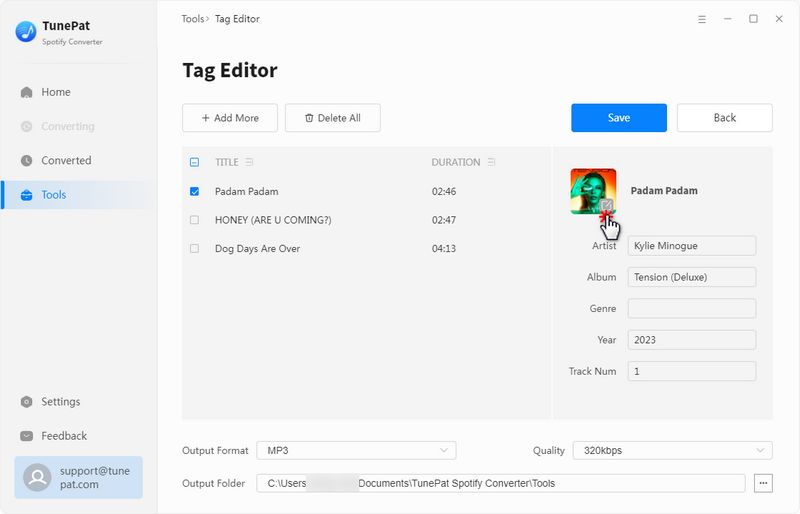
Step 6 Once converted, go to the History tab and select one or more tracks. Click Tag Editor from the bottom action bar, then click Export in the tool interface to save the original high-resolution Spotify cover art directly to your computer.
Part 5: Advanced Tips - Change Cover Art for Local Music Files
Since Spotify does not allow direct editing of cover art within its official app, downloading tracks to local storage provides full flexibility. Once you have saved your Spotify songs locally using TunePat Spotify Music Converter (as shown in Part 4), you can easily edit or replace their album artwork using specialized tag tools or media players.
5.1 Change Cover Art via Tag Editor Tools (Mp3tag)
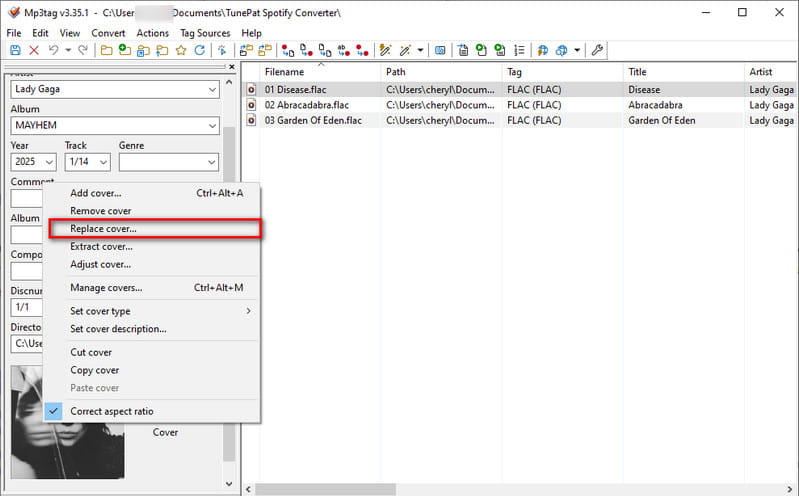
Step 1 Download and open Mp3tag on your PC, then drag and drop your downloaded Spotify tracks into the main panel.
Step 2 Select the song you want to update. The current cover art will be previewed in the bottom-left corner.
Step 3 Right-click the artwork preview box, select Replace cover to load a new image from your computer, and click the Save icon on the top toolbar.
5.2 Change Cover Art via iTunes
Step 1 Launch iTunes on Windows or Mac, then drag and drop your downloaded Spotify tracks into the iTunes Library.
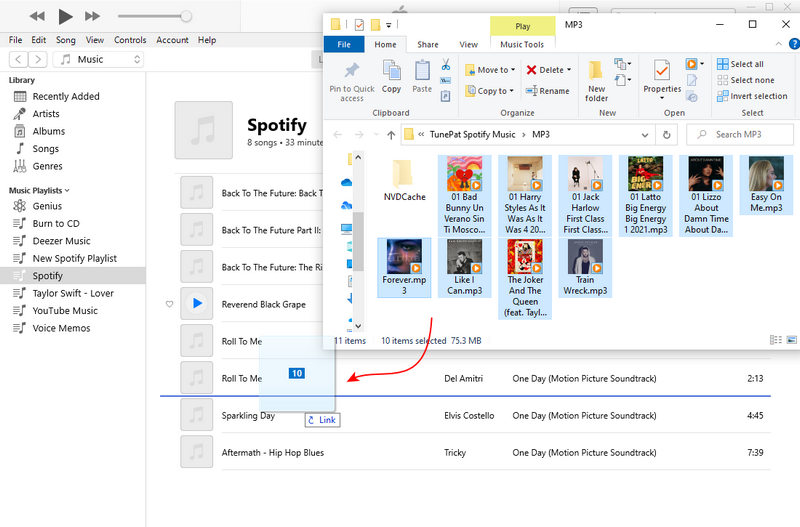
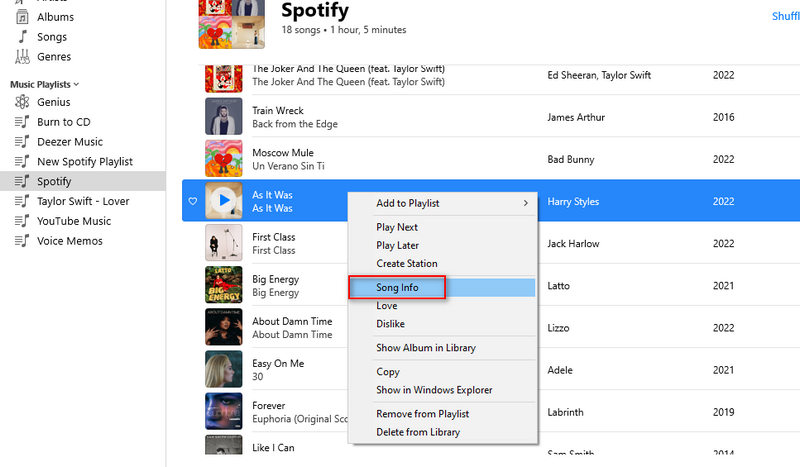
Step 2 Right-click the target song and select Song Info.
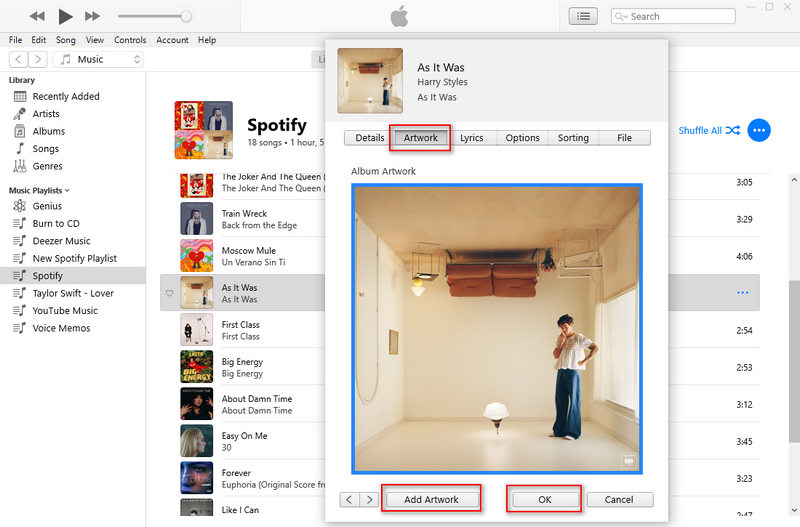
Step 3 Go to the Artwork tab, click Add Artwork to select a new cover image from your local drive, and click OK.
5.3 Change Cover Art via foobar2000
Step 1 Open foobar2000 and drag your downloaded Spotify files into the main window.
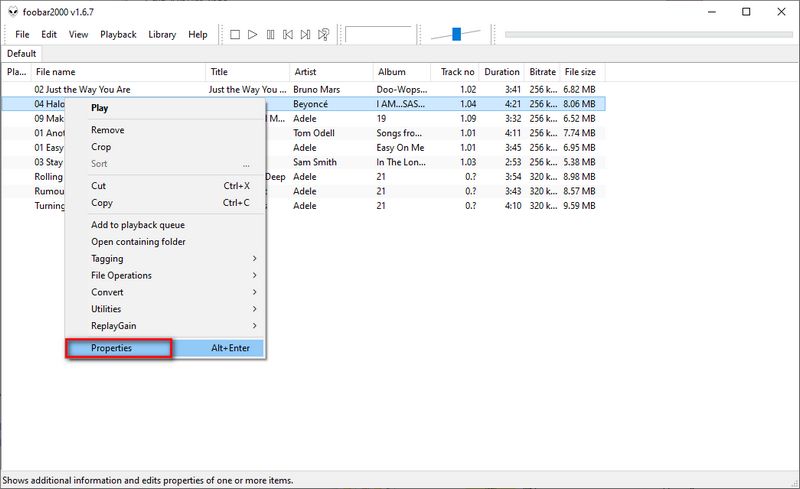
Step 2 Right-click the song you want to update and choose Properties.
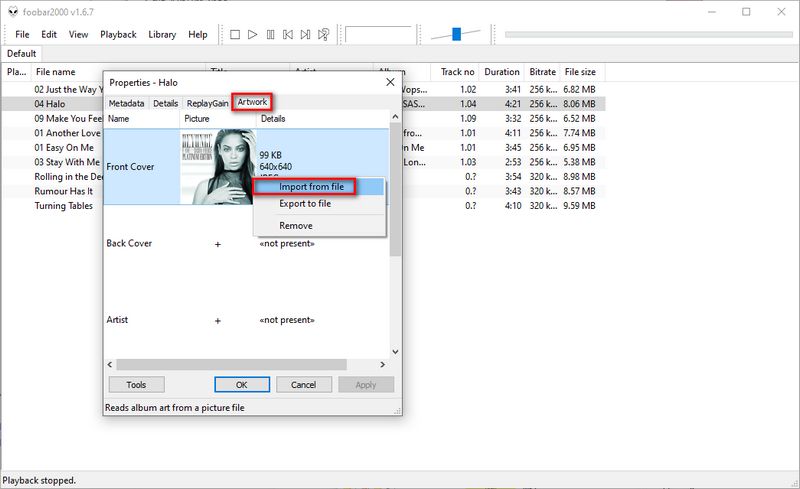
Step 3 Click the Artwork tab, right-click the existing artwork box, and choose Import from file to load a new image from your computer.
Conclusion
Finding the right Spotify cover art really comes down to what you are trying to do. Need a quick pic for a group chat? Just grab a screenshot. Want the actual full-res original cover? Pulling it from the web code or Amazon will do the trick. And if you want to save the real songs with awesome covers attached so you can keep them forever, TunePat Spotify Music Converter is hands down the easiest way to handle it.
Olivia Anderson
Senior Writer