
Spotify is one of the largest streaming music platforms, famous for its free online streaming. Although free account users can listen online for free, they cannot download music. At the same time, ads will appear after playing a few songs. These have troubled free users for a long time, so many people will choose to subscribe to Spotify monthly. In addition to the monthly subscription of Premium Individual, what other Spotify subscription plans do you know? For a family living together, it seems a bit wasteful for everyone to subscribe to a monthly subscription, so Spotify launched the Spotify Family Plan, which is designed for a large family.
If you are not familiar with Spotify Family Plan, come and read this article together! Today's article will introduce you to what Spotify Family Plan is, how to use Spotify Family Plan, the comparison between the four Spotify subscription plans, and how to download songs using Spotify's free account.
Part 1: What is Spotify Family Plan?
Spotify Family Plan is a subscription plan designed for families or groups of up to 6 people who live at the same address. Unlike an Individual plan, Spotify Family allows multiple users to share one subscription while keeping separate accounts, personalized playlists, recommendations, and listening histories.
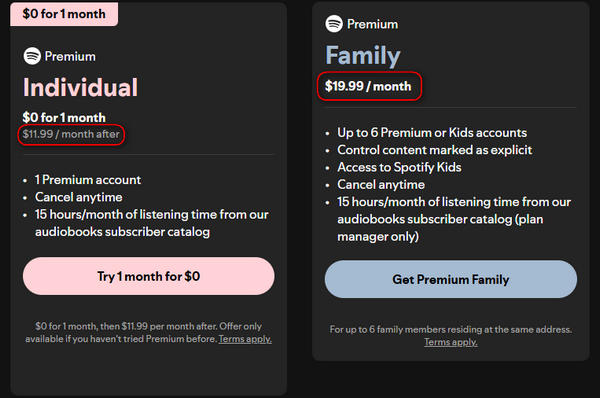
The plan manager (the person who signs up and pays for the plan) is responsible for the subscription fee, while other members can join without paying separately. A Spotify Premium Individual plan costs $12.99 per month, meaning six separate Individual plans would cost $77.94 per month. In comparison, Spotify Premium Family costs $21.99 per month and provides Premium benefits for up to six members, offering significant savings for households with multiple users. The plan manager also receives 15 hours of audiobook listening time per month from Spotify's audiobook catalog in supported markets.
After purchasing the plan, the manager can invite eligible family members who live at the same address. Each member uses their own Spotify account, so there is no need to share passwords or listening preferences. Spotify Family also includes family-friendly features, such as explicit content filters that allow the plan manager to control what younger members can listen to.
Part 2: How Does Spotify Family Plan Work?
Now that we've explained what a Spotify family plan is, you're probably interested in this subscription plan if you have multiple people living in your household. Next, let's take a look at how a Spotify family plan works: how to activate a Spotify family plan, how to add/remove family members, how to accept a Spotify family plan invitation, and more.
How to Set up Your Spotify Family Plan?
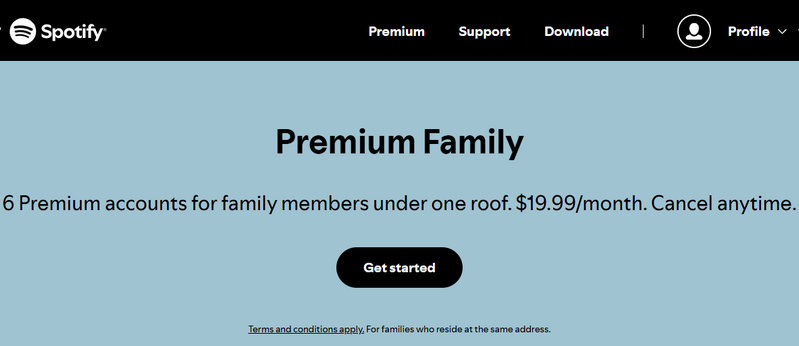
First, go to the Spotify Family plan page and click the "Get started" button in the middle of the screen, which will automatically take you to the payment page. On this page, enter your address and preferred payment method, and follow the instructions to sign up for a Spotify Family plan. By subscribing, you will become a "plan manager". You can now invite up to 5 family members to join your plan. They will need their own separate accounts, as the accounts are not shared between you.
Note: If you already have a Premium subscription with a partner company (e.g. your phone or internet provider), you must first cancel your subscription with that company and wait for your current Premium subscription to expire.
How to Add or Remove Your Family Members?
Adding new members or removing members is simple. First, go to your Spotify account interface, then click "Manage Membership" under "Subscriptions" and choose whether to invite or remove members. If you add members to your plan, you need to send an invitation.
If you want to add more members to your Spotify Family Plan, first make sure you are the "plan manager", the person who set up the subscription and paid for it, otherwise you can only wait for others to invite you.
How to Accept the Premium Family Invitation?
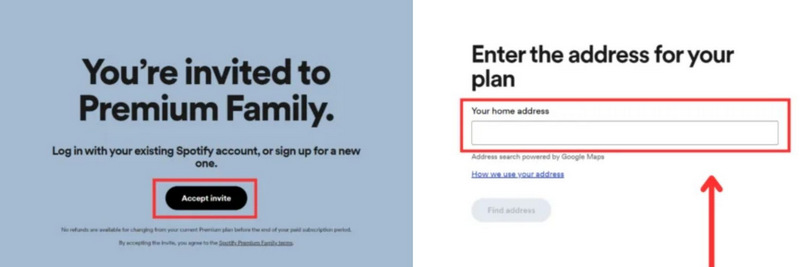
To accept the invite from the plan manager, all you need to do is click on the link and you will be redirected to the Spotify page, click on "Accept invite". Sign in to your Spotify account and enter your address in the box which should be the same as the plan manager, as Spotify Family Plan only allows people with the same family address to subscribe.
Part 3: What are the Differences Among Spotify Subscription Plans?
Spotify offers four different Premium options for singles, students, couples, and families, namely Premium Individual, Premium Student, Premium Duo, and Premium Family. The most basic function of these four Premium plans is the same, that is, you can download Spotify music, but there are still some differences in details. For example, Premium Duo allows two users to subscribe, and Premium Family can accommodate up to six family members to subscribe. Typically, plan managers come with perks, like 15 hours of audiobook listening time or the ability to actively filter what your children listen to.
| Premium Individual | Premium Student | Premium Duo | Premium Family | |
|---|---|---|---|---|
| Price | $12.99/month | $6.99/month | $18.99/month | $21.99/month |
| Number of Users | 1 | 1 | 2 | Up to 6 |
| Social Features | × | × | Duo Mix | Family Mix |
| Special Services | 15 hours of audiobooks | Access to Hulu (with ads) | Plan manager: 15 hours of audiobooks | Plan manager: 15 hours of audiobooks Parental controls for kids' content |
| Free Trial | √ | √ | × | × |
Part 4: How to Download Spotify Music Without a Spotify Subscription?
The Spotify Family Plan is more cost-effective than Spotify Individual, but if you don't have many people living together or don't want to spend money on monthly subscriptions, using a free Spotify account exclusively is a good choice. However, free users may be bothered by the annoying unskippable adverts and the inability to download songs. Today we present a useful and safe tool that allows you to download songs and makes you not bothered by ads, even with a free Spotify account.
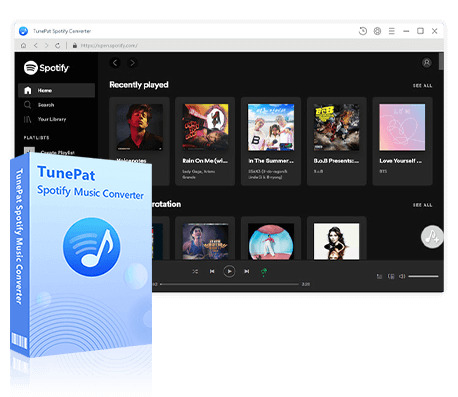
TunePat Spotify Converter is an easy-to-use and safe tool, that can help you convert and download Spotify songs, albums, playlists, podcasts, and audiobooks from Spotify with a free account. With this tool, you no longer have to endure those annoying ads. Most importantly, in addition to downloading in the original format, it can also download Spotify music to MP3, AAC, WAV, FLAC, AIFF, or ALAC format. People can own these songs and transfer them to other devices conveniently. In addition, TunePat Spotify Converter can batch convert many songs at multiple speeds, saving you a lot of time. While downloading at high speed, TunePat Spotify Converter can also preserve the original sound quality and ID3 information, including Artist, Title, Album, Track Number, Year, Disc Number, Artwork, etc. Let's take a look at the detailed operation. Don't forget to click the "Download" button below and try it together.
TunePat Spotify Converter
TunePat Spotify Converter enables users to convert and get Spotify songs, albums, playlists, podcasts, radio, and audiobooks from the Spotify app or web player and then save them permanently.
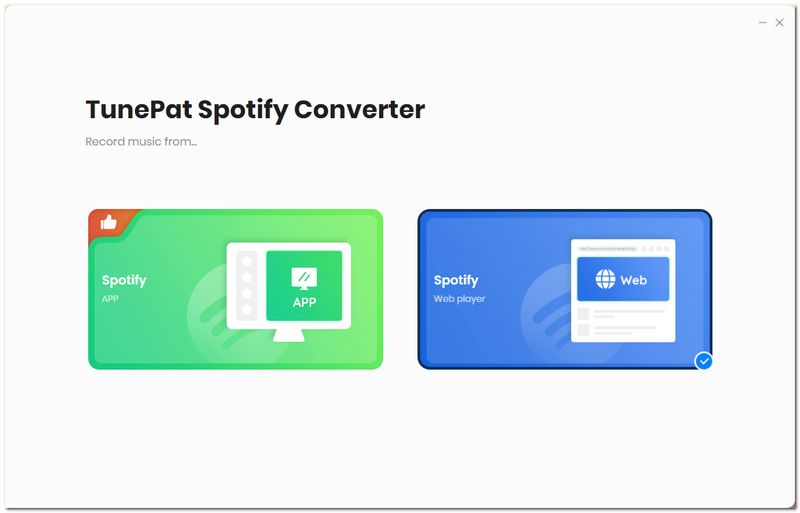
Step 1 Once you have downloaded the TunePat Spotify Converter, open it by double-clicking. If Spotify is installed on your computer, TunePat will automatically open Spotify. Otherwise, TunePat will automatically open the Spotify web player. TunePat helps users convert music from the app and the Spotify web player. You only need to click the button "Spotify App" or "Spotify web player" to switch the source to convert. Although TunePat supports Spotify free users to convert music, don't forget to sign in to your Spotify app and web player account to get your playlists.
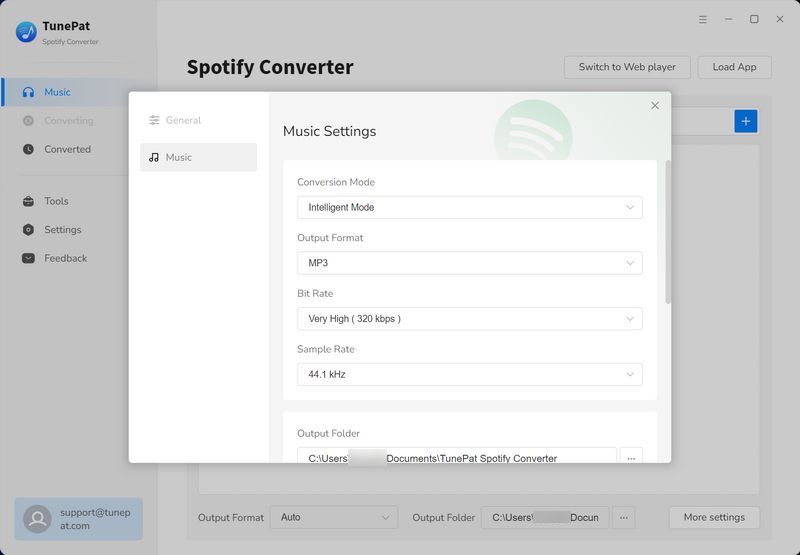
Step 2 Return to the TunePat interface and open the settings interface. Here we complete some basic settings, including "Output Format", "Conversion Mode", "Bit Rate", "Sample Rate", "Output Path", etc. You can also change the arrangement of the output tracks for further sorting.
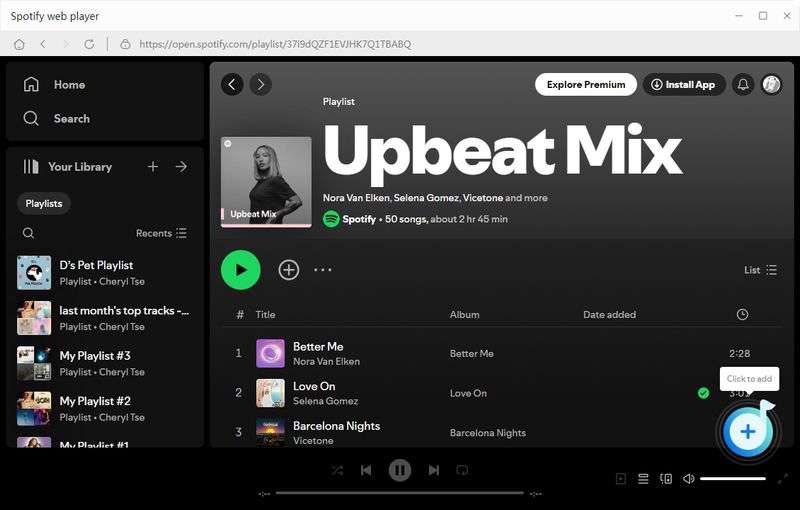
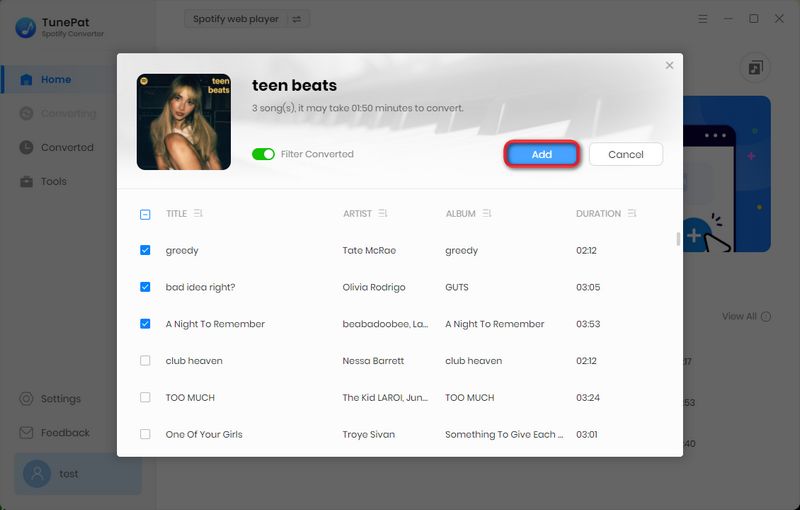
Step 3 Now we can go back to the Spotify app or web player to find the song or album we want to download. Click it to open it, and then click the blue button "+" in the lower right corner. TunePat will then automatically parse these songs, and you can decide whether to keep the song by clicking the box in front of these songs. The checked songs will be added to TunePat when you click "Add".
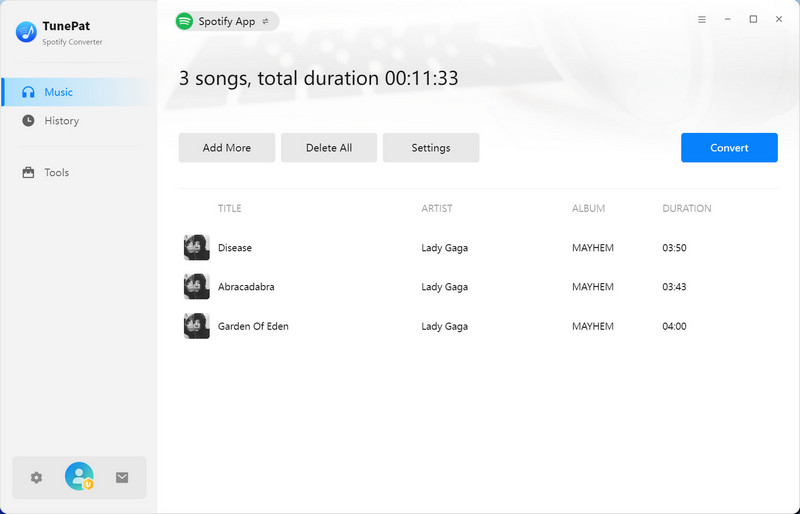
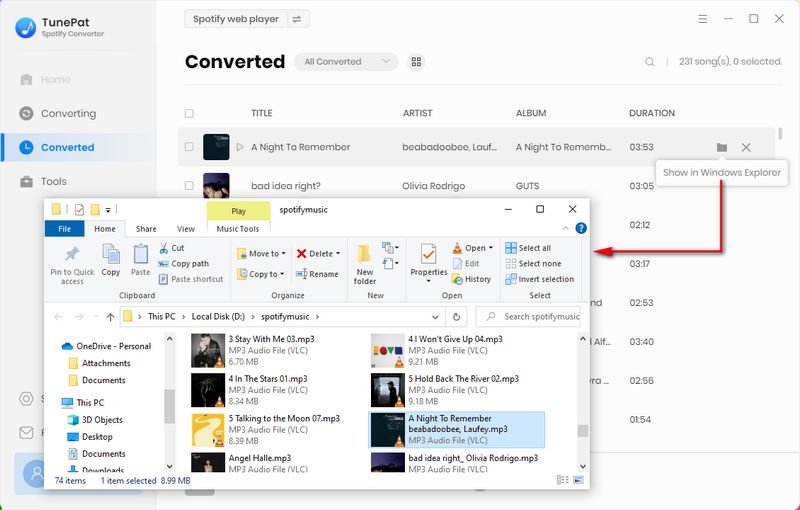
Step 4 After adding Spotify music to TunePat, if you want to add more songs from different albums, you can click "Add More" and repeat the previous operation. If you have added all the songs, click "Convert" to convert the songs. Just wait for a while, TunePat will finish converting all the songs, and then the folder will pop up automatically. You can view these files or click "History" on the left to view them.
Conclusion:
In this article, we have introduced everything you need to know about the Spotify Family Plan. First, we explained what the Spotify Family Plan is. The Spotify Family Plan is a special subscription plan launched by Spotify for families living together. Next, we explain how the Spotify Family Plan works, including how to set up the Spotify Family Plan, how to add or remove family members, how to accept invitations, and more. We then compare four Spotify plans: Premium Individual, Premium Student, Premium Duo, and Premium Family. Finally, we presented a tool that allows you to download songs without a Spotify subscription.
TunePat Spotify Converter is a very practical and convenient tool. Without subscribing to Spotify, users can download Spotify songs, podcasts, albums, and audiobooks to their computers in plain formats such as MP3 and FLAC. Users can transfer the downloaded music to any of their other devices without worrying about not being able to listen to it after the subscription expires. And the downloaded songs will not lose sound quality. If you like it, then click the "Download" button to try it out!


Dereck Martin
Staff Writer