xManager Spotify: Download Guide, Safety & Alternatives
 By Olivia Anderson
Spotify Tips
Updated on 9/03/2026
By Olivia Anderson
Spotify Tips
Updated on 9/03/2026
Spotify's free plan provides access to millions of songs, making it a popular choice for users who want to enjoy music without a subscription. However, limitations such as ads and restricted offline listening may affect the overall experience. As a result, some users look for alternative solutions like xManager Spotify. In this guide, we will explain what xManager Spotify is, how to download, install, and use the xManager Spotify APK, as well as its potential risks and safer alternatives.
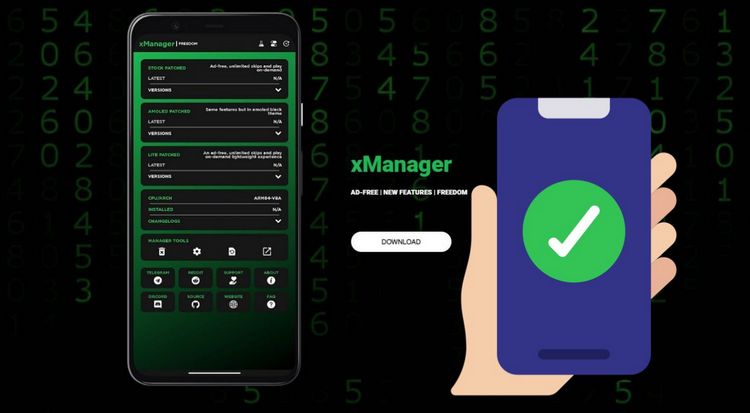
Part 1: What Is xManager Spotify?
xManager Spotify is an unofficial Android application designed to help users manage and install different versions of the Spotify app. It allows users to browse available Spotify versions, download APK files, and switch between different releases more conveniently. Unlike the official Spotify app, xManager is not developed or supported by Spotify. Some modified versions may provide additional functions beyond the standard Spotify experience, but users should also be aware of potential security and stability concerns when using third-party applications.
xManager Spotify has the following features:
Version Management: Users can download and switch between multiple versions of Spotify, including older releases.
Ad-Free Experience: Some modified versions may remove ads and provide an ad-free listening experience similar to Spotify ad blockers.
Unlimited Skips: Some versions may provide unlimited track skips beyond the limitations of Spotify's free plan.
Offline Listening: Some modified versions may claim to support offline listening features that are not available in the official free Spotify plan.
No Root Required: Users do not need to root their Android device to install or use xManager Spotify, making it accessible to a wider audience.
Quick Pros & Cons of xManager Spotify
To use xManager Spotify, the following requirements must be met:
- xManager Spotify is only available for Android devices. It does not support iOS, Windows, or macOS. Users need an Android phone or tablet with a recent version of the operating system.
- Users must allow installations from unknown sources on their devices since xManager is not available on the official Google Play Store.
Part 2: Is xManager Spotify Safe?
While xManager Spotify is popular among some Android users, its safety remains a common concern. Since it is an unofficial third-party application and is not available through official app stores, users should carefully consider potential security, account, privacy, and legal risks before installing it.
Security Risks
Because xManager Spotify is distributed outside official app stores, users may face security risks when downloading APK files from unknown sources. Modified applications can potentially contain unwanted software, outdated components, or security vulnerabilities. In addition, unofficial apps may not receive regular security updates like official applications.
Account Risks
Using modified Spotify versions may also affect account security. Spotify can change its systems over time, and unofficial versions may stop working, cause login issues, or potentially violate Spotify's terms of service, which could lead to account limitations.
Privacy Concerns
Unlike apps distributed through official channels, third-party APKs usually do not go through the same security review process. Users should be cautious about the permissions they grant and avoid providing sensitive information through unverified applications.
Legal Considerations
xManager Spotify is not developed, supported, or affiliated with Spotify. Some modified versions may offer features beyond the official free Spotify experience, so users should understand the potential risks and use such applications at their own discretion.
*Note: If you prefer a more reliable way to save Spotify music offline, consider a professional Spotify downloader. It supports batch downloading Spotify songs to MP3 and other popular formats with dedicated solutions for Android, Windows, and macOS.
Part 3: How to Install and Set Up xManager Spotify
⚠ Note: xManager is an unofficial third-party application and is not affiliated with Spotify. Since its interface and available versions may change over time, the following steps provide a general overview of the installation and setup process.
Once you've decided to try xManager Spotify, follow the general steps below to install the app and complete the initial setup on your Android device.
3.1 How to Install xManager Spotify
Before installing xManager, enable APK installation from unknown sources in your Android settings. This option is usually available under Security, Privacy, or Install unknown apps depending on your device.
Next, download the xManager APK from a trusted source and install it on your Android device. Once installed, open xManager to continue the setup process.
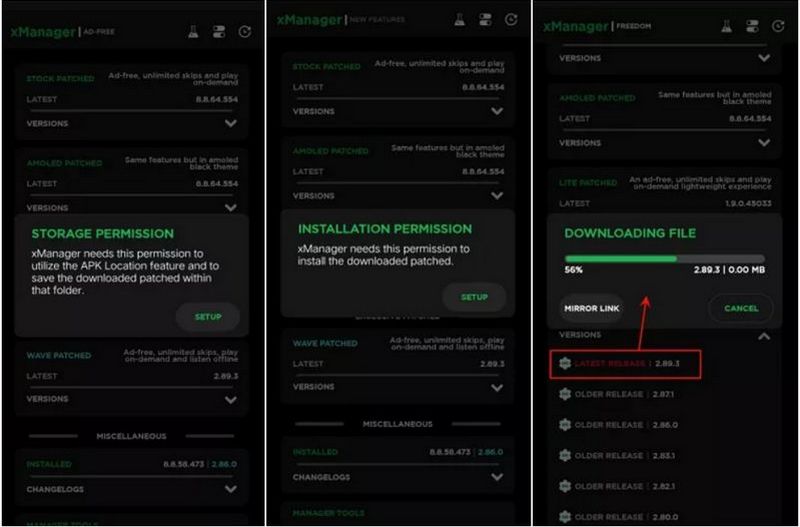
3.2 How to Set Up xManager Spotify
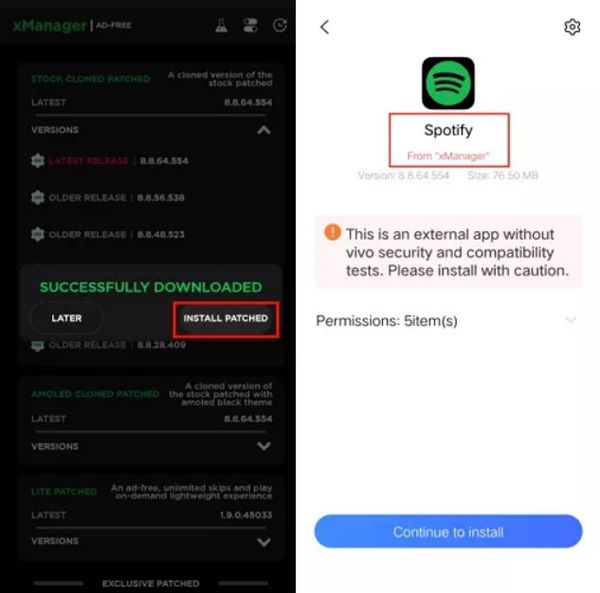
After opening xManager, browse the available Spotify versions and select one that works with your device. The available versions may change over time, so compatibility and features can vary.
Follow the instructions to install the selected Spotify version, then open Spotify and sign in with your account. Keep in mind that modified versions may have different features and stability depending on the release.
Part 4: How to Fix xManager Spotify Not Working?
Like many unofficial applications, xManager Spotify may occasionally experience compatibility or stability issues. Problems such as failed installations, unavailable Spotify versions, app crashes, or login errors can occur due to outdated versions, device settings, or changes made by Spotify. Try the following troubleshooting steps to resolve common xManager Spotify issues.
1. Check Your Internet Connection
If xManager Spotify cannot load available versions or fails to download APK files, check your internet connection first. An unstable network may prevent the app from accessing required resources. Try switching between Wi-Fi and mobile data, then restart xManager.
2. Install a Compatible Spotify Version
Not every Spotify version available through xManager works properly on all Android devices. If Spotify crashes, certain features stop working, or the app cannot open normally, try installing another available version that is more compatible with your device.
3. Update or Reinstall xManager Spotify
Older versions of xManager may contain bugs or compatibility problems. Check whether a newer version is available and consider reinstalling the app if issues continue. Before reinstalling, remove the previous version completely to avoid conflicts.
4. Check Installation Permissions and Storage
xManager requires permission to install APK files from unknown sources. Make sure this option is enabled in your Android settings and that your device has enough storage space for installation. You can also check whether xManager has the necessary permissions to function properly.
5. Check Spotify Account Compatibility
If you encounter login problems or Spotify cannot connect properly after installation, the installed version may no longer be compatible with Spotify's current services. Try switching to another available version or confirm that your account works normally with the official Spotify app.
*Note: If xManager Spotify continues to have compatibility issues or you prefer a more stable way to save Spotify music offline, consider using a professional Spotify downloader instead.
Part 5: Safer Alternatives to xManager Spotify
xManager Spotify vs Safer Alternatives
| Feature | xManager Spotify | TunePat Spotify Converter | TuneCable Spotify Downloader APK |
|---|---|---|---|
| Platform | Android | Windows / macOS | Android |
| Security | ⚠️ Unofficial app | Dedicated desktop software | Dedicated Android app |
| Spotify Login | Required | Supported | Supported |
| Spotify Free Account | Limited | Supported | Supported |
| Download Method | Modified Spotify app | Save Spotify music as local files | Save Spotify music as local files |
| Audio Quality | Depends on version | Up to lossless quality | Up to 320 kbps |
| Output Formats | N/A | MP3, FLAC, WAV, AAC, ALAC & AIFF | MP3, FLAC, WAV, AAC |
| Batch Download | Depends on APK version | ✅ Yes | ✅ Yes |
5.1 Best xManager Alternative for Windows and Mac
If you are looking for a more stable and reliable way to enjoy Spotify music offline, TunePat Spotify Converter is a practical alternative to xManager Spotify. Unlike modified APKs, it does not require changing the Spotify app and provides a more consistent way to batch download Spotify songs, albums, playlists, podcasts, and radio for offline playback.
TunePat supports exporting Spotify music to MP3, FLAC, WAV, AIFF, AAC, and ALAC formats while preserving ID3 tags and lyrics. With a Spotify Premium account, you can also save music in high-quality formats, including up to 24-bit/44.1kHz FLAC quality, and enjoy your downloaded files on different devices without relying on the Spotify app.
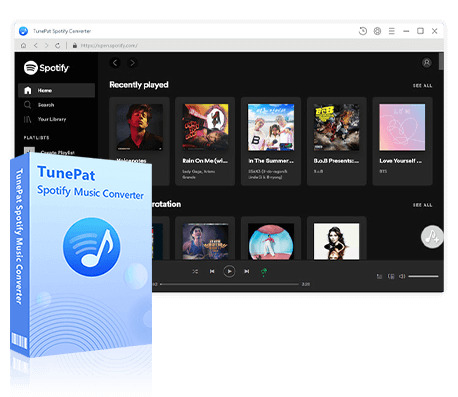
TunePat Spotify Converter
TunePat Spotify Converter lets you save Spotify content locally with original metadata preserved, offering a reliable way to enjoy offline playback.
- Convert Spotify songs, albums, playlists, videos, podcasts, and more in batches.
- Convert Spotify music to MP3, AAC, WAV, FLAC, AIFF, or ALAC formats.
- Preserve original audio quality, ID3 tags, and lyrics after conversion.
- Support lossless Spotify music downloads with Premium accounts.
- Play converted Spotify files offline on various devices without the Spotify app.
Step 1 Launch TunePat Spotify Converter and choose your preferred music source: Spotify app or web player. Then log in with your Spotify Free or Premium account to access your music library.
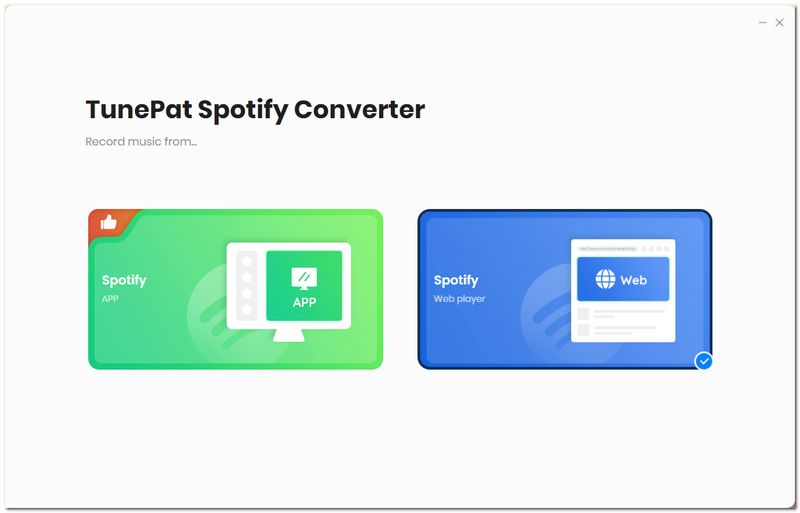
🎧 To save Spotify music in lossless quality:
- You need a Spotify Premium account. Don't have one? Learn how to get Spotify Premium.
- Select the Spotify app as the music source.
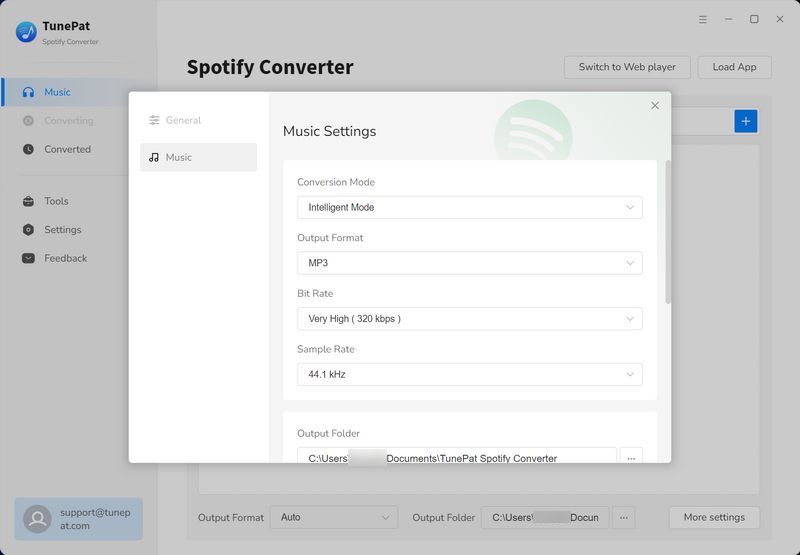
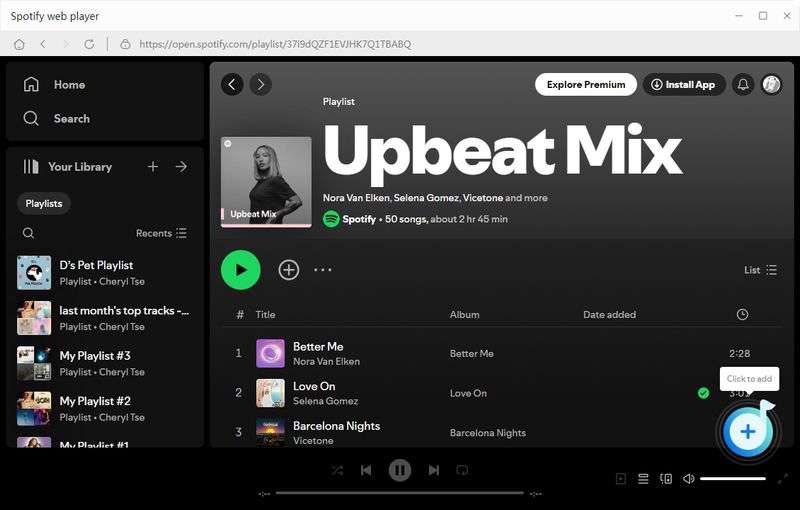
Step 2 Open the Settings menu to customize output format, quality, and file organization. Then open any Spotify song, album, or playlist and click the + button to load tracks.
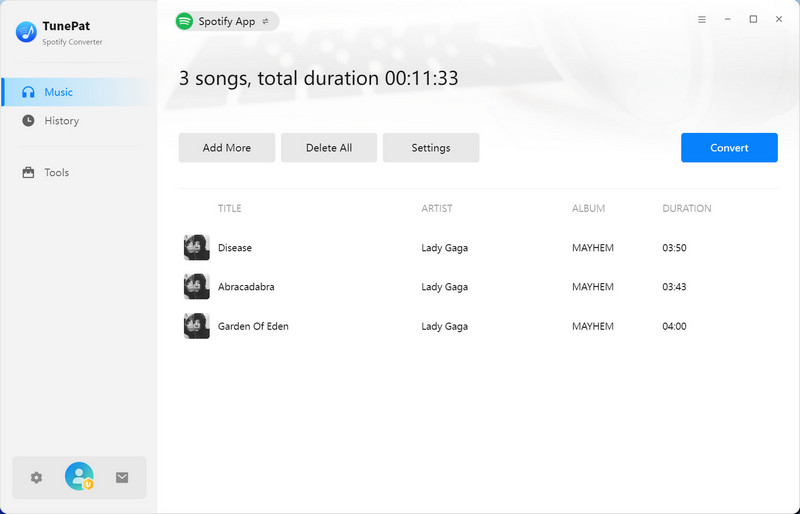
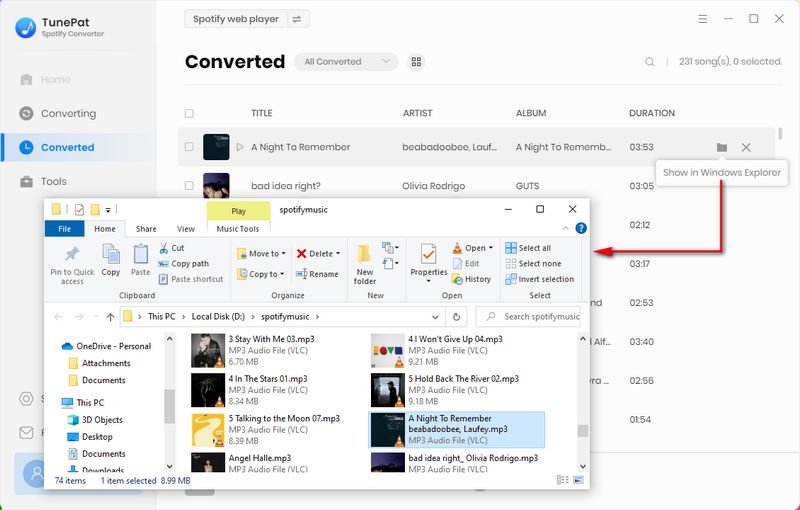
Step 3 Select the songs you want to save and click Convert. Once finished, you can find your downloaded Spotify files in the History section and play them offline anytime.
5.2 Best xManager Alternative for Android
If xManager Spotify is not working or you are looking for a safer way to save Spotify music on Android, TuneCable Spotify Downloader APK is worth considering. Unlike modified Spotify APKs, it focuses on downloading Spotify songs, playlists, and albums for offline listening without requiring a Spotify Premium subscription. Follow the steps below to learn how it works:
Step 1 Install and Launch TuneCable Spotify Downloader APK
Click the download button to install the TuneCable Spotify Downloader APK for Android.
Step 2 Log in to Spotify & Add Spotify Songs to Convert
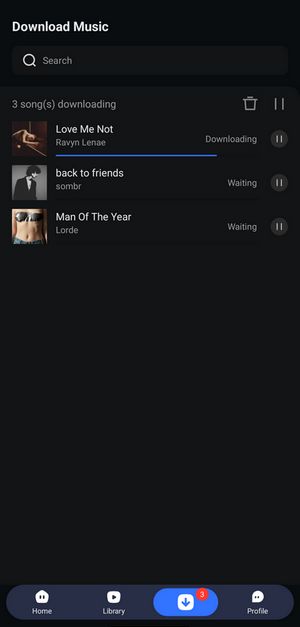
Open TuneCable Spotify Downloader and tap "Login Spotify" from the top menu to sign in to your Spotify account.
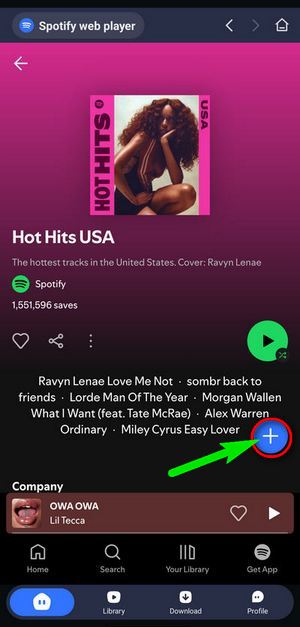
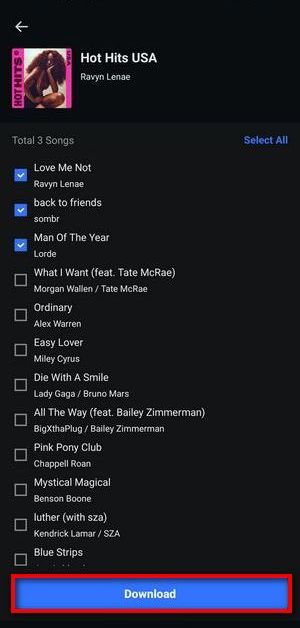
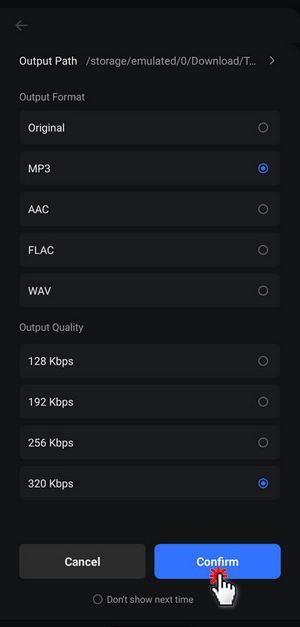
Return to the "Home" page and browse your desired playlist or album. Tap the blue "+" icon to scan the tracks, then select the songs you want to download and tap "Download". Before finalizing, review your output settings, then confirm by tapping "Confirm" to start the download.
Step 3 Download Spotify Music to Your Android Phone
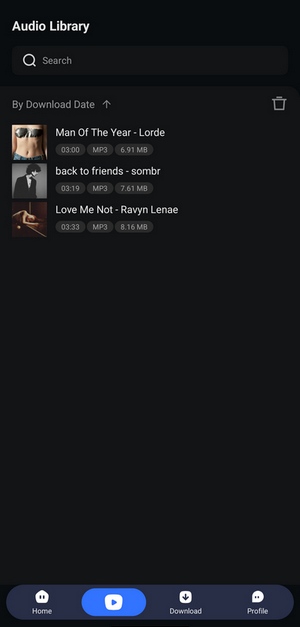
Once completed, visit the "Library" tab to access your downloaded music. You can tap any track to play it instantly.
Part 6: FAQs About xManager Spotify
Q1: Is xManager Spotify safe to use?
A: xManager Spotify is an unofficial third-party application, so users should be aware of potential security, privacy, and account-related risks. Since it is not distributed through official app stores, you should carefully consider these risks before installation. We discuss these concerns in detail in our xManager Spotify safety analysis.
Q2: Is xManager Spotify free?
A: Yes. xManager Spotify is available for free and allows users to download and manage different Spotify APK versions. However, since it is an unofficial application, available features, compatibility, and stability may vary depending on the version you use.
Q3: Does xManager Spotify work without Premium?
A: xManager Spotify is often used by users who want access to additional Spotify features without a Premium subscription. However, the available functions depend on the specific modified APK version, and some features may stop working after Spotify updates.
Q4: Why is xManager Spotify not working?
A: xManager Spotify may stop working due to outdated APK versions, Spotify updates, compatibility issues, or account-related changes. If you encounter problems, our xManager Spotify not working solutions cover some common causes and possible fixes.
Q5: What is the best alternative to xManager Spotify?
A: The best alternative depends on your device and needs. For desktop users, TunePat Spotify Converter provides a way to save Spotify music locally with support for multiple output formats. Android users can consider TuneCable Spotify Downloader APK as another option for downloading Spotify music on mobile devices.
Conclusion:
xManager Spotify can be useful for users who want to explore Spotify Premium-like features without a subscription. However, as an unofficial third-party application, it may come with security concerns, compatibility issues, and unstable performance. Users who need a more stable way to enjoy Spotify music offline can consider reliable alternatives such as TunePat Spotify Converter or TuneCable Spotify Downloader APK, depending on their device and usage needs.
Olivia Anderson
Senior Writer