Spotify Playlist Downloaders (Android/Desktop/Online)
 By Olivia Anderson
Spotify Tips
Updated on 9/11/2026
By Olivia Anderson
Spotify Tips
Updated on 9/11/2026
Spotify is awesome, but streaming playlists on the go eats up a lot of mobile data. That’s why saving your music offline is a must.
If you don’t have Spotify Premium, you might wonder: how can you download whole playlists for free? Don't worry. In this guide, we will review the best Spotify playlist downloaders for Android, PC/Mac, and online browsers. Let's dive in and find the right one for you!
📊 Quick Comparison: Best Spotify Playlist Downloaders
| Tool Name | Platform | Audio Source & Max Quality | Price | Recommendation |
|---|---|---|---|---|
| TuneCable Spotify Downloader Android | Android | 🟢 Spotify Source / 🔊 Up to 320 kbps | Free Trial | ⭐⭐⭐⭐⭐ |
| Spowlo | Android | 📺 YouTube or YT Music / 🔉 Approx. 128-160 kbps | 100% Free | ⭐⭐⭐ |
| SpotiFlyer | Android | 📺 YouTube or YT Music / Compressed&Low Audio Quality | Free tier / $6.5 per month | ⭐⭐ |
| TunePat Spotify Converter | Desktop (Windows/Mac) | 🟢 Spotify Source / ✨ Lossless FLAC (Up to 24-bit/44.1kHz) | Free Trial | ⭐⭐⭐⭐⭐ |
| SpotiDownloader | 🌐 Online | ❓ Unknown / 🔊 Up to 320 kbps | Free (Pay to remove ads) | ⭐⭐⭐⭐ |
| SPOTIDOWN | 🌐 Online | ❓ Unknown / 🎲 Highly Random (100+ - 320 kbps) | Free tier / $20 per month Premium | ⭐⭐ |
| SpotMate | 🌐 Online | ❓ Unknown / ⚠️ Fake Quality (Fake 320kbps / Cut at 15kHz) | Free tier / Paid plans from $5 | ⭐⭐⭐ |
Part 1: Top 3 Best Spotify Playlist Downloader for Android
#1: TuneCable Spotify Downloader for Android
If you're an Android user and want to download your entire Spotify playlist to your phone, TuneCable Spotify Downloader for Android is your best choice. TuneCable Spotify Downloader is one of the most popular apps for downloading Spotify music, and now they've also released an Android version for Android users. If you're looking to download Spotify playlists without using the official app, TuneCable is the best choice for downloading Spotify tracks, albums, and playlists to your phone.
TuneCable Spotify Downloader for Android: Quick Pros & Cons
How to Use TuneCable to Bulk Download Spotify Playlists:
Step 1 Download TuneCable & Log in to Your Spotify Account
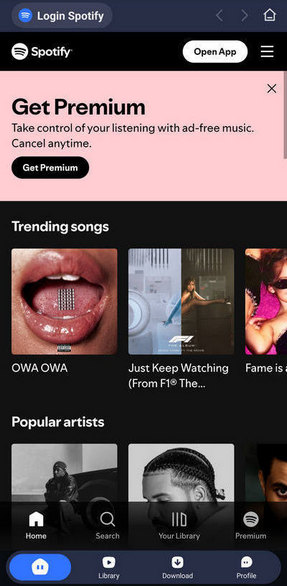
Click the "Download" button above to download the TuneCable Spotify Downloader APK. Then, launch TuneCable on your mobile phone, and you'll see the Spotify interface. TuneCable supports both free and paid Spotify accounts. Please click the "Login Spotify" button to log in to your account.
Step 2 Add Spotify Playlists to TuneCable
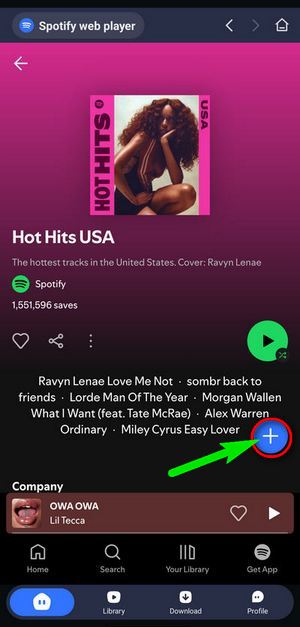
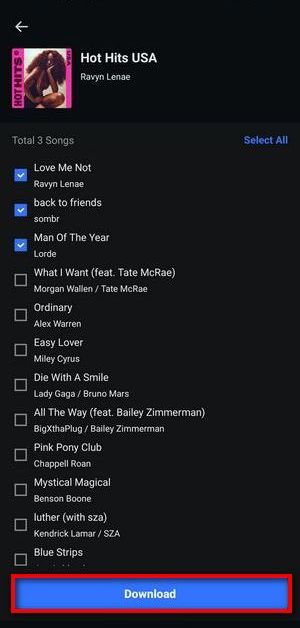
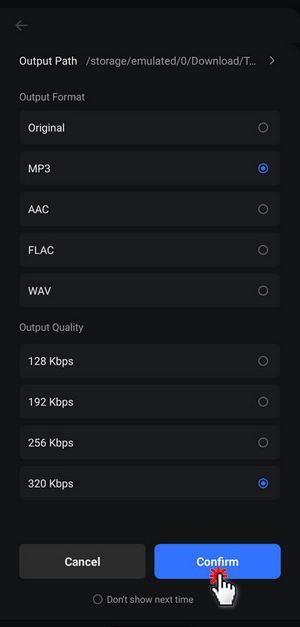
Next, open the Spotify playlist you want to download, just as you would in the Spotify app. After selecting it, tap the "+" button, and TuneCable will automatically load the playlist. You can then tick the boxes next to the songs you wish to download. Once your selections are made, tap "Download". Here, you can adjust the output settings. Click the "Confirm" button at the top and you'll see your selected song begin downloading.
Note: If needed, you can click "Don't show next time" at the bottom, so the conversion process will start immediately the next time you click the Download button.
❓ Want to download Spotify in Lossless quality? Please use the Spotify Downloader for desktop.
Step 3 Start Conversion and Check the Downloaded Spotify Playlists
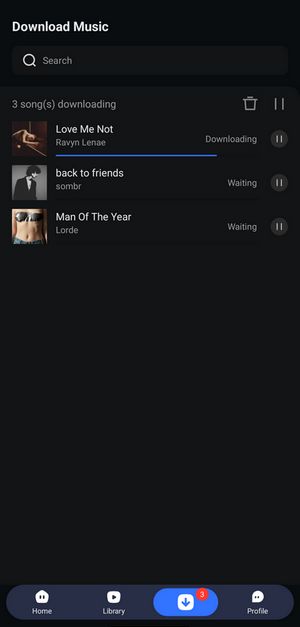
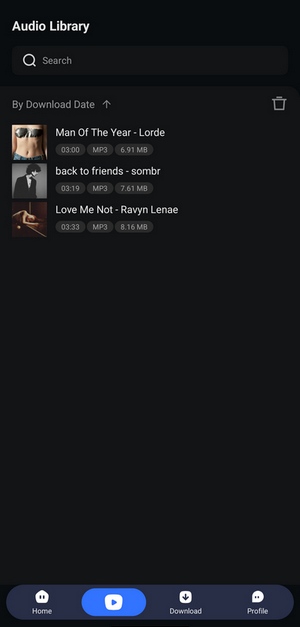
TuneCable will start downloading your Spotify playlists to your phone. Give it a few moments to finish downloading, then click the "Library" button at the bottom of TuneCable to view it. Here you will also see the duration, file size, and output format of the downloaded song.
📋 TuneCable Spotify Downloader APK: Overview & Compatibility
- Audio Source: Spotify
- Audio Quality: Up to 320 kbps MP3
- Output Formats: MP3, AAC, WAV, FLAC
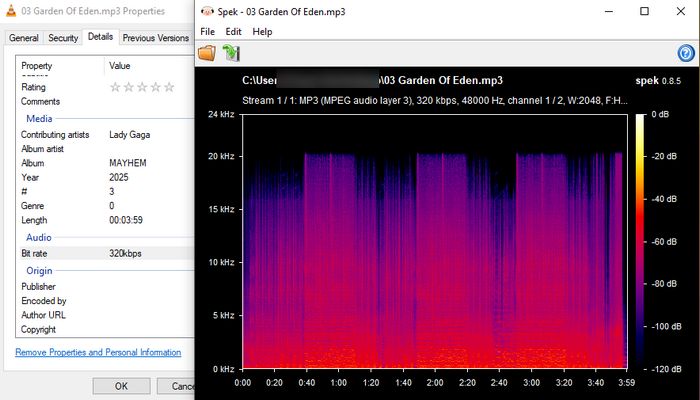
- Important Notes: You need to install this app via an APK file because it is not available on Google Play, but it is officially developed by a professional company, making it safe and reliable. Our hands-on test shows the sound quality is excellent, as the downloaded file delivers a true 320 kbps bitrate with a solid 20 kHz frequency ceiling, which means you get full audio with zero quality loss.
🟢 Who It's For:
- Android users who want high-quality 320 kbps music downloads<./li>
- Users looking for a reliable app backed by a professional development company.
- Anyone who wants official Spotify source audio in multiple formats.
🔴 Who It's NOT For:
- Users who only want to install apps directly from the Google Play Store.
- Users looking for an open-source or completely free, community-driven tool.
How to Recover Deleted Spotify Playlist
Lost a Spotify playlist or removed it by mistake? If you’re trying to figure out how to get it back, this complete guide will help you recover deleted playlists and offers an easy method to back up your library. Learn More >>
#2: Spowlo
Spowlo is a free, open-source Android app that downloads Spotify music without a Premium account. Instead of accessing Spotify directly, it uses track metadata to fetch matching audio from YouTube or YouTube Music.
Spowlo: Quick Pros & Cons
How to Use Spowlo to Download Spotify Playlists:
Step 1 Get the latest Spowlo APK from the official GitHub Releases page.
Step 2 Enable installation from unknown sources on your Android device. Go to "Settings > Apps & notifications > Special app access > Install unknown apps", select the browser or file manager you used to download the APK, and turn on permission.
Step 3 Install the Spowlo APK by opening it in your file manager and following the on-screen prompts.
Step 4 Search for Spotify music. Optionally, adjust settings such as audio format, folder location, and whether to embed lyrics and artwork.
Step 5 Tap download to save tracks, albums, or playlists offline. (If it fails, retry or check online forums).
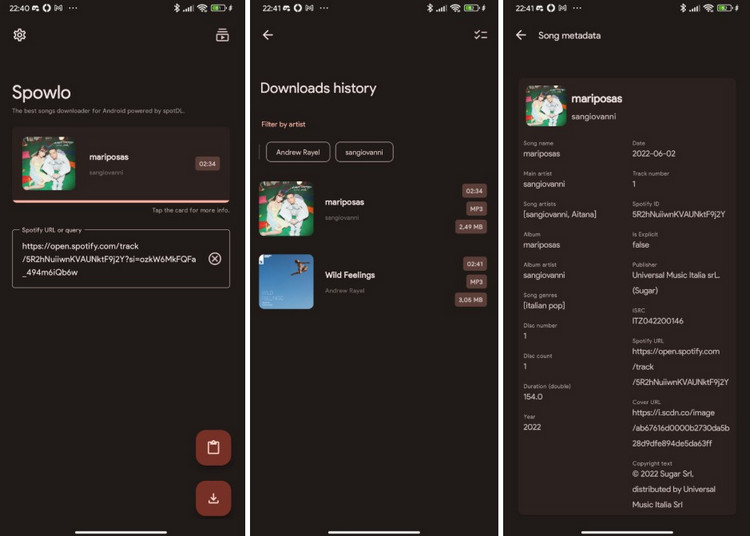
- Audio Source: YouTube / YouTube Music
- Audio Quality: Approx. 128kbps M4A / 160kbps OPUS
- Output Formats: MP3, FLAC, OGG, OPUS, M4A (Note: Most formats like FLAC and WAV are just remuxed/re-encoded, not true lossless)
- ⚠️ Warning: The GitHub repository is archived and active development has ceased. Since 2025, numerous Reddit users have reported the following issues: Playlist downloads no longer work. / The app fails to function after YT-DLP updates. / Must search for single tracks manually to download them.
- Users who want to download Spotify playlists for free.
- Users who don't mind audio sourced from YouTube.
- Open-source software enthusiasts.
- Audio purists looking for true 320kbps Spotify source quality.
- Users who need long-term stability and regular updates.
- Users who expect 100% accurate track matching.
📄 Spowlo: Overview & Compatibility
🟢 Who It's For:
🔴 Who It's NOT For:
#3: SpotiFlyer
SpotiFlyer was originally a popular open-source Android app designed to download music from multiple platforms without a premium account. Similar to Spowlo, it doesn't download directly from Spotify; instead, it reads Spotify metadata and fetches the matching audio from YouTube Music.
SpotiFlyer: Quick Pros & Cons
How to Use SpotiFlyer to Download Spotify Songs (Current Status):
Step 1 Avoid installing "Mod" or "Premium Unlocked" APKs from unofficial websites, as they present significant security risks.
Step 2 If testing the Google Play version, use only the free tier to parse single tracks; do not purchase the $6.5/month premium subscription due to rampant billing and functionality complaints.
Step 3 Paste your link and attempt to download tracks individually. If the app crashes after 3 songs or fails to match the audio, consider switching to an active, stable alternative like TuneCable.
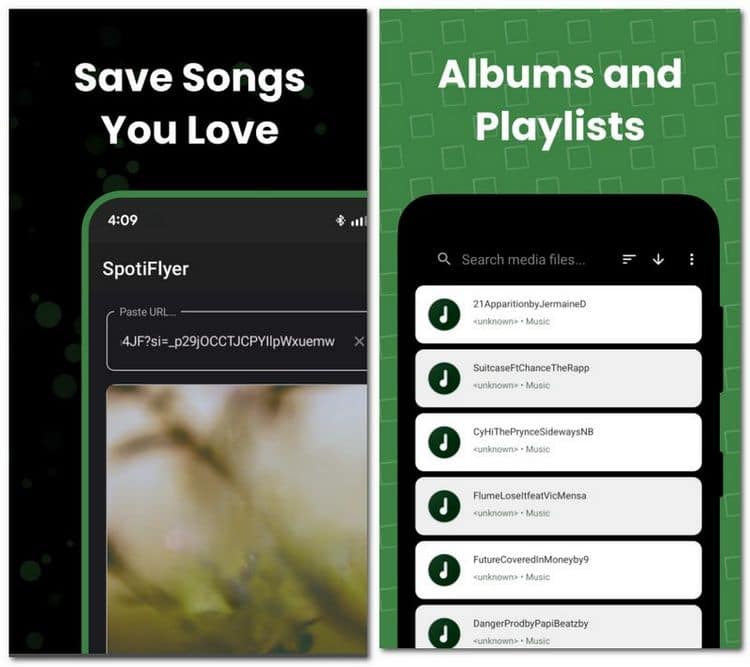
- Audio Source: YouTube / YouTube Music (via Spotify metadata)
- Audio Quality: Dependent on YouTube Music streams (Compressed MP3, low-to-mid quality)
- Supported Platforms: Spotify, YouTube, SoundCloud, Gaana
- ⚠️ Status Alert (2026): The original open-source project is abandoned. The current Google Play versions (by Max Green) are highly unstable and widely considered a scam: the free tier limits downloads to ~3 single songs, while the costly $6.5/month premium tier hiddenly caps playlists at 30 songs and constantly crashes after 3 tracks. Avoid unverified third-party "Mod APKs" due to high malware risks.
- Users looking to parse single, individual tracks from platforms other than Spotify (SoundCloud/Gaana) and who don't mind manual, repetitive downloads.
- Anyone trying to download playlists (completely broken/paywalled).
- Users expecting a functional free tool or a stable paid service (you will get ripped off).
- Audio purists looking for reliable, high-quality tracks.
📄 SpotiFlyer: Overview & Compatibility
🟢 Who It's For:
🔴 Who It's NOT For:
Part 2: How to Download Spotify Playlist on Windows and Mac
We just looked at three Spotify playlist downloaders for Android. While they all perform differently, they share one big drawback: none of them support true lossless audio quality. Since Spotify rolled out lossless audio support last year, we highly recommend using a desktop program if you're serious about sound quality. We can download our Spotify music in lossless quality on our computer first, then easily transfer the files to our Android devices using a USB cable or a file management app. Just make sure your phone has enough storage space, because FLAC files can be huge!
Next up is a desktop Spotify playlist downloader that we've tested and highly recommend, TunePat Spotify Converter. It's actually more than just a playlist downloader, it also lets us download single tracks, albums, podcasts, audiobooks, podcast videos, and music videos. We can batch export them at up to 40X speed into various common audio formats, making it super easy to listen offline on any device.
TunePat Spotify Converter: Quick Pros & Cons
How to Use TunePat to Download Spotify Playlists in Lossless:
Step 1 Download and Launch TunePat Spotify Playlist Converter
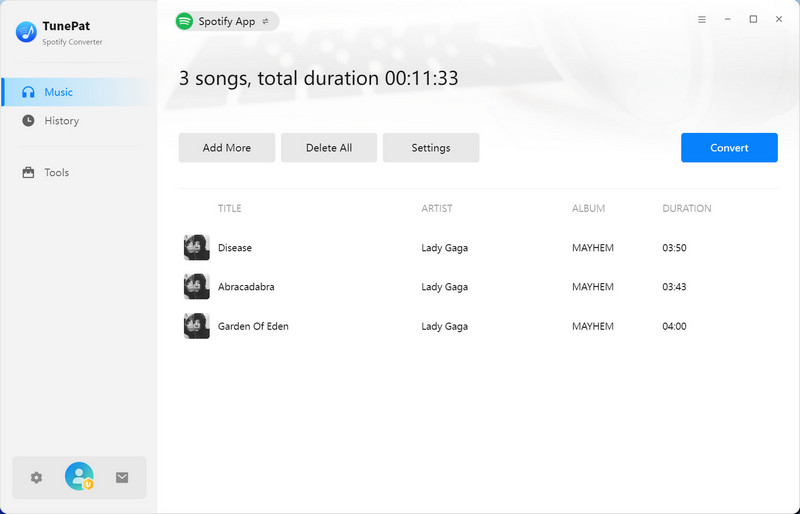
When you open the program, you'll see the following interface. You can switch between the two programs by clicking "Spotify App" or "Spotify web player". To download lossless Spotify music, remember to convert music from Spotify App.
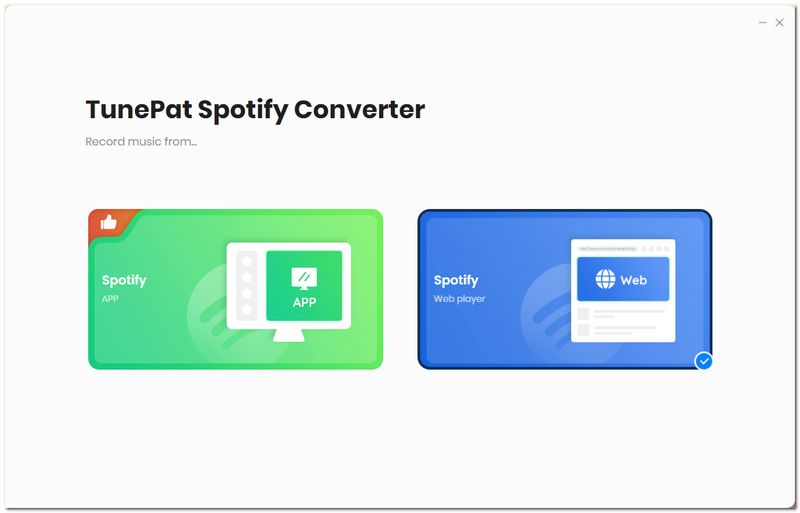
If you don’t plan to download lossless audio, a free Spotify account is sufficient for converting music. For Spotify lossless audio, a Spotify Premium subscription is required. If you don't subscribe yet, you can get Spotify Premium for free. Then, follow the steps below to export Spotify music in up to 24-bit/44.1kHz for offline playback and permanent storage on various devices.
Step 2 Change the Output Settings
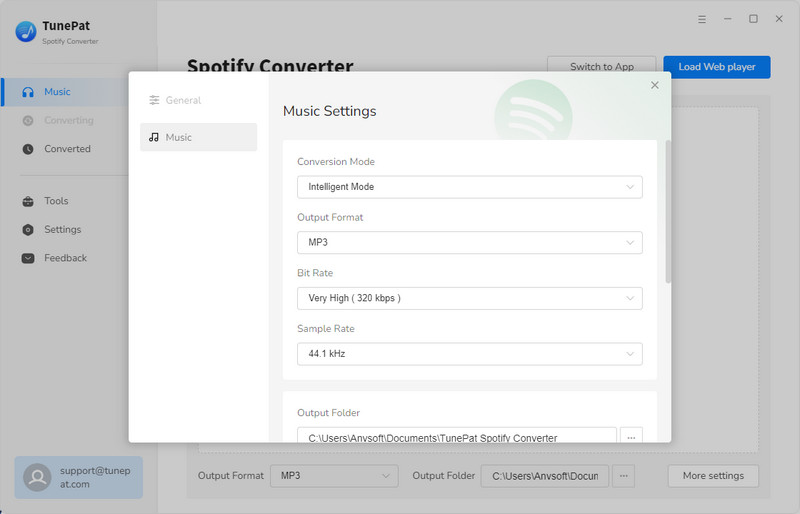
Click the "Settings" button to adjust some settings here. This section allows customization of conversion parameters, including output format, bitrate, and sample rate. Your preferred storage path and folder naming conventions can also be established here for efficient local music library management. Please select "Record Mode" as the conversion mode here, and then choose "Recommended" as the output format.
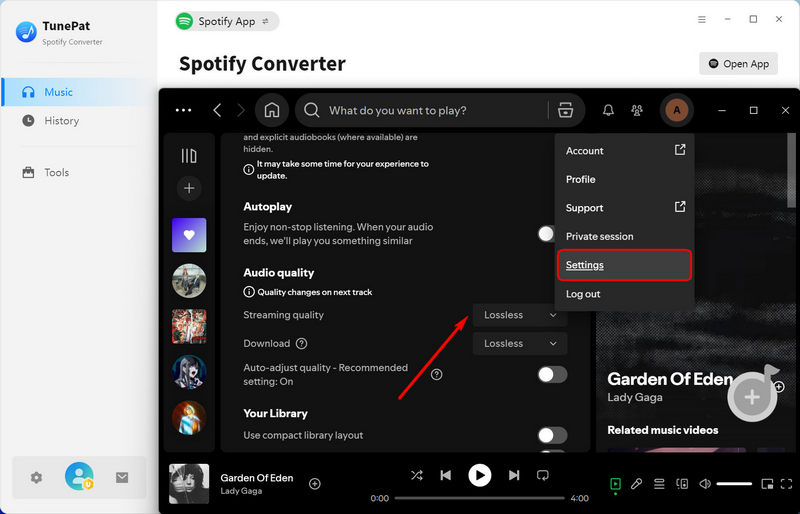
Next, open the Spotify app and tap your profile picture in the top right corner to access "Settings". Scroll down to the Audio Quality section and select "Lossless" for Streaming quality option.
Step 3 Select Target Spotify Playlists for Conversion
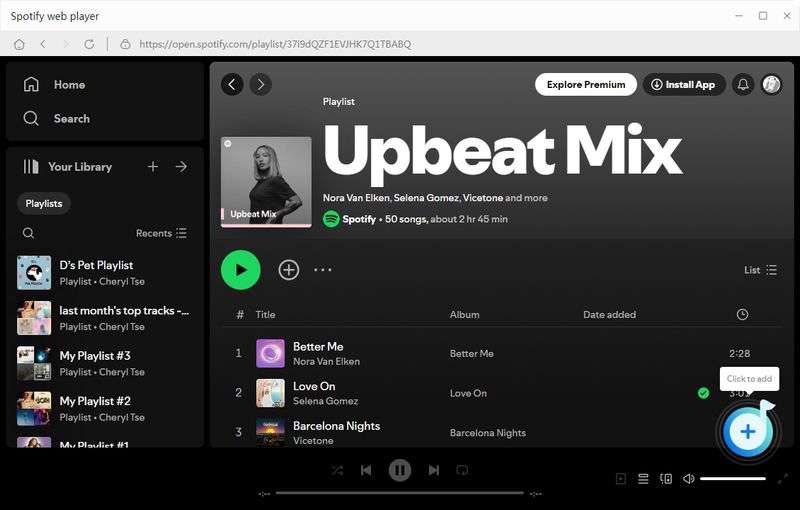
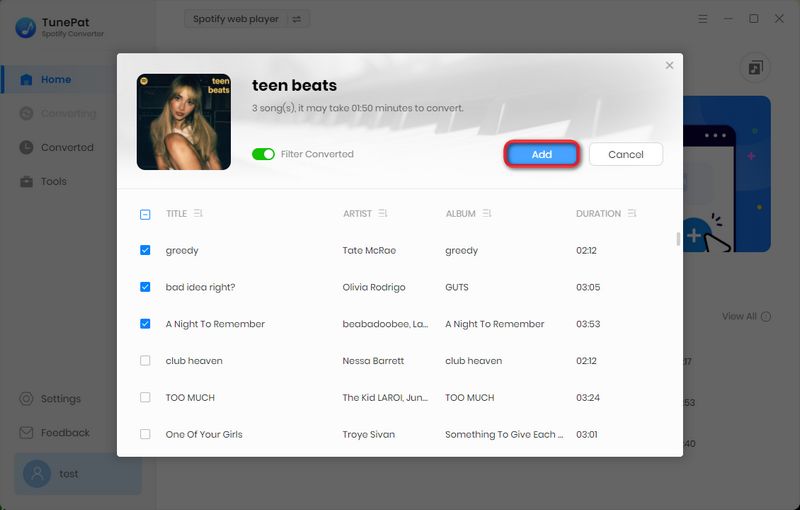
You can now browse your playlist. Select the playlists you want to download, then click the "+" button in the bottom right corner. Alternatively, manually select the songs you want and then click "Add".
Step 4 Initiate the Download Process
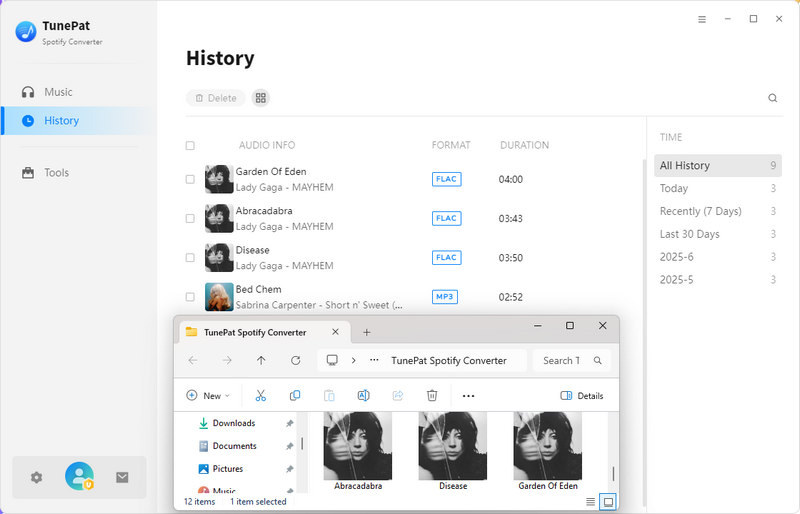
Your music is now ready for conversion. If you need to process more albums, click "Add More" and repeat the steps above. Once everything is set, hit "Convert" to begin. TunePat can quickly download Spotify playlists to your computer. After the download is complete, you can find all finished tracks in the "History" tab on the left. From there, you can easily transfer the downloaded songs to your Android device.
📄 TunePat Spotify Converter: Overview & Compatibility
- Audio Source: Spotify
- Audio Quality: Up to Lossless quality
- Output Formats: MP3, AAC, WAV, FLAC, ALAC, AIFF
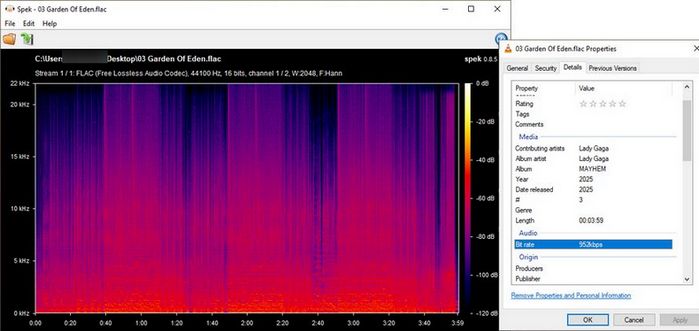
- 🎯 Our Hands-On Test: (As shown in the test image below) Think of this graph as an HD picture of the music. Regular MP3s cut off the top details at 20 kHz, but TunePat captures everything all the way up to 22 kHz with no missing pieces. This proves you are getting a real, studio-quality 16-bit / 44.1 kHz FLAC file with a heavy 952 kbps bitrate instead of a fake, stretched-out MP3.
🟢 Who It's For:
- Users who demand true, uncompressed 16-bit / 44.1 kHz lossless audio quality.
- Users who want to download entire large playlists, albums, or their full Spotify libraries quickly and reliably.
- Users who want a hassle-free way to transfer high-quality music via USB to Android devices, MP3 players, or car audio systems.
- Users who also need to download diverse audio formats, including podcasts, audiobooks, and music videos.
🔴 Who It's NOT For:
- Users who do not own a computer, as this professional software is currently desktop-only.
- Users who have extremely limited phone space, as genuine FLAC files take up significantly more room than MP3s.
Part 3: Top 3 Online Spotify Playlist Downloaders
In addition to the Spotify playlist downloader Android apps and the professional desktop tools that support lossless downloads mentioned earlier, there is another type of tool you should know about. These are online tools that can be accessed directly through a web browser on any device, whether it's Android, PC, or a tablet.
Before You Read: Please note that the online Spotify downloaders listed below share common drawbacks: potential privacy risks, no support for converting multiple lists simultaneously, and paywalls for basic features. To save your time, we highly recommend using a secure, professional Spotify downloader instead:
1. SpotiDownloader
SpotiDownloader is a free web tool that turns Spotify links into offline tracks. Just drop in a Spotify URL, and you can easily save playlists, albums, or single songs straight to MP3 so you can listen anywhere without a signal.
SpotiDownloader: Quick Pros & Cons
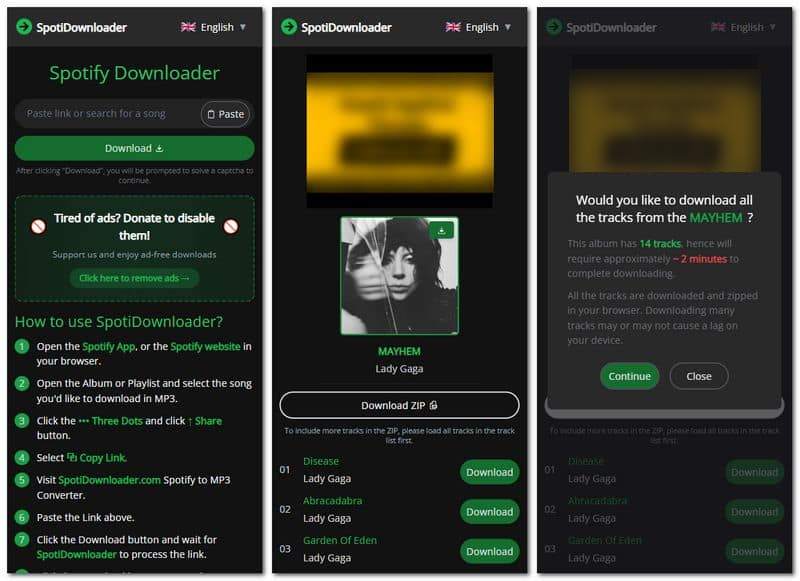
Step 1 Copy the URL of the target Spotify song, album, or playlist and paste it into the box. Click "Download" to start parsing.
Step 2 To download the playlist or album at once, click the "Download ZIP" button.
Step 3 After seeing the pop-up window, click "Continue" and wait patiently for the conversion to complete.
📄 SpotiDownloader: Overview & Compatibility
- Audio Source: Unknown
- Audio Quality: Keeps up to 320 kbps
- Output Formats: MP3
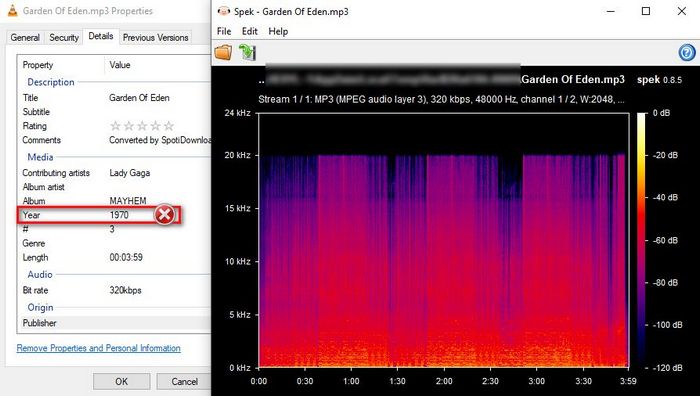
- 🎯 Our Hands-On Test & Analysis: Testing the same playlist yielded surprisingly good results. As shown below, the downloaded track hits a true 320 kbps bitrate with a solid 20 kHz frequency ceiling. It is also the only free online tool we tested that exports an entire playlist without hidden paywalls, though it limits you to parsing one link at a time. The main downside is the metadata: the release year mistakenly shows as 1970, meaning you will need to fix these incorrect ID3 tags manually. → See our full SpotiDownloader review for more details.
🟢 Who It's For:
- Budget-minded listeners who want higher-fidelity 320 kbps MP3 files without having to pay a monthly subscription.
- Users looking to grab complete playlists in one go for free, rather than being capped at just a few tracks.
- Casual collectors who don't mind spending a few extra minutes manually cleaning up audio details and song info.
🔴 Who It's NOT For:
- Users who want their music library perfectly organized out of the box, as the frequent ID3 tag errors mean extra manual editing.
- Listeners who want a clean, distraction-free interface, since you have to pay a premium subscription just to get rid of the website ads.
2. SPOTIDOWN
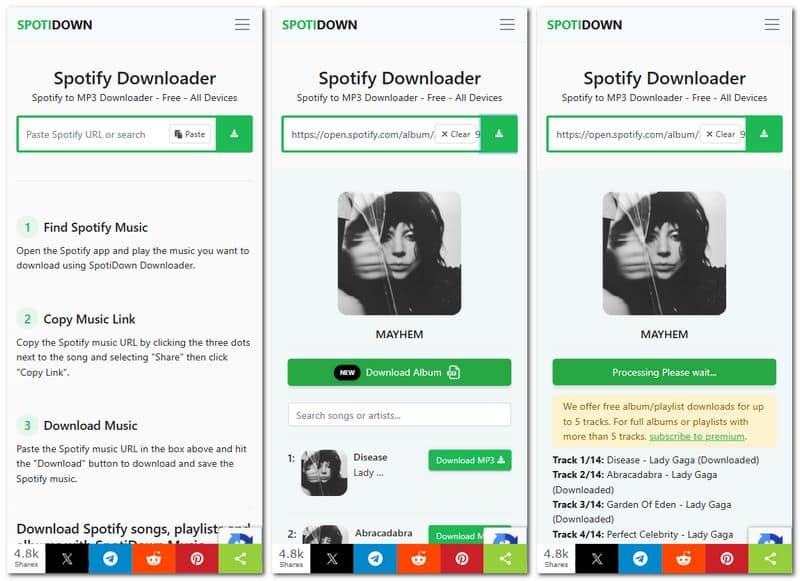
SpotiDown is a free online Spotify downloader that allows users to download Spotify songs and playlists as MP3 files directly through their browser. However, it only supports limited batch downloading. If you want to download an entire playlist or album at once, a subscription is required; otherwise, you can only download the first 5 songs.
SPOTIDOWN: Quick Pros & Cons
Step 1 Open Spotify Web Player, navigate to the target playlist, and copy its URL from the address bar.
Step 2 Visit SpotiDown on your browser, paste the link into the input field, and click "Download" to parse the content.
Step 3 Wait for the parsing to complete, then click "Download MP3." To use the "Download Playlist" feature, you must be a SPOTIDOWN subscriber. Otherwise, you can only download 5 songs.
📕 You might also be interested in: Spotidown Review & Top Alternatives
📄 SPOTIDOWN: Overview & Compatibility
- Audio Source: Unknown (Likely sourced from YouTube or other free platforms)
- Audio Quality: Poor audio quality
- Output Formats: MP3
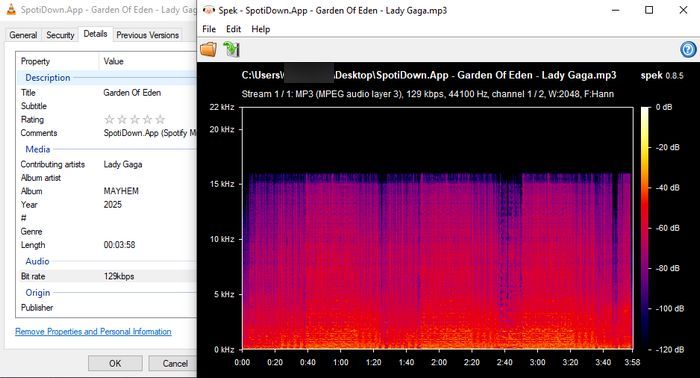
- 🎯 Our Hands-On Test & Analysis: The tool offers no clear quality info or settings. Our testing shows the output quality is completely random and track-dependent. As shown in the test image below, the downloaded file came out at a meager 129 kbps bitrate with a severe 16 kHz cutoff, resulting in compressed sound. However, other tracks within the same album might luckily hit 320 kbps and a 20 kHz ceiling. This extreme inconsistency means you never know if you are getting a clear track or a muddy recording until after downloading.
🟢 Who It's For:
- Users who prefer downloading directly from a web browser without installing any extra software or extensions.
- Users who only need to grab a couple of individual songs quickly and do not plan on saving larger music collections.
🔴 Who It's NOT For:
- Users looking for good value, as paying a steep $20/month for a tool with completely unpredictable audio quality is one of the worst deals on the market.
- Users who want a reliable music library, as the random quality shift between 129 kbps and 320 kbps means your playlist will have highly uneven sound levels and clarity.
- Users who want a clean experience, as you have to deal with annoying button redirects and questionable data privacy practices.
3. SpotMate
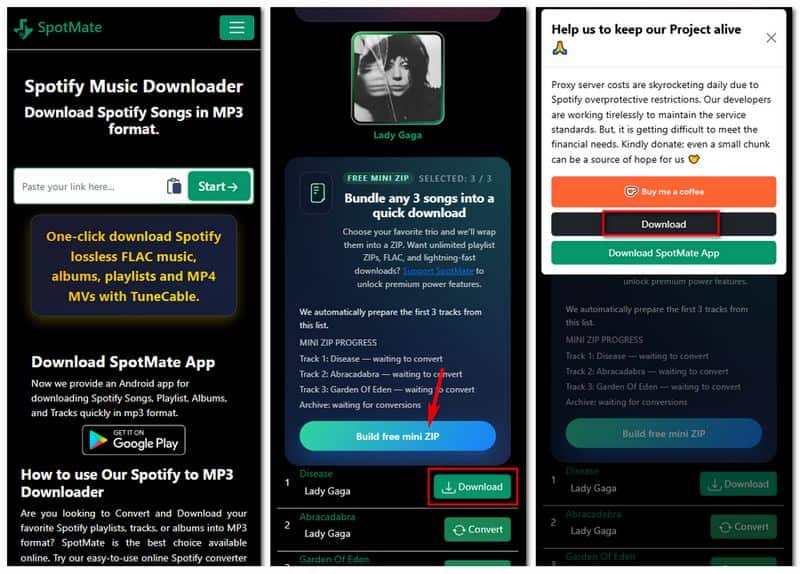
SpotMate is an online tool specifically designed for downloading Spotify music for free, available on desktop and mobile browsers. It supports downloading Spotify singles, albums, and playlists, but only supports MP3 format. Free users can download the first three songs from a Spotify playlist to a ZIP file.
SpotMate: Quick Pros & Cons
Step 1 Open Spotify Web Player and find your playlist. Copy the URL, paste it into SpotMate’s search box, and click "Start" to load it.
Step 2 Once the song loads, click "Convert". After a few seconds, the button will switch to "Download" and a download link will appear.
Step 3 Click "Download" to save the file to your computer. You can view it in the "Downloads" folder on your device.
📄 SpotMate: Overview & Compatibility
- Audio Source: Unknown (Typically sourced from YouTube)
- Audio Quality: Claims to offer 320 kbps MP3 output (Actual quality is much lower)
- Output Formats: MP3, FLAC (FLAC is still in development)
- 🎯 Our Hands-On Test: While this tool claims to deliver high-quality 320 kbps MP3 files, we put it to the test using the same song to see if it lives up to the hype. We analyzed the downloaded file, and the results are shown in the image below.
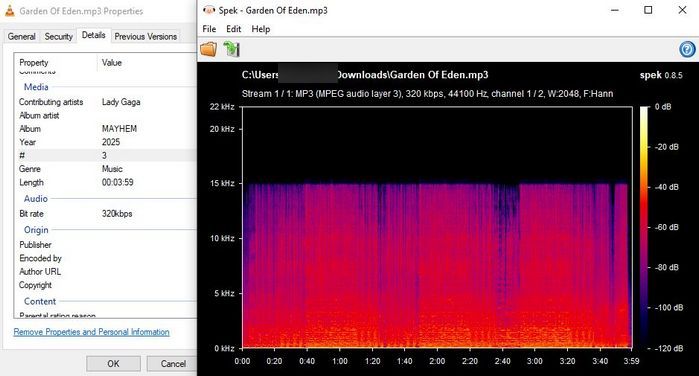
⚠️ Fake High Quality: Think of this graph as a blurry photo of the music. Even though the file properties claim a high 320 kbps bitrate, the Spek graph tells the real story. The music frequencies are completely cut off at the 15 kHz line, which is even worse than a standard 128 kbps MP3. This proves the tool is just giving you a low-quality recording disguised as a high-quality file, and they might even lock this fake "high quality" or their upcoming FLAC feature behind a paywall starting at $5.
🟢 Who It's For:
- Users who just want a quick, free way to download a song and do not care about background details or sound quality.
- Users who are listening through budget headphones or small phone speakers, where advanced audio details are not noticeable anyway.
🔴 Who It's NOT For:
- Users who want genuine, high-fidelity sound, as this tool heavily compresses the music and cuts off the top audio details.
- Users who want a fair deal, as you may be asked to pay $5 or more for unfinished features or fake high-quality audio.
- Users who want to download full music collections efficiently.
FAQs About Spotify Playlist Downloaders
Q1: Can I download Spotify playlists without a Premium account?
A: Yes, absolutely. All the tools on our list let you download music using a free Spotify account. However, if you do have a Spotify Premium subscription, some of these tools can unlock true lossless audio quality for an even better listening experience.
Q2: Will the downloaded Spotify songs play forever?
Q3: Do these downloaders ruin the sound quality?
A: It depends on the tool. As we showed in our tests, many free online tools fake their quality or heavily compress the audio. If you want to keep the original sound without any quality drop, sticking to professional tools like TunePat is your best bet.
Q4: Is it legal to download Spotify playlists?
A: Downloading copyrighted music strictly violates Spotify's Terms of Service. However, as long as you are downloading songs for strictly personal, offline use and not for commercial purposes, you won't face any practical legal issues.
Conclusion:
To wrap it up, picking the right downloader depends on what you need:
- Want convenience on your phone? Go with TuneCable for easy Android downloads.
- Want the best sound quality? Use TunePat on your desktop to get real lossless FLAC files.
- Don't want to install anything? Give online tools like SpotiDownloader a try for a quick fix.
Just choose the tool that fits your style and start enjoying your Spotify music offline today!
Olivia Anderson
Senior Writer