
TIDAL updated its subscription structure on April 10, 2024, by replacing the previous HiFi and HiFi Plus tiers with a simplified Individual plan. Instead of separating lossless and higher-resolution audio features into different subscriptions, TIDAL now includes premium audio features such as lossless FLAC, HiRes FLAC, and Dolby Atmos on supported tracks in its paid plans.
This change makes TIDAL's pricing easier to understand for users who want high-quality streaming without paying for a separate premium tier. In this guide, we'll explain the latest TIDAL subscription plans, prices, and features to help you choose the right option.

Part 1. The Latest TIDAL Subscription Plans
TIDAL has simplified its subscription structure by combining the previous HiFi and HiFi Plus plans into a single Individual plan. Unlike the previous tier system, all paid subscribers can now access premium audio features, including lossless FLAC, HiRes FLAC, and Dolby Atmos on supported tracks.
| TIDAL Plan | Features | Price |
|---|---|---|
| TIDAL Individual | 110M+ songs, lossless and HiRes FLAC audio, Dolby Atmos, ad-free listening, offline playback, personalized mixes, and playlists | $11.99/month |
| TIDAL Family | Includes all Individual plan features and allows up to 6 family members to share the subscription | $19.99/month |
| TIDAL Student | Discounted Individual plan available for eligible students | $6.99/month |
| TIDAL DJ | Provides DJ-focused features and integration with supported DJ software and hardware | $19.99/month |
TIDAL previously offered separate HiFi and HiFi Plus subscriptions with different prices and audio features. In April 2024, the company merged these plans into a single subscription tier, allowing all paid subscribers to enjoy premium audio formats without upgrading to a higher-priced plan.
For DJs, TIDAL also provides a dedicated DJ option that combines TIDAL's music catalog with supported DJ software and hardware integrations. This plan is designed for users who need DJ-related features in addition to regular music streaming.
In addition, TIDAL discontinued its Free tier in April 2024. New users may still receive a free trial where available, but continued access requires an active paid subscription.
Part 2. How to Save Tidal Music Forever Without Subscription?
Is it good news that Tidal will drop its price? For users who don't use the DJ integration a lot, they can enjoy the same service at half price. For users who are militaries or first responders, they will lose the discount. For free users, they must pay for the subscriptions if they want to keep using Tidal in the future.
Whether you're happy to know the news and decide to continue using Tidal, or you want to stop using it after this new Subscription plan officially starts, you should want to be able to save your existing playlists and not be constrained by Tidal. Therefore, you will need a professional tool TunePat Tidal Media Downloader.
It is a reliable program to download songs, playlists, and albums from Tidal and convert them to common formats such as MP3, AAC, WAV, AIFF, and FLAC. With the assistance of this practical program, you can download Tidal music at 10X conversion speed with ID3 tags and up to CD or Hi-Res audio quality kept. You are able to get Tidal music downloaded on your device directly and transfer them to any other device or platform for offline listening.
TunePat Tidal Media Downloader
Step 1 Choose the Audio Source
Install TunePat Tidal Media Downloader on your computer and launch it, the program will ask you to choose an audio source to record music, please select one and access your Tidal library.
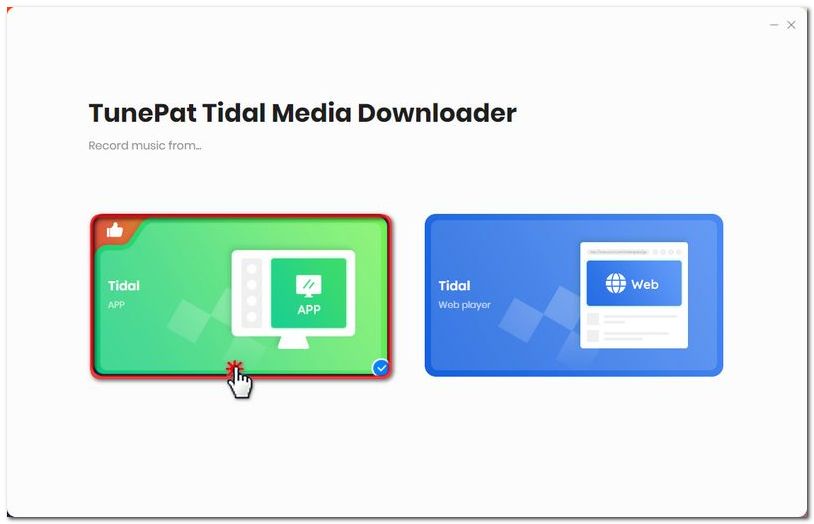
Step 2.1 Select Tidal Music to Convert from App
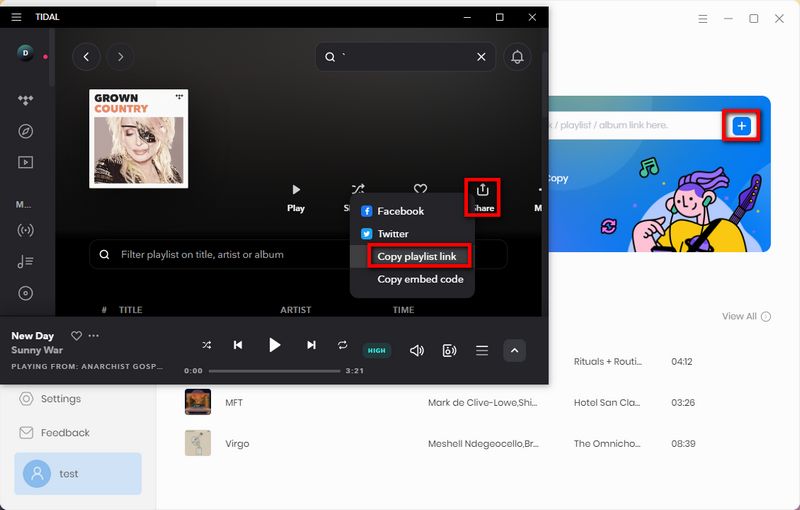
Before the selection, please ensure that you have installed the Tidal App on your PC and are logged into your TIDAL account within the app.
Choose a playlist, artist, or album, click "Share" > "Copy link" and paste its link into the blue parsing box. Tap the "+" button to start. Or you can just drag and drop the items to TunePat's interface, we will analyze the link automatically too.
Step 2.2 Select Tidal Music to Convert from Web Player
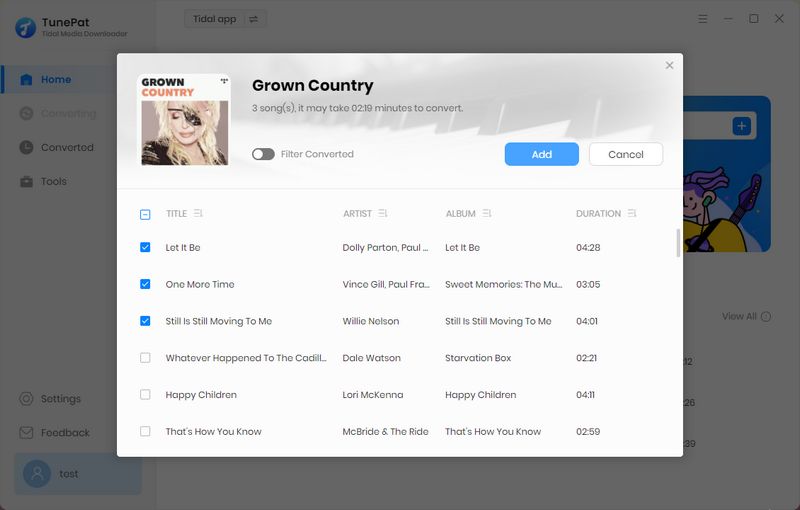
Choose a playlist, artist, or album, click the "+" button on the bottom right corner of the interface, and select the songs you want to download from the pop-up window.
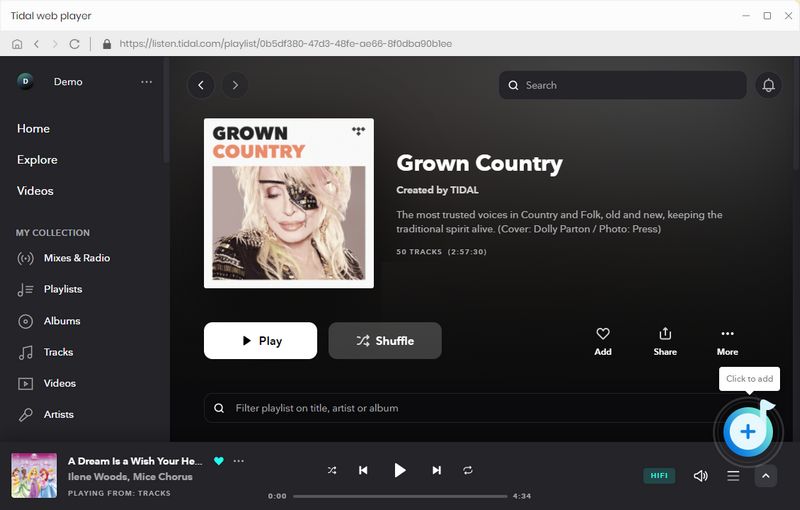
Choose the tracks you want and click the "Add" button to add them all to TunePat's conversion list.
Step 3 Customize the Output Settings
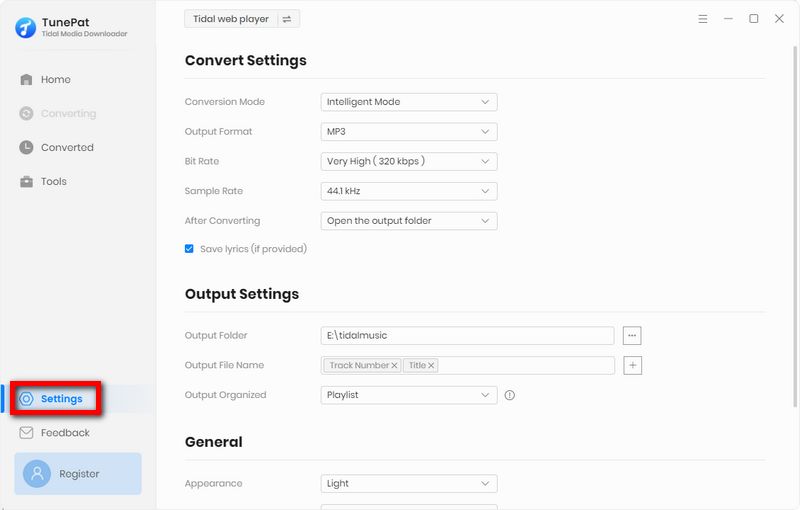
Click the "Settings" button on the bottom left corner of the screen, here you can set the output format, audio quality, the download location, and choose to organize the output files by Playlist, Artist, Album, Genre, Year, Disc Number, and more.
Step 4 Convert Tidal Music
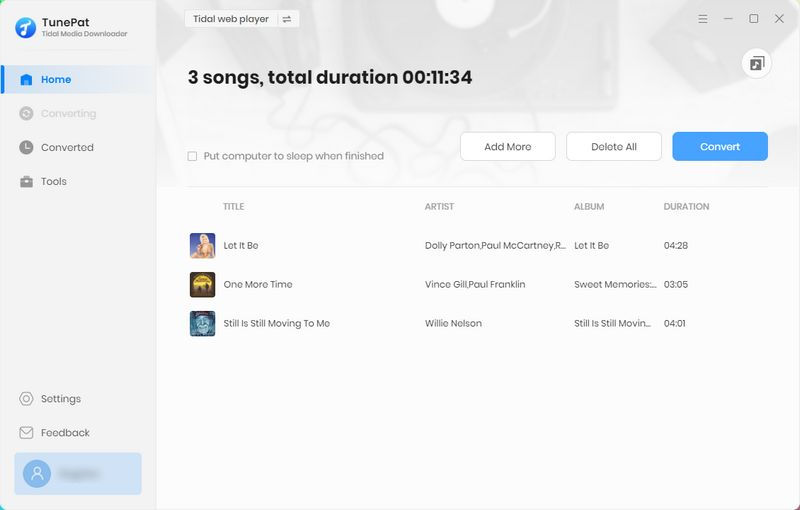
If you want to include more songs from other playlists, you can tap "Add More" and explore more in Tidal. After that, click the "Convert" button to start converting the music to the format that you have chosen in the previous step.
Step 5 Check the Downloaded Music
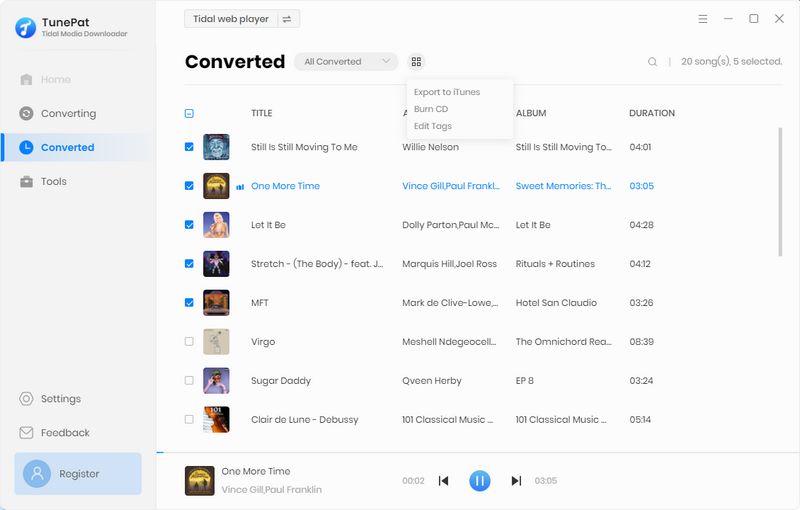
Once the conversion is done, the file folder will pop up automatically. You can also click the "History" button to find the converted files.
Conclusion
We have listed some new changes in the Tidal subscription plan, including its prices, subscription structure, and more. Some changes may be good news to you while others may not. If you are hesitant to continue your Tidal plan, we recommend you keep your current playlists with TunePat Tidal Media Downloader. Save them forever so you have the final say to keep using Tidal or not. Click the download button to try the free trial right now!


Delilah Rene
Senior Writer