
Pandora is one of the longest-running music streaming services, originally launched from the Music Genome Project in 2000. Over the years, it has evolved from a music recommendation platform into a popular streaming service that offers personalized stations, songs, albums, podcasts, and more.
Pandora provides different subscription options, including Free, Plus, and Premium plans. Paid plans offer additional features such as ad-free listening, on-demand playback, and offline listening within the Pandora app. However, the downloaded content is only available inside Pandora and cannot be exported as regular audio files.
If you want to download Pandora Music to MP3 and save songs, albums, playlists, or podcasts for more flexible playback, you need a way to convert Pandora tracks into common audio formats. This guide will show you how to convert Pandora Music to MP3 files and enjoy your favorite content on more devices.
Pandora Music Free users are not authorized to download songs. When you need to get access to the Pandora Music tracks without a network, a Premium subscription is necessary. However, the TunePat Pandora Music Converter can be the best alternative to provide a more applicable and cost-effective approach when you need to keep Pandora albums or playlists without time limitations. Besides downloading songs offline, it converts the songs from Pandora Music to MP3, AAC, FLAC, WAV, AIFF, and ALAC formats. It gets rid of all troubles.

TunePat Pandora Music Converter
 Download Songs, Albums, and Playlists from Pandora Music at a 10X faster speed.Convert Pandora Music tracks to MP3, AAC, WAV, FLAC, AIFF, or ALAC formats.Keep ID3 tags and preserve original audio quality.Pandora Free &Plus &Premium accounts are feasible.No need to install the Pandora Music app.
Follow the detailed steps below to get a bunch of downloads at one time. It will remove your worries about the frequent need to download Pandora songs.
Step 1 Run TunePat Pandora Music Converter on Windows or Mac
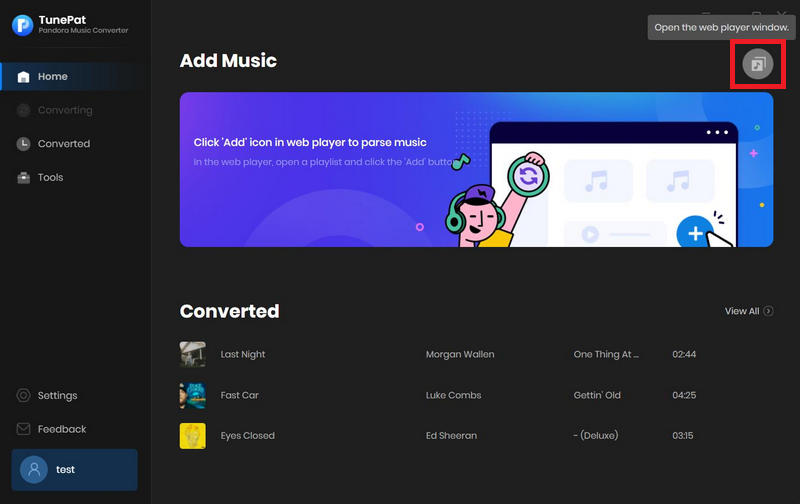
Download and install the TunePat Pandora Music Converter on your computer, then launch this program. You will see an "Open the webplayer window" button on the primary interface. Click the button to initiate the built-in Pandora Music Web Player if it doesn't open automatically. You are required to log in to Pandora Music. All kinds of Pandora Music subscriptions are feasible. Even if you are a free user, TunePat enables you to extract songs from Pandora.
Step 2 Customize the Output Settings
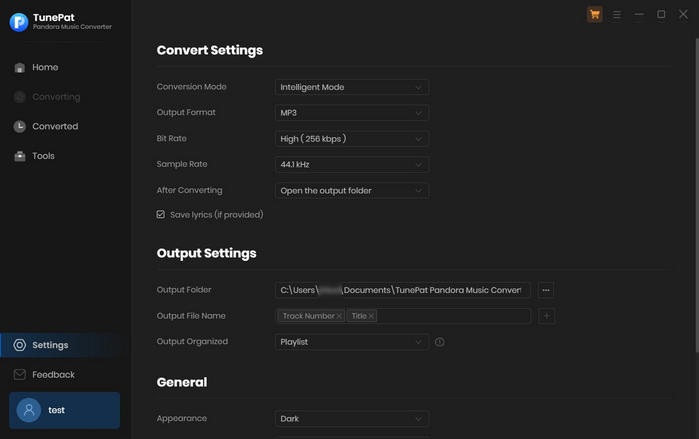
In the lower left, tap the "Settings" button. A pop-up window appears, then you will find more options. Do not forget to change the output format to "MP3". If you want to keep the original order of a playlist after the conversion, it's suggested to select "Playlist Index" in the Output File Name setting and "None" in the Output Organized setting.
Step 3 Add Pandora Music Tracks to TunePat
We are allowed to listen to Pandora music via this built-in web player directly. When you find any playlist or album that needs to be downloaded, just click the "Click to add" button that hovers in the lower right. This button helps you extract all songs from the opened playlist or album.
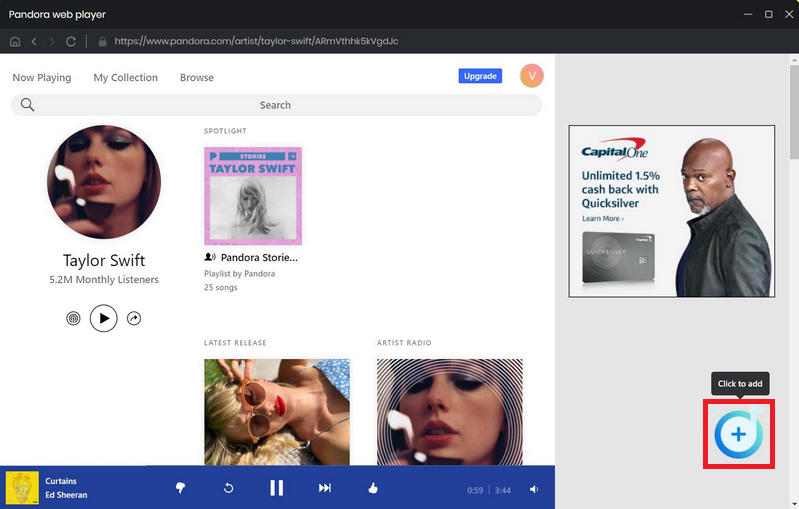
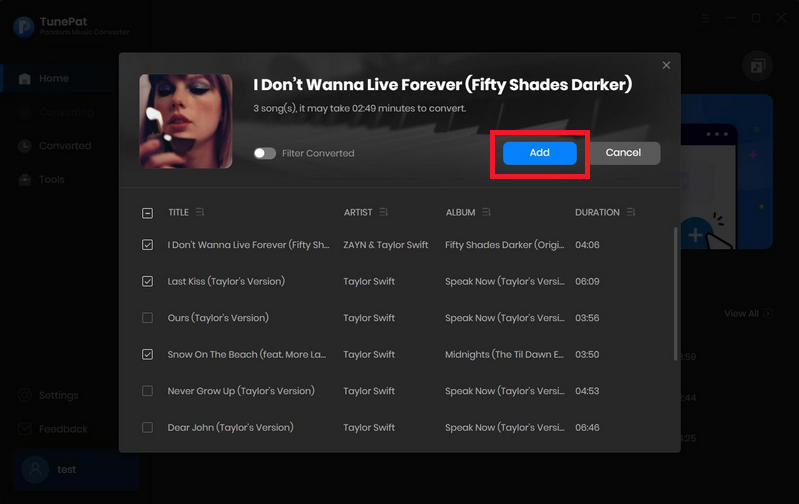
Next, tick off the songs you want to convert and click "Add".
Step 4 Download Pandora Music Tracks to MP3 Formats
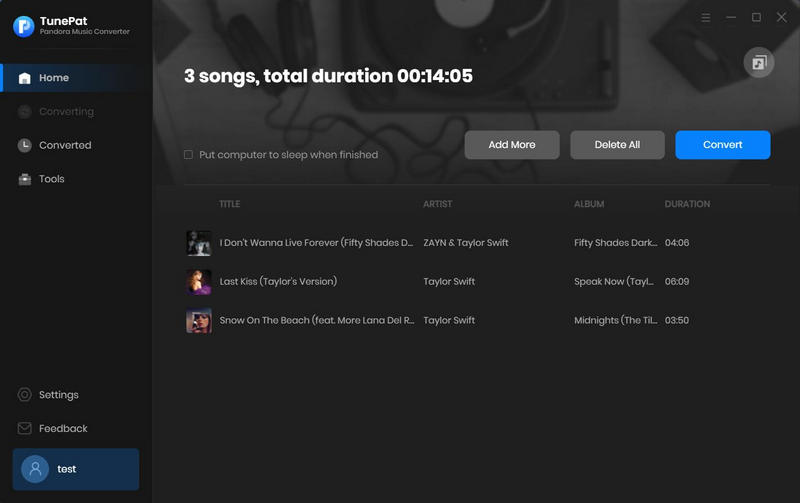
Click the Convert button to start the conversion of the selected songs immediately. Or you can click the "Add More" button to open another playlist to add songs if you want a batch download. Finally, convert all added songs in one click. A bunch of downloads will be completed in a short time.
Step 5 Make Full Use of the Downloaded Pandora Music Tracks
Once the songs from Pandora Music are converted to MP3 files, your options to use the Pandora Music tracks will be greatly increased. Here we make a list for you:
After following the detailed steps above, have you converted all preferred Pandora Music tracks to MP3 formats? If not, have a free trial of TunePat Pandora Music Converter. To save your time and avoid more expenses, you should bring it into action right now.


