
For most Spotify free users, the main downside of streaming Spotify music without Premium is that they have to listen to ads between tracks. This is not a great deal if they are enjoying alone some lovely tunes, but could be a huge joke when they are playing Spotify music with Free account at a party.
How can we remove those ads with Spotify free?
To our knowledge, those Ad-free Spotify songs are limited to paid subscribers. So simply upgrading to the Premium plan ($11.99/month), all the limits (including ads) set in the Free plan will be removed. This is the most straightforward way to remove Spotify ads. But there are still some people who wonder if it is possible to block ads with Spotify free account.
Fret not, it is also a feasible task. All you need is a powerful Spotify ad blocker or Spotify music downloader. Read on, below we are going to show you how to remove ads and download music with Spotify Free in detail.
Play and Download Ad-Free Spotify Songs
In general, the easiest way to avoid Spotify ads is to use an ad blocker. However, many Spotify ad blockers found online either don't work reliably or simply mute the audio during ad breaks. If you want to listen to Spotify music without ads without subscribing to Premium, another option is to save the music as local audio files with TunePat Spotify Converter.
TunePat works with the Spotify Web Player and doesn't require the Spotify desktop app. It lets you save Spotify songs, albums, and playlists as MP3, AAC, WAV, FLAC, AIFF, or ALAC files, with conversion speeds of up to 40X. The files are saved directly to your computer, so you can listen to them offline without Spotify ads.
TunePat Spotify Converter
TunePat Spotify Converter supports both Windows and macOS. Here we will take the Windows version as an example to guide you to remove Spotify ads without premium. For Mac users, please go to this guide: How to Download Spotify Songs on Mac. Before getting started, please make sure you have the latest TunePat Spotify Converter installed.
Step 1Choose Conversion Mode
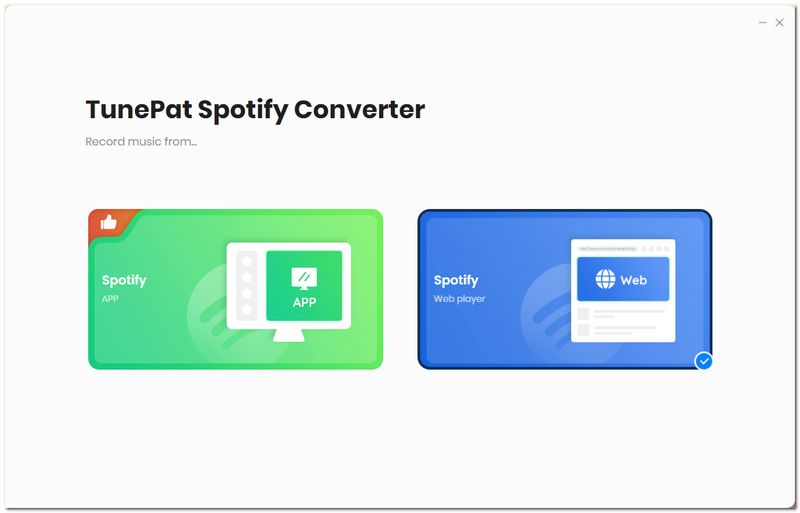
After launching TunePat Spotify Converter, you can see two options: Spotify App and Spotify web player. Choose the audio source you want, and log in to your Spotify account.
Step 2Choose Output Format and Customize Output Path
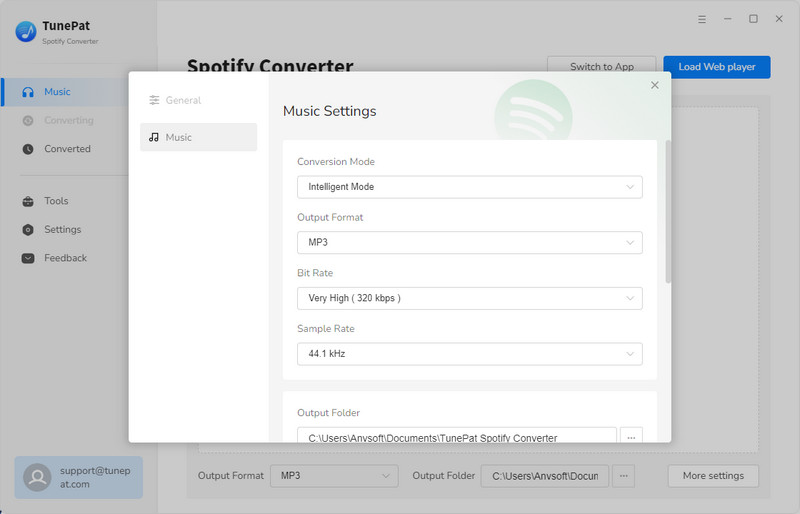
Hit the "Settings" button on left panel. Here you can select output format (MP3/AAC/WAV/FLAC/AIFF/ALAC), choose output audio quality, customize the output path, organize the output files in various ways and more.
Step 3Add Spotify Songs to TunePat
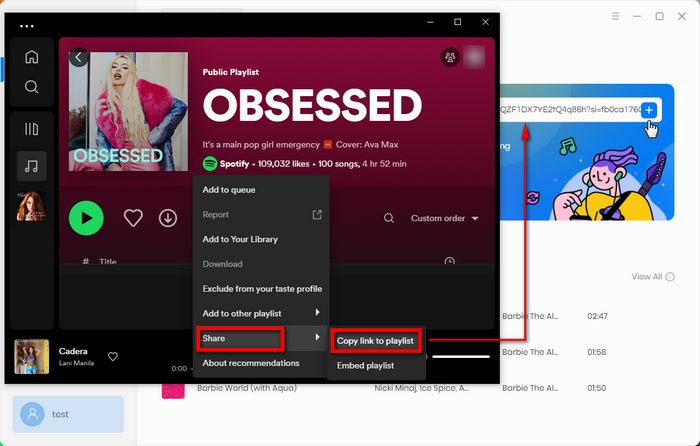
Spotify App: make sure you have installed the latest Spotify app on your computer, the Spotify app will start automatically when you are using TunePat. Open an album or playlist, you can see the "+" add button on your Spotify app, click it to add your songs to the convert list. You can also directly drag and drop the songs you want to the TunePat interface, or copy the playlist URL to TunePat.
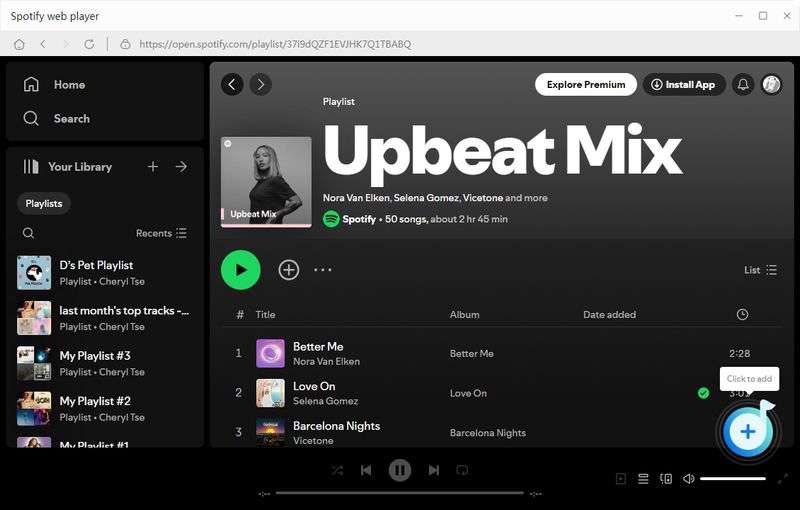
Spotify Web player: open a Spotify playlist or album on the web player, and click the + (add) button on the right side. Then TunePat will read your playlist data automatically, and select the songs that you'd like to download.
Step 4Convert Spotify Songs
Click the "Add" button to save the songs to the convert list. From the convert list, you can also click Add More button to select more songs from other albums or playlists for batch conversion.
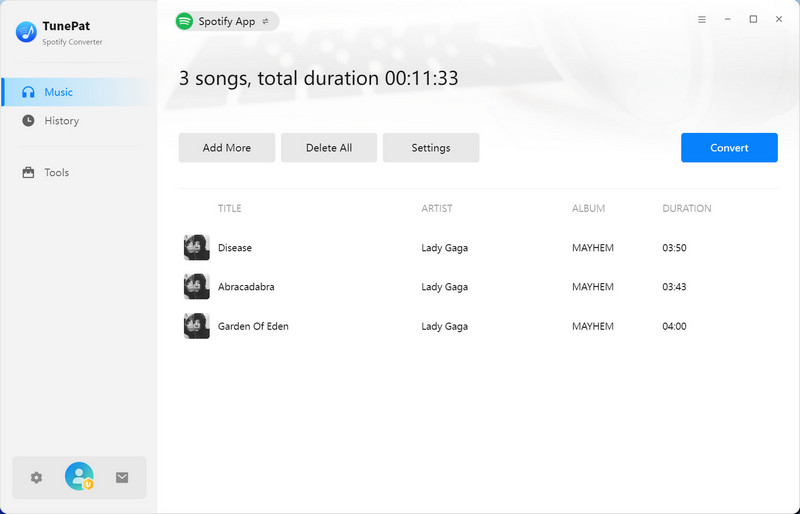
Hit the "Convert" button to start downloading Spotify songs to your computer. Just wait for a while, you will save Spotify music to your computer without any ads.
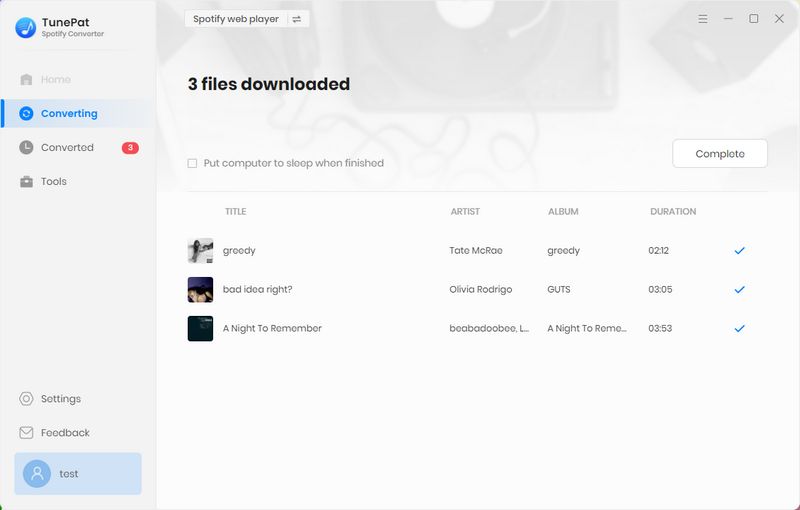
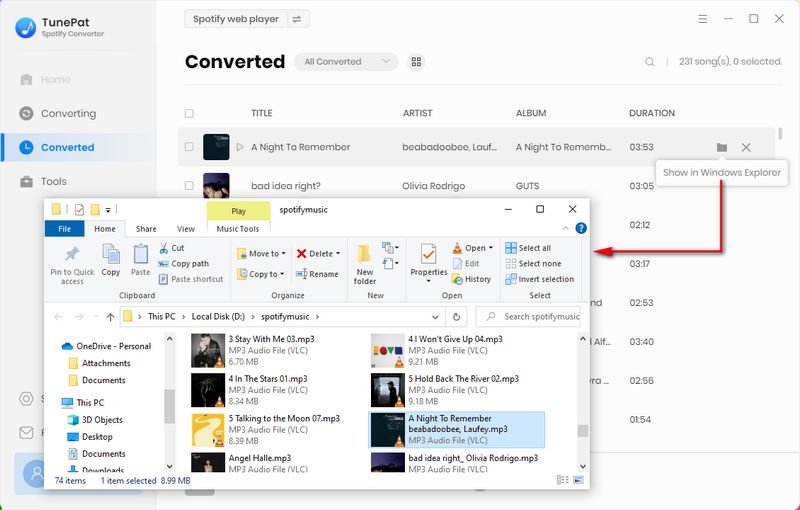
Once the conversion is done, you can find your downloaded Spotify songs by clicking the "History" button on the left panel. All those songs will be saved as local files now, you can stream them anywhere anytime even without a Spotify Premium subscription.
Conclusion
Now, through all the steps above, you can easily download your favorite Spotify songs and enjoy them anywhere anytime without caring for the annoying ads. Plus, after downloading those Spotify songs on your computer, you can also move the downloaded music to your other devices for playbacks, such as Fitbit Versa, Car or more. TunePat Spotify Converter is available on both Windows and Mac computers, you can simply download it and take a try to test if it meets your needs for Spotify music conversion.


Olivia Anderson
Senior Writer