How to Copy Spotify Music to a USB Drive for Free
 By Olivia Anderson
Spotify Tips
Updated on 3/27/2026
By Olivia Anderson
Spotify Tips
Updated on 3/27/2026
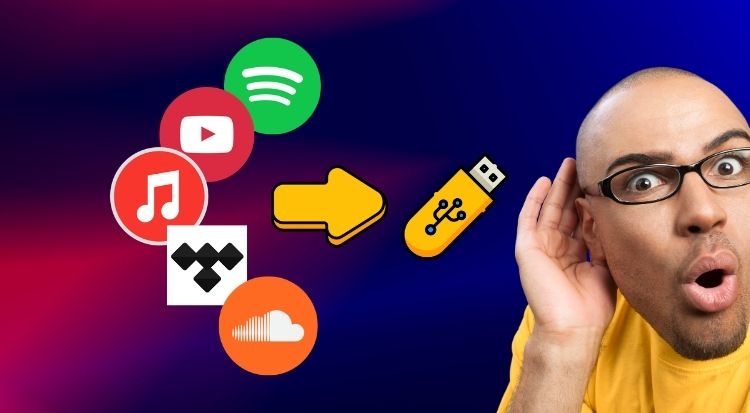
Many Spotify users eventually run into the same problem: you want to play your favorite Spotify playlists in the car, on a smart TV, or through a USB speaker, only to realize that Spotify songs can't simply be dragged onto a USB drive like normal music files.
So, is it actually possible to copy Spotify music to a USB drive? The answer is yes, but not directly. Because Spotify tracks are protected, they first need to be converted into standard audio formats before they can be transferred and played from a USB device. In this guide, we'll explain why Spotify music can’t normally be moved, what happens if you try the official method, and the easiest way to transfer Spotify songs to USB for true offline playback.
Part 1: Why You Can't Copy Spotify Music Directly to a USB Drive
Even if you download songs using Spotify Premium, those downloads are protected and only work inside the Spotify app. They are not stored as normal MP3 or FLAC files that can be freely transferred, shared, or played on external devices.
This means that:
- Spotify downloads cannot be opened outside the app.
- Dragging Spotify folders to a USB drive does not work.
- Music playback requires Spotify authorization.
- Downloads may stop working if your subscription ends
Official offline downloads can only be played within Spotify itself. While Spotify Premium allows offline listening, these downloads cannot be copied to USB or backed up permanently. Users who want to play Spotify without Premium or keep Spotify music forever need to use a different method.
In short: the "official method" only works inside Spotify and does not let you transfer music to USB. To play Spotify music on external devices, you must convert the songs into standard audio files first.
Part 2: Convert Spotify Music and Copy It to USB (The Best Way)
To make Spotify songs usable on USB devices, they need to be converted into common audio formats such as MP3, FLAC, or WAV. Once converted, Spotify tracks behave just like locally stored music files. You can freely move them between devices, store playlists on USB drives, or convert Spotify to MP3 for maximum compatibility with cars and media players.
TunePat Spotify Converter is a top-rated Spotify music converting software, built with an innovative encoding technology, able to convert any Spotify song, album, playlist to MP3, AAC, WAV, FLAC, AIFF or ALAC format no matter you are a Spotify Free or Premium user. After conversion, all your favorite songs can be copied to a USB drive or moved to other devices. Now follow the tutorial to learn how it works.
TunePat Spotify Converter
TunePat Spotify Converter is available on both Windows and Mac computers, here we take the Windows version as an example to show you the detailed steps about how to copy Spotify to a USB drive in a few clicks.
 Video Guide: How to Transfer Spotify Music to USB
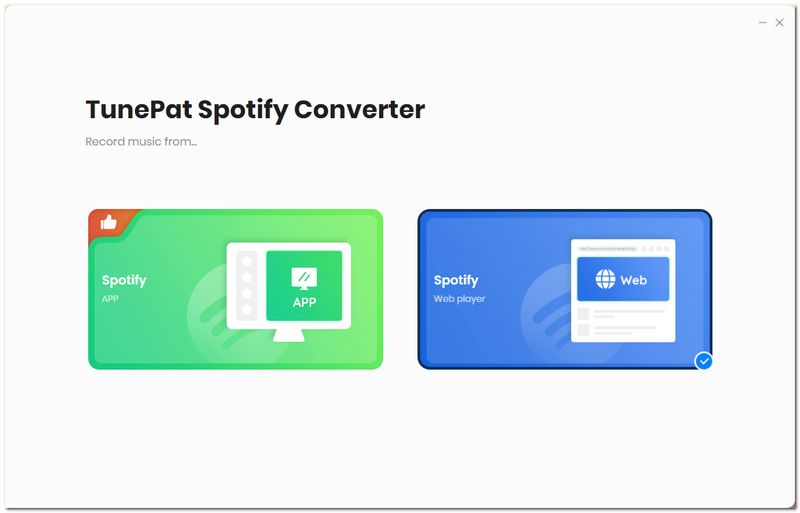
Step 1 Choose Audio Source
Launch TunePat Spotify Converter, and you will see two buttons on the main interface: Spotify app and Spotify web player. They present different Spotify audio sources. To make a choice, the Spotify app has better audio quality while the Spotify web player provides a faster downloading speed. Choose the one you prefer and sign in with your Spotify account.
Step 2Set the Output Format and Output Quality
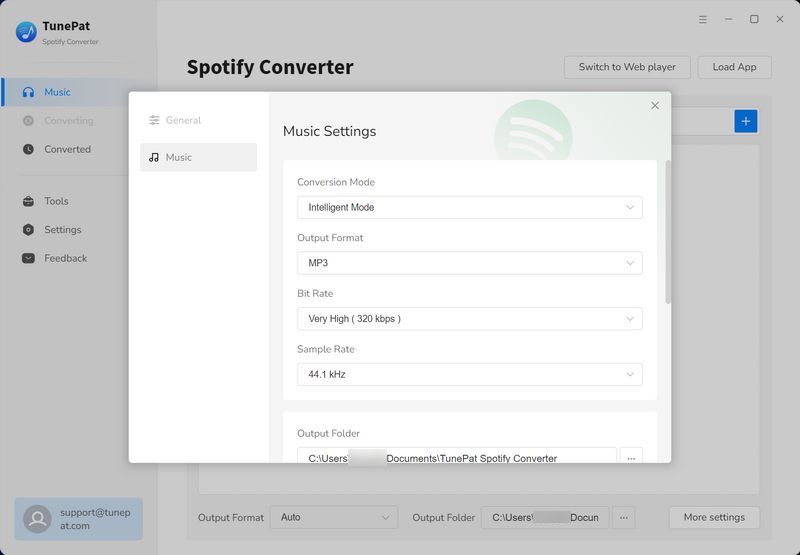
Open TunePat Spotify Converter on your computer and sign in with your Spotify free or premium account. Then simply hit the Gear icon in the upper right corner to adjust the output settings. Here you can choose the output format, output audio quality, customize the output path, and more.
Step 3Add Spotify Songs to TunePat
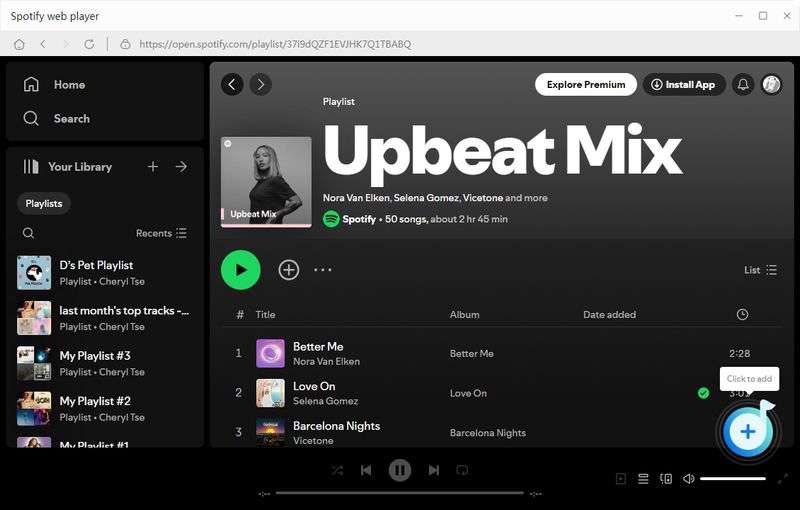
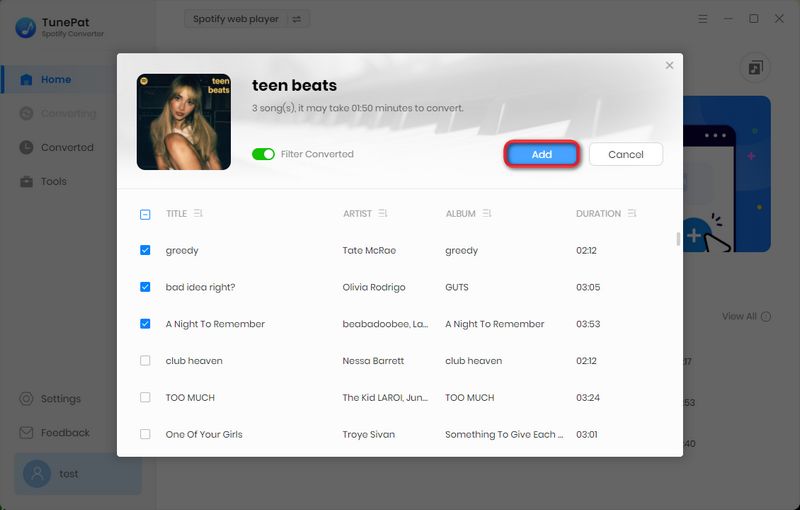
Choose a playlist and open it, then click the "Add" button on the bottom right corner and select the songs that you'd like to convert.
Step 4Convert Spotify Songs
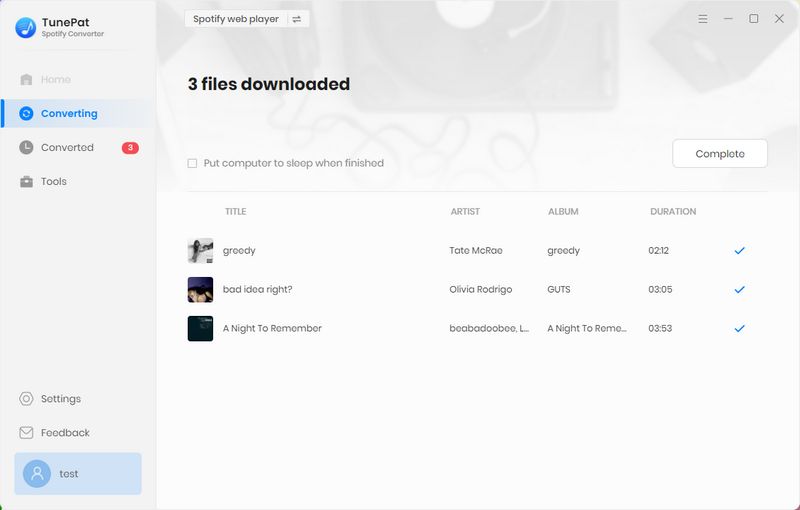
Now, just tap on the "Convert" button to start converting the Spotify songs.
Step 5Copy Converted Spotify Songs to USB
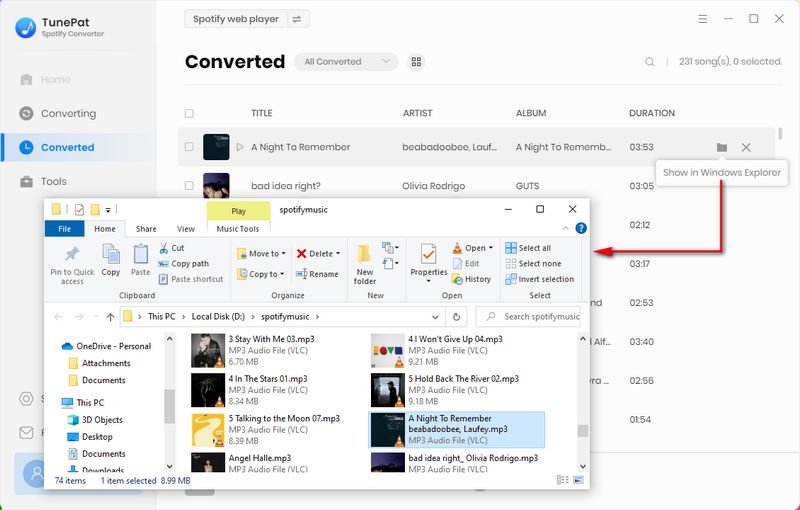
Once done, you can find your downloaded Spotify songs by clicking the "History" button in the upper right corner. Then plug the USB flash drive into a free USB port on your computer. Select and right-click the songs or the whole folder, and click "Copy" to copy all of them to the clipboard.
Select the USB flash drive, right-click on an empty spot inside the right pane and select Paste from the context menu to transfer the audio files from the clipboard to the drive.
Part 3: Best Audio Format for Playing Spotify Music from USB
Choosing the correct format helps avoid playback issues when using USB drives across different devices.
| Format | Compatibility | Sound Quality | Best Use |
|---|---|---|---|
| MP3 | ⭐⭐⭐⭐⭐ | Good | Cars, USB media players, smart TVs, game consoles |
| FLAC | ⭐⭐⭐ | Lossless | High-end USB music players |
| WAV | ⭐⭐⭐ | Very High | Studio USB devices or professional setups |
| AAC | ⭐⭐⭐⭐ | Efficient | Apple-compatible USB devices |
| AIFF | ⭐⭐ | Lossless | High-end USB players or professional setups |
For most users who want to play Spotify music in a car via USB, MP3 provides the safest and most reliable compatibility.
Part 4: Common Issues When Playing Spotify Music from USB
When transferring Spotify music to a USB drive, you might run into a few common problems. Here's a clear guide to help you understand why they happen and how to fix them.
4.1 USB Not Recognized in Car
Sometimes your car stereo or USB player does not detect the drive. This usually happens because many vehicles only support FAT32 or exFAT drives. Other formats, like NTFS, may not be recognized.
To fix this, check your USB drive's format and reformat it to FAT32 or exFAT if needed. Make sure to back up your files before reformatting to avoid losing data.
4.2 Songs Not Showing on USB
After copying songs to your USB, you may find that some or all tracks do not appear on your car or media player. This often happens because some devices cannot read music stored in deep folder structures or in formats they do not support.
For better results, place your songs directly in the USB root folder. Using MP3 files ensures the highest compatibility with most USB devices. If you want to use high-resolution formats like FLAC, WAV, or AIFF, check whether your device can read them first.
4.3 Music Won't Play
Even if the songs are visible on your USB, they may fail to play. This usually happens when you copied Spotify's protected offline files instead of converting them into standard audio formats.
Always convert Spotify tracks into formats like MP3, FLAC, or other compatible files before transferring. This step ensures that your USB player can recognize and play the music without issues.
4.4 File Size Limit Problems
Large audio files may sometimes fail to copy or play from your USB drive. FAT32 drives, for example, cannot store files larger than 4GB. High-resolution audio files like WAV, FLAC, or AIFF can easily exceed this limit.
If you encounter this problem, consider splitting albums into smaller folders or using an exFAT-formatted USB drive, which supports larger files.
Part 5: FAQs About Copying Spotify Music to USB
Q1: Can I copy Spotify music directly to a USB drive?
A: No. Spotify downloads are protected by DRM and only work inside the Spotify app. To play Spotify songs via USB, you must first convert them into standard audio formats like MP3, WAV, or FLAC.
Q2: How do I transfer Spotify songs to a USB for playback?
A: To play Spotify music via USB, first convert your songs using a tool like TunePat Spotify Converter. After conversion, simply copy the MP3, WAV, or FLAC files onto your USB drive. Make sure your USB is formatted as FAT32 or exFAT and place the files in the root folder for the best compatibility.
Q3: Can I do this without a Premium subscription?
A: Officially, Spotify does not allow offline playback without Premium. However, after converting your Spotify music into standard audio formats, you can listen to the tracks on USB devices without needing a Premium subscription.
Q4: Which audio formats and USB devices are compatible?
A: For the widest compatibility, MP3 is the safest choice. It works on most cars, USB media players, smart TVs, and game consoles. High-resolution formats like FLAC, WAV, or AIFF are only recommended for high-end USB players, as some standard devices may not support them.
Q5: Will converted Spotify songs still play if my subscription ends?
A: Yes. Once Spotify songs are converted into standard audio files, they are independent of your Spotify account. You can keep them on USB drives and play them anytime, even if your Premium subscription expires.
Conclusion
Spotify is designed primarily for streaming, which makes direct USB transfers impossible through the official app alone. While Spotify Premium downloads are convenient for offline listening, they remain locked within the platform.
If you want full flexibility, whether for car listening, backups, or offline devices. You can use TunePat Spotify Converter to convert Spotify music into standard audio files, allowing you to store, transfer, and enjoy your music freely across different devices.
Olivia Anderson
Senior Writer