Add Spotify Music to PowerPoint That Actually Works
 By Olivia Anderson
Spotify Tips
Updated on 8/14/2026
By Olivia Anderson
Spotify Tips
Updated on 8/14/2026
Want to add Spotify music to your PowerPoint presentation, but found that it won't play properly? You're not alone. Because Spotify songs are protected and streaming-based, they can't be directly inserted into PowerPoint like regular audio files.
In this guide, we'll show you how to convert Spotify music into a compatible format and add it to PowerPoint so your background music plays smoothly during presentations.
Part 1: Why Spotify Music Can't Be Added Directly
PowerPoint supports a variety of common audio formats, including MP3, WAV, AAC (M4A), WMA, AIFF, MIDI, and AU. However, Spotify music cannot be inserted directly into PowerPoint slides like regular audio files.
The main reason is that Spotify songs are streaming-based and protected by DRM (Digital Rights Management). While Spotify may use audio formats such as Ogg Vorbis, AAC, or even lossless audio in newer streaming options, these tracks are encrypted and are not stored as standard local media files on your device.
Even songs downloaded for offline listening with a Spotify Premium subscription are saved in a protected format that can only be recognized and played within the Spotify app. As a result, PowerPoint cannot detect or play Spotify music directly.
Some users attempt to add a Spotify track by inserting a hyperlink that opens the song in the Spotify app. However, this workaround requires Spotify to be installed on the presentation device and relies on a stable internet connection. Switching between PowerPoint and Spotify can also interrupt the presentation flow, making it unsuitable for professional or offline presentations.
To play Spotify music seamlessly within PowerPoint slides, the tracks must first be converted into a compatible audio format, such as MP3. In the following section, we’ll walk through how to convert Spotify songs and add them to PowerPoint for smooth and reliable playback.
Part 2: How to Convert Spotify Music to MP3?
What is TunePat Spotify Converter? Why should we choose this tool? As mentioned above, we need a powerful tool to convert Spotify songs, which we want to import into PowerPoint, from their protected, special format into widely compatible standard audio formats. TunePat Spotify Converter is a simple yet efficient modern audio converter. It enables users to batch-convert Spotify content, including songs, albums, playlists, podcasts, audiobooks, and radio at up to 40X conversion speed.
TunePat can support outputting Spotify music in multiple formats, including MP3, WAV, AAC/M4A, and AIFF, all of which are compatible with PowerPoint. Most importantly, it’s great news for Spotify Free users, as even with a Free Spotify account, you can effortlessly and quickly export ad-free local Spotify files.

TunePat Spotify Converter
 Video Guide: Add Spotify Music to PowerPoint
Step 1 Launch TunePat Spotify Converter
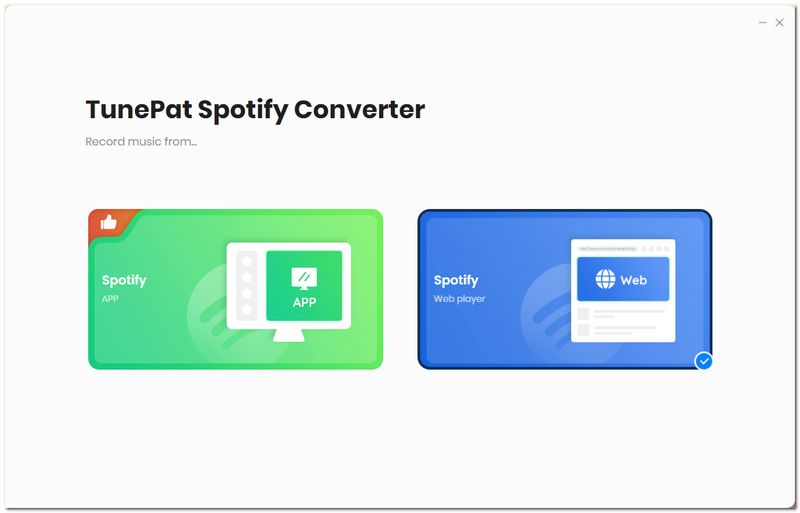
Download and open the TunePat Spotify Converter on your computer. You can convert Spotify songs using either the Spotify app or the built-in web player. For the best audio quality (up to 320 kbps), using the Spotify app is recommended. If the app isn't installed, simply choose the web player for a more accessible option.
Click the "Switch to App" or "Switch to Web player" button to toggle between modes. Once selected, log in to your Spotify account (Free or Premium) in the corresponding window.
Note: The steps below apply to all Spotify accounts, though sound quality varies. Spotify Free accounts typically max out at 160 kbit/s, while Spotify Premium accounts boast the highest quality at 320 kbit/s. If you want to get 320 kbps Spotify songs, you can refer to: How to get Spotify Premium for free.
Step 2 Customize Output Settings
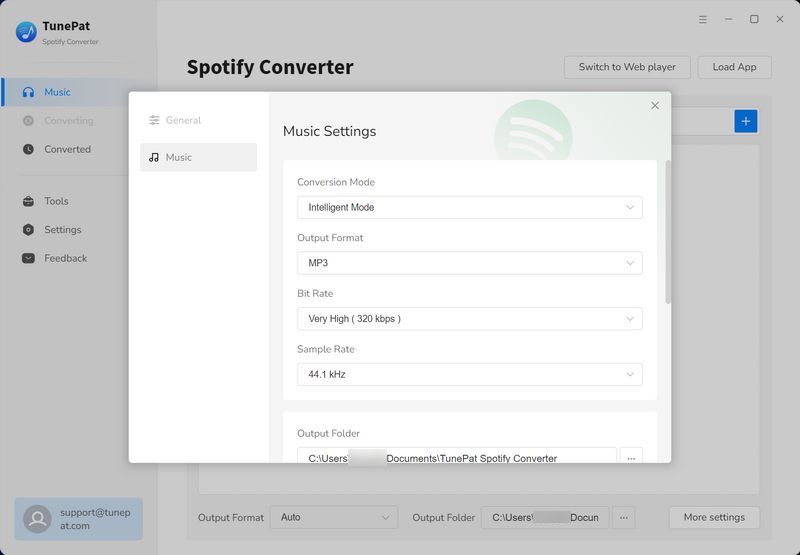
Go to the "Settings" panel to customize your conversion preferences. You can adjust the conversion mode, output format, sound quality, output folder, output file name, and more. When choosing the output format, make sure it's compatible with PowerPoint. Here, we will select "MP3" as an example. After setting everything up, close the settings window to proceed.
Step 3 Add Spotify Songs for Conversion
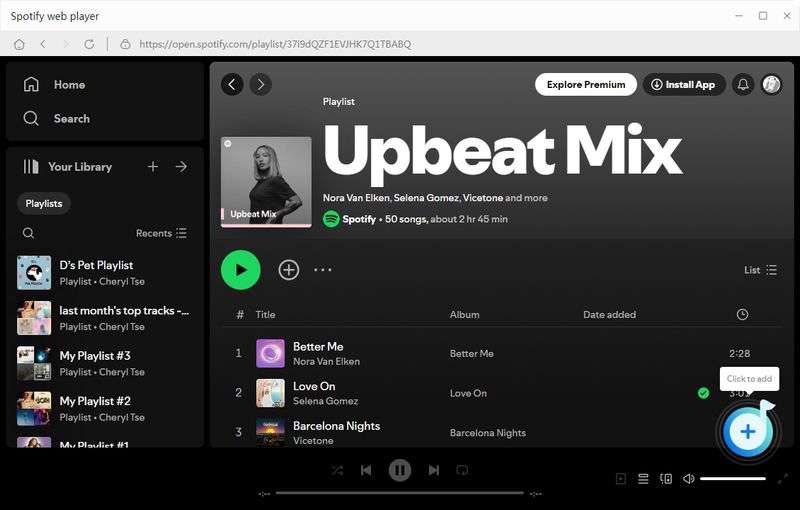
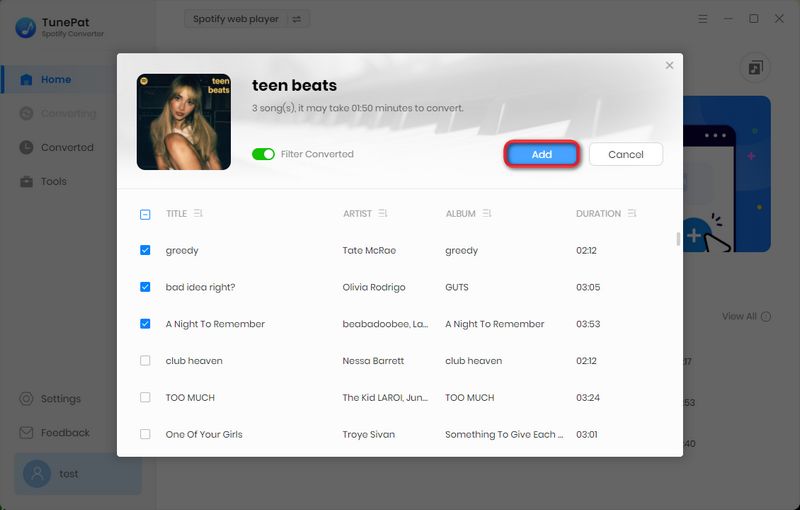
Browse to and open the Spotify music you’d like to convert. Click the "+" icon at the bottom right corner. TunePat will scan and list the songs from the current page in a pop-up window. Select the tracks you want and click "Add" to include them in the conversion queue.
Step 4 Start to Convert Spotify Music to MP3
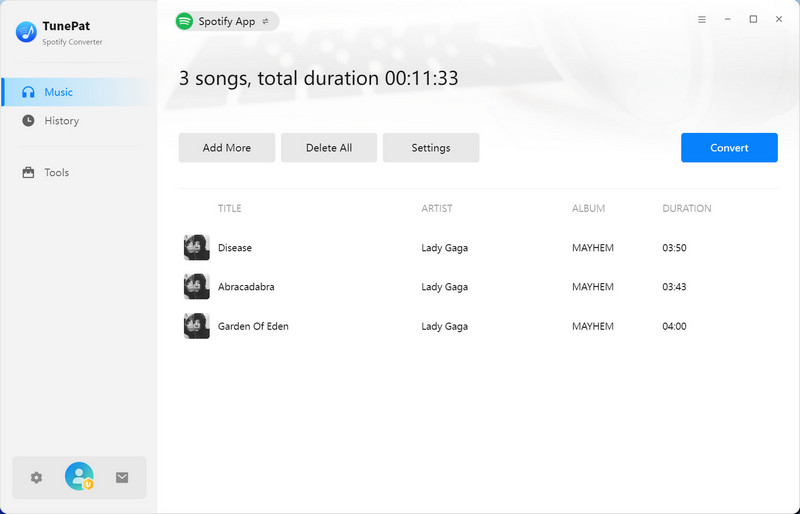
In this step, you can click "Add More" to include additional tracks for batch conversion. Once you've added all your desired songs, click the "Convert" button to begin downloading them as MP3 files. When the conversion is done, go to the "History" tab to view and play your downloaded Spotify music tracks.
Part 3: Add Music from Spotify to PowerPoint in One Click
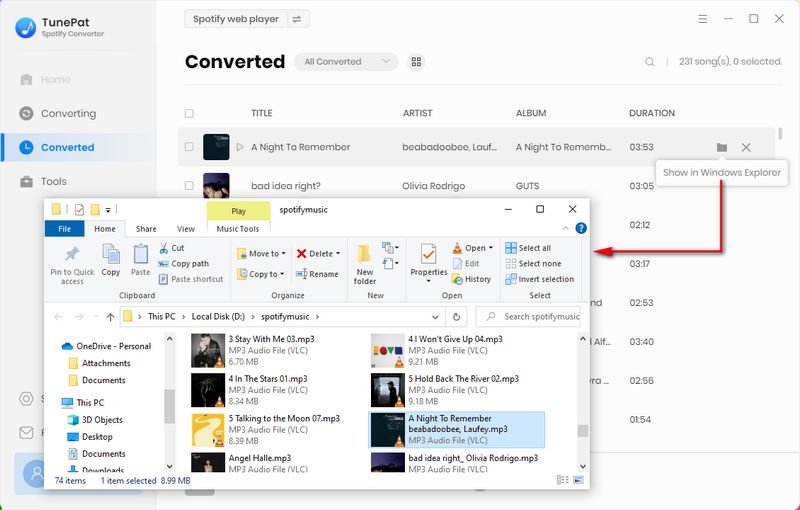
Once the conversion is complete, the output folder will usually open automatically. If it doesn't, you can easily find the saved location in the Settings section of TunePat. Now that your Spotify songs have been successfully converted, you’re ready to import them into PowerPoint and use them as background music for your slides. It's a simple process, you just need to follow the steps below:
Step 1 Add Spotify Music to PowerPoint Slide
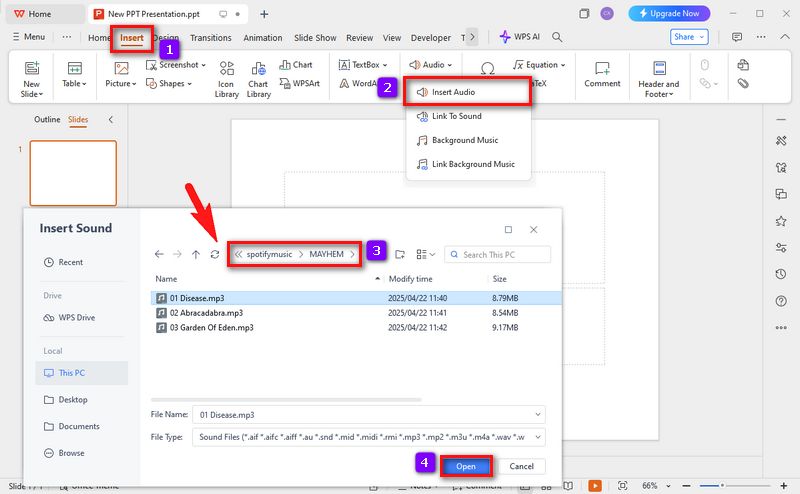
Open your PowerPoint presentation. Navigate to the slide where you want the music to start playing and go to the Insert tab in the top menu. Click the "Audio > Insert Audio" option. Copy the path where the converted Spotify songs are stored, and then paste it into the navigation bar of the Insert Sound pop-up window. Press the Enter key to directly locate the target folder. Select a song and click the "Open" button.
Step 2 Set Up Playback Options for Spotify Music
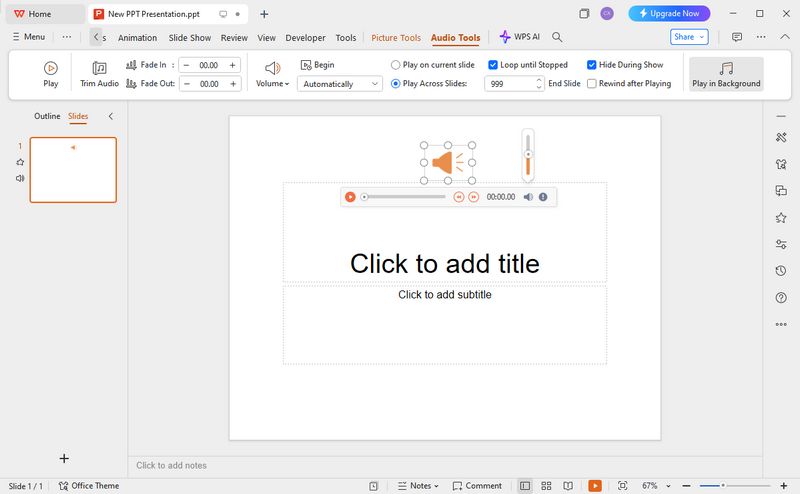
When a speaker icon appears in the slide, a play bar will appear when you mouse over it, which means that your Spotify has been successfully imported. In the Audio Tools module, some buttons can be used to set the playback method of the songs you added, such as:
- Check "Play Across Slides" to continue audio through multiple slides.
- Check "Loop Until Stopped" if you want the track to repeat.
- Check "Hide During Show" in the Playback tab if you want the music to play without showing the speaker icon. (Ensure the audio is set to Automatically or Play Across Slides.)
- Click the "Play in Background" button if you want to achieve the above effects at the same time.
After setting up, enter the "Slide Show" mode (or press "F5") to test whether Spotify music can play normally.
Part 4: FAQs About Adding Spotify Music to PowerPoint
Q1: Can I add Spotify music directly to PowerPoint?
A: No. Spotify songs are protected by DRM (Digital Rights Management), so they cannot be inserted or played directly in PowerPoint presentations. Even downloaded songs for offline listening cannot be used outside the Spotify app. To use Spotify music in PowerPoint, you need to convert the tracks into a standard audio format such as MP3. A tool like TunePat Spotify Converter can help you do this quickly
Q2: Why does Spotify music not play in PowerPoint?
A: Spotify tracks are not standard audio files and cannot be recognized by PowerPoint. Most Spotify music is delivered in formats such as Ogg Vorbis or AAC and is encrypted for streaming or offline playback within the Spotify app. This prevents PowerPoint from detecting or playing the tracks directly.
Q3: What audio format works best for PowerPoint presentations?
A: PowerPoint works best with widely supported audio formats such as MP3, AIFF, and WAV. MP3 is generally recommended because it offers good sound quality while keeping file sizes manageable, which makes presentations easier to share and run smoothly.
Q4: How do I play Spotify music in PowerPoint without internet access?
A: Spotify songs can't play offline in PowerPoint as-is. You need to convert them to MP3 or WAV first. Then you can embed them in your slides and play them without Spotify or an internet connection. TunePat makes this fast and easy, letting you convert playlists, albums, or single tracks into files ready for PowerPoint.
Q5: Will embedded music play on another computer?
A: Yes. As long as the audio file is embedded into the PowerPoint file instead of linked, the music will travel with the presentation and play normally on another device.
Conclusion
Spotify has a huge library of songs and playlists, making it easy to find the right background music for your slides. Adding these songs to PowerPoint is not straightforward due to format and DRM restrictions. In this article, we showed a reliable solution: converting Spotify tracks to MP3 so they can be embedded directly into your slides.
TunePat Spotify Converter makes this process simple. With it, you can convert playlists, albums, or individual tracks from Spotify into standard audio files compatible with any device or software. Once converted, you can play your favorite music seamlessly in PowerPoint, offline or on different computers.



Olivia Anderson
Senior Writer