If you are an Amazon Prime member, you must be familiar with Amazon Prime Music, which provides Prime membership with over 100 million songs and the most ad-free top podcasts at no additional cost. Compared to Amazon Music Unlimited, Amazon Prime Music can only stream music on one device at a time and it will time out after one hour of inactivity on all devices.
Thus, sometimes you may not be satisfied with playing Amazon Music on one device only; you’d like to download them to your computer so that you can keep the songs forever and transfer them to many other devices. Nevertheless, it’s known to us all that Amazon Prime Music is not allowed to be directly saved as local files, as all the songs we access are protected in an encoded format. How to download Amazon Prime Music to a PC? In this article, we are going to adopt a simple yet powerful Amazon Music downloader and show you the tutorial step by step.

Method 1: Using the Official Amazon Music App for PC
The most straightforward way to listen to your music without an active internet connection is through the official Amazon Music desktop application. Amazon allows both Prime Music and Amazon Music Unlimited subscribers to "download" tracks for offline playback directly within their ecosystem.
How to Download Music via the Amazon Music App:
- Download and install the Amazon Music app for Windows or Mac from the official Amazon website.
- Sign in using the credentials associated with your Amazon Prime or Unlimited account.
- Navigate to "Library" or use the search bar to find the songs, albums, or playlists you want to save.
- Click the three dots (More Options) next to a track or album and select Download. Alternatively, look for the downward-pointing arrow icon next to the song title.
Limitations of the Official Method
When you use the official Amazon Music app for PC to download a song, you aren't actually "owning" a file. Instead, the app creates a cached, DRM-protected (Digital Rights Management) data packet.
- You cannot move the files to a USB drive or an MP3 player.
- You cannot play the files in VLC, iTunes, or Windows Media Player.
- You lose access to the downloads if you cancel your Prime membership.
To truly save Amazon Music songs to your computer, you need to convert them into a standard audio format.
Method 2: How to Download Amazon Prime Music as Local MP3 Files
TunePat Amazon Music Converter is a professional Amazon Music tool specially designed for downloading UHD & HD songs from Amazon Prime Music & Amazon Music Unlimited as MP3, AAC, WAV, FLAC, ALAC or AIFF files to a local computer. With two conversion modes, it can export your Amazon Music to your PC/Mac with lossless output audio quality while keeping the ID3 tags after conversion. In this way, you can back up your Amazon Music, transfer your Amazon Music to other devices, play your Amazon Music with more multi-media players, and so on.

TunePat Amazon Music Converter
TunePat Amazon Music Converter is an easy-to-use program, available in both Windows and Mac versions. Below we are going to show you the detailed steps on how to download songs from Amazon Prime Music to your local PC.
Step-by-Step: Converting Amazon Prime Music to PC
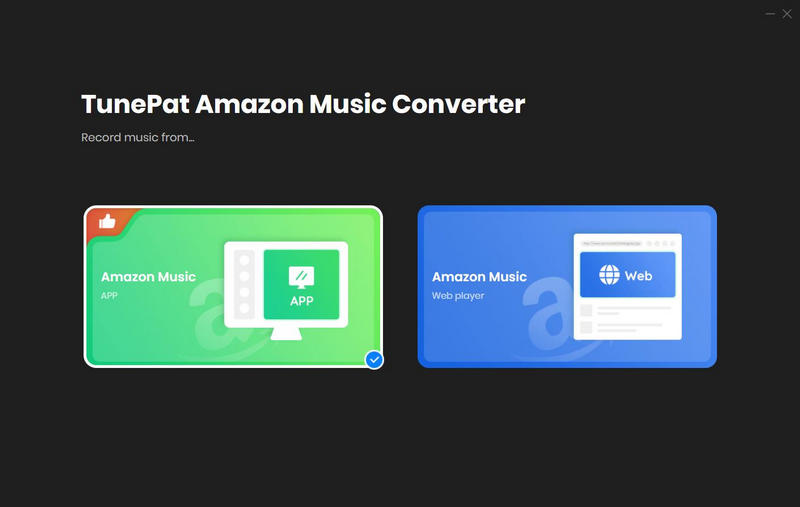
Step 1 Select the Audio Source
TunePat allows you to download music from both Amazon Music app and Amazon Music website. Here are their features listed below.
Amazon Music App: Copy the song URL to download Ultra HD Amazon Music tracks, albums, playlists, and podcasts. Support for up to 5x conversion speed.
Amazon Music Web Player: Use the Amazon Music web player to browse and choose songs, albums, playlists, and podcasts. Supporting 10x download speed without the Amazon Music App and HD sound quality is available for conversion.
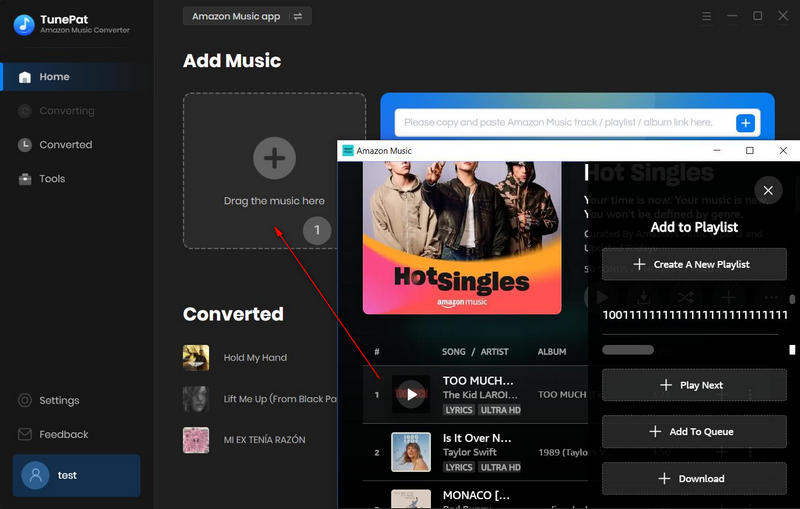
Step 2 Add Amazon Music to TunePat
App Mode: Select an Amazon playlist, artist, album, or podcast in the Amazon Music app and drag it into the "Drag the music here" box. Or you can click the "..." icon beside the songs, albums, or playlists you want to add, then tap on the "Share Song/Share Album/Share Playlist" button and select "Copy Link" to copy the link. Simply paste it into the blue box of TunePat's home page and tap on the blue "+" icon.
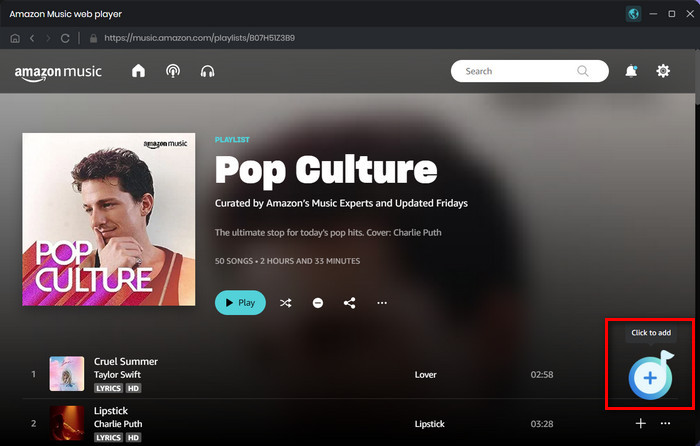
Web Player Mode: Open a playlist, artist, album, or podcast from the Amazon Music web player and then click the "+" button in the in-built Amazon Music web player. TunePat will soon read the selected Amazon songs.
The conversion process can be started by clicking the "Add" button on the current page. If you'd like to choose all the songs in that playlist for converting, simply tick the first box beside "Title". If not, just uncheck it.
Step 3 Change the Output Settings
Click the "Setting" button on the lower left corner, choose the conversion mode, output format(MP3/AAC/WAV/AIFF/FLAC/ALAC), output quality, and output path. Here you can also classify the converted files by Playlist, Artist, Album, Genre, Year, Disc Number, and more.
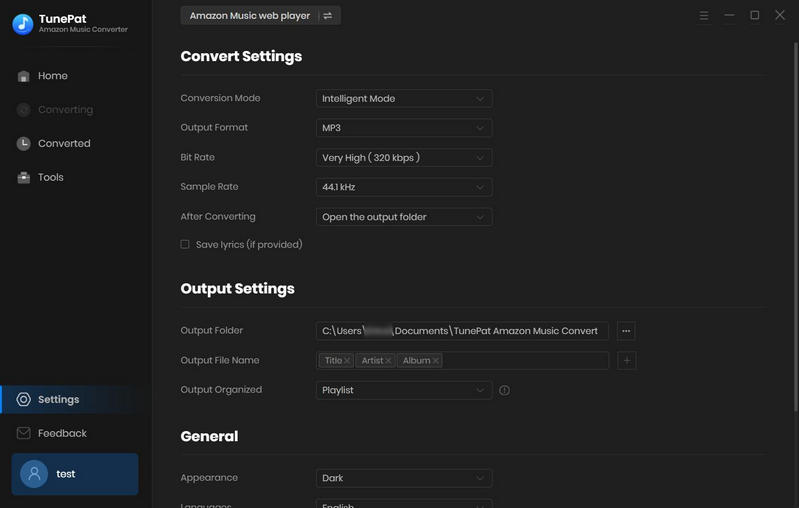
Step 4 Download Your Favorite Amazon Music to Your PC/Mac
Click the "Convert" button to start the conversion and soon they'll be all saved to the output path you customized in Step 3 on your PC.
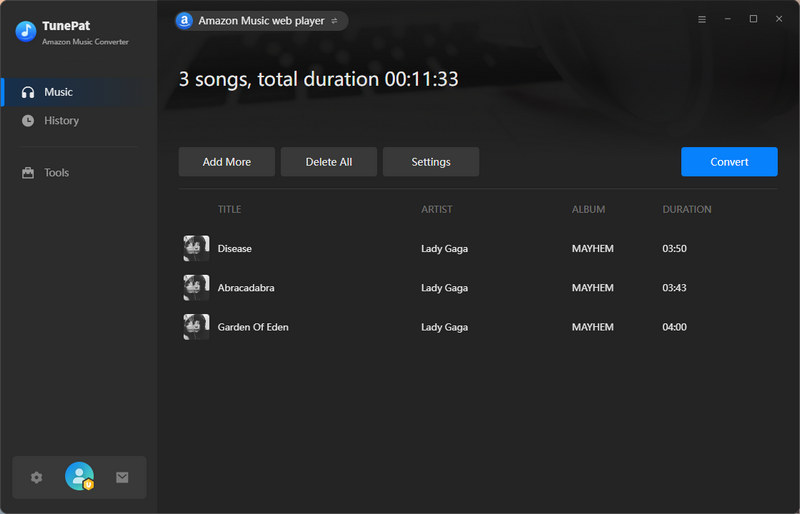
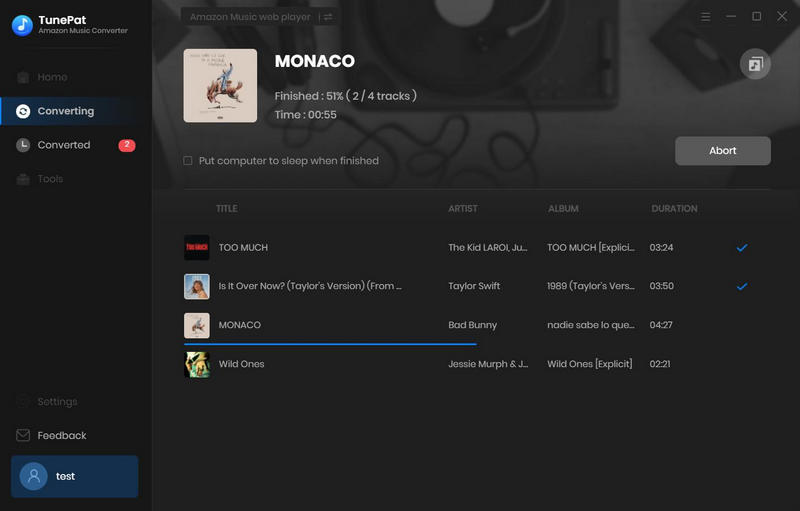
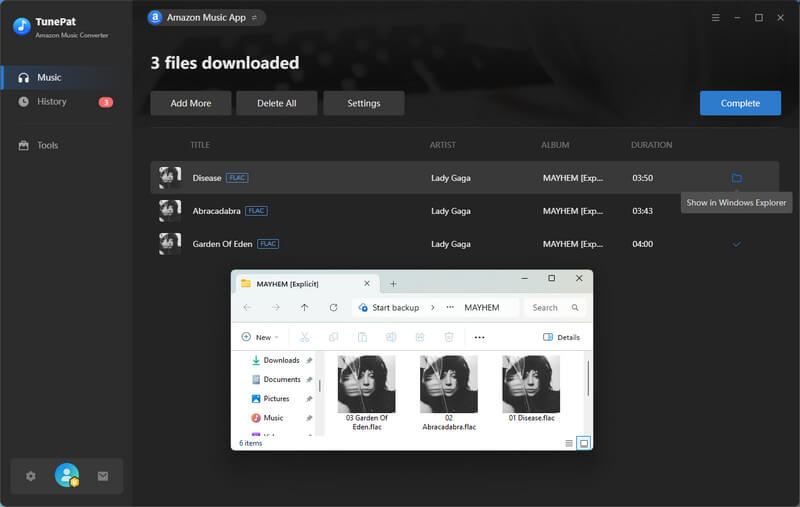
Once the conversion is done, you can find the downloaded Amazon Prime Music by clicking the "History" button on the upper right corner or directly going to the output folder you set in the previous step.
Comparison: Official App vs. TunePat Method
| Feature | Official Amazon Music App | TunePat Amazon Music Converter |
|---|---|---|
| Storage Type | Encrypted Cache | Local Files (MP3/WAV/FLAC/AIFF/ALAC/AAC) |
| Playback | Amazon Music App Only | Any Media Player / Device |
| Move to USB/SD Card | No | Yes |
| Keep After Subscription | No | Yes (Permanent) |
| Offline Quality | Standard / HD | Original HD / Ultra HD |
FAQs: Common Questions About Amazon Prime Music Downloads
Q1: Where does Amazon Music save downloads on PC?
A: By default, the official app saves data in a hidden folder: C:\Users\[Username]\AppData\Local\Amazon Music\Data. However, these files are not playable outside the app. Using TunePat allows you to save them to any folder of your choice (like your "Music" or "Desktop" folder) as standard files.
Q2: Can I save Amazon Music songs to my computer for free?
A: While Prime Music is included with your Amazon Prime membership, there is no "free" way to export them as MP3s through Amazon. A professional tool like TunePat is the most secure and effective way to ensure high-quality downloads.
Q3. Is it legal to download Amazon Music to my computer?
A: Downloading for personal, offline use is generally considered fair use. As long as you have a valid Amazon subscription and do not distribute or sell the files, you are free to enjoy your music on your own devices.
Downloading Amazon Prime Music to PC gives you permanent, DRM‑free access to your favorite songs. While the official Amazon Music app is a solid choice for temporary offline listening, it keeps your library locked within a "walled garden." If you want to truly save Amazon Music songs to your computer—free from DRM, encryption, and subscription expiration—TunePat Amazon Music Converter is the professional's choice.